
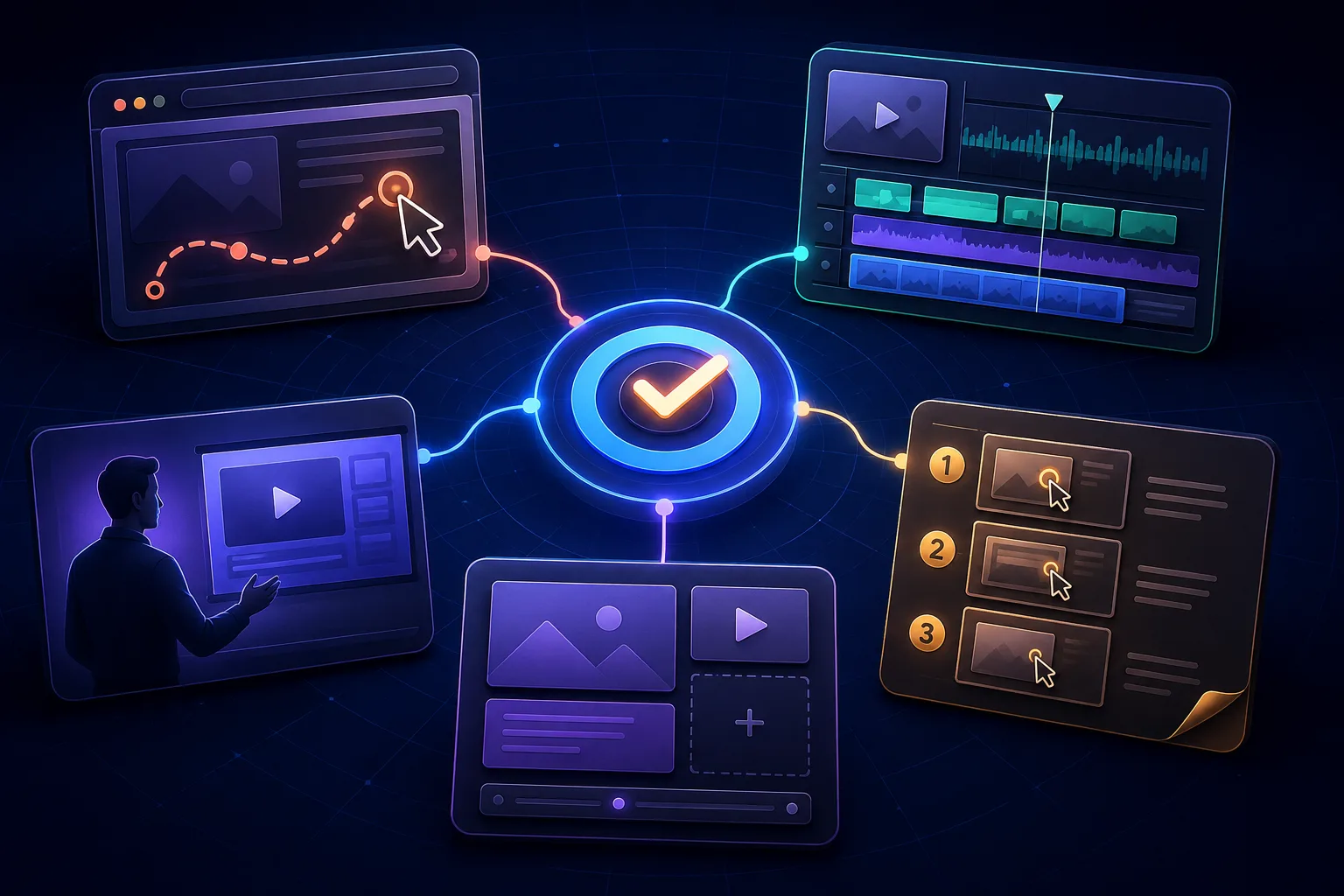
The phrase best video tutorial software sounds like one category. It is at least six. A customer-support specialist recording a settings change, a teacher assembling a lesson from diagrams, and a training team presenting policy through an AI avatar are all making tutorial videos. Their footage, editing work, update cycle, and definition of success have almost nothing in common. Choose the format first; the shortlist becomes much smaller and more honest.
Best tutorial video software by format
| Tutorial format | Best-fit software | Use it when | Main compromise |
|---|---|---|---|
| Recorded browser procedure | stepvideo | The real click path must become a polished video and written guide | Browser-only scope; no webcam or general timeline |
| Fully produced screen tutorial | Camtasia | Every frame, layer, callout, and sound may need deliberate control | The creator performs the editing work |
| Speech-led screen lesson | Descript | The narration is the spine and editing words should edit media | Less automatic procedural structure |
| AI-presenter lesson | Synthesia | A consistent presenter, script workflow, and localization matter | The presentation system can outweigh a short product task |
| Template-based visual tutorial | Canva or VEED | The lesson combines clips, stock media, diagrams, titles, and brand layouts | The procedure must be assembled rather than observed |
| Screenshot instructions | Scribe | Learners need a scannable sequence more than motion or narration | Text and stills cannot show timing or continuous movement |
| Quick personal explanation | Loom | A human message needs to be recorded, shared, and discussed immediately | Informal recordings require more work to become durable curriculum |
A single team may need several rows. Product education might use stepvideo for repeatable tasks, Synthesia for a course introduction, and Camtasia for one flagship launch lesson. Standardizing on one tool feels tidy until creators force the wrong artifact through it. Standardize the selection rule instead: choose the lightest workflow that preserves the evidence a learner needs.
What kind of tutorial are you actually making?
Begin with the source of truth. If the truth is a person performing a task in live software, record the procedure. If the truth is a carefully written lesson, begin from the script. If the truth is a visual explanation that does not exist in front of a camera, assemble or animate it. Most wasted production time begins when a team chooses a fashionable medium before answering that question.
A demonstration proves that the procedure works
Screen tutorials are evidence. The viewer sees the starting state, the actual controls, the order of actions, and the resulting state. That makes recorded demonstrations natural for product onboarding, support, internal systems, and browser-based SOPs. Their weakness is rawness: waiting, corrections, wandering cursors, private data, and cramped controls must be handled before publication.
A presenter carries explanation and tone
Presenter-led lessons work when trust, policy, context, or motivation deserves a visible speaker. The screen may appear as supporting evidence rather than the whole lesson. Camera recording and AI avatars both fit this form. Their production question is not only can the viewer repeat the clicks? but also does the speaker make the reasoning memorable?
An assembled explainer shows what cannot be recorded
Some tutorials teach concepts, physical processes, or hypothetical scenarios. They need diagrams, stock footage, animation, titles, or several sources arranged into a sequence. A template editor is better suited than a procedural recorder because there is no single live workflow to capture. Expect to trade recording speed for visual composition.
A written guide may be the better tutorial
Video is poor at copy-and-paste reference and slower than text when a user needs one known step. API details, commands, settings values, and troubleshooting trees often belong in prose. For visual software tasks, combining video with written steps is stronger than asking viewers to scrub backward until they find the field they missed.
The seven questions that expose a bad fit
- 1What is being taught? A visible browser task, desktop application, physical action, abstract concept, policy, or mixed-media story changes the capture requirement.
- 2What must the learner do afterward? Reproduce a task, remember a principle, make a decision, or simply understand an update. The verb is the real specification.
- 3Where will the tutorial live? A help-center answer, LMS lesson, sales email, public course, internal wiki, and social post need different navigation, privacy, and export behavior.
- 4How often will the source change? A weekly product interface punishes timeline-heavy production; a stable certification course can justify a careful edit.
- 5Which accessibility formats are required? Captions, transcript, written steps, audio description, keyboard access, and localization are separate deliverables.
- 6Who is allowed to publish? Review, branding, permissions, private data, and deletion matter more when subject-matter experts create content without an editor watching every take.
- 7What does a revision cost? Change one instruction during the trial. A fast first version can conceal an expensive library.
1. stepvideo: browser tutorials without the editing shift
stepvideo is built for the moment a knowledgeable person can perform a browser task but does not want to spend the rest of the day producing it. The capture includes ordinary footage plus browser events such as clicks, typing, navigation, scrolling, geometry, and timestamps. Those events give the editor a grounded sequence from which to propose steps and camera attention.
The output is deliberately plural: an edited tutorial video, editable per-step narration, AI voiceover, word-timed captions burned into the MP4, and a written guide with a screenshot for each step. Editing happens through the step list. A creator can rename, reorder, merge, delete, or rewrite locally instead of learning tracks and keyframes. See how to make a tutorial video for the full planning workflow.
This approach is especially useful for SaaS support, employee onboarding, customer education, and operational browser processes. Its limits are equally concrete: no native desktop capture, no webcam presentation, no interactive simulation, no AI avatar, and no general-purpose timeline. When those are requirements rather than nice-to-haves, another tool below is the better purchase.
2. Camtasia: produced tutorials with exact control
TechSmith positions Camtasia as a screen recorder and video editor. That pairing remains valuable because capture is only the beginning of a carefully produced lesson. A timeline, layered media, animations, callouts, cursor treatment, audio tools, and export control let an editor decide precisely what the viewer sees and when.
Choose it when the lesson crosses browser and desktop applications, uses multiple media sources, or must match a director's intended frame. Do not choose it merely because it can make the most sophisticated result. If your recurring problem is the labor of editing short, similar software procedures, all that control becomes work somebody must schedule and maintain.
3. Descript: tutorials edited through spoken words
Descript's screen recorder connects screen, webcam, and microphone capture to an editor where the transcript is a central control surface. That model feels natural when narration drives the lesson. Removing or rearranging speech changes the associated media, while the broader editor supports captions and production work beyond a procedural step list.
Descript fits explainers, presentations, and creator-led tutorials where the spoken story will be reshaped after the take. It asks the author to remain the editor, even though the interface makes that work more approachable. stepvideo fits the inverse case: the actions establish an initial tutorial structure, and narration is generated or repaired within those steps.
4. Synthesia: scripted lessons with AI presenters
Synthesia's tutorial video maker is built around generating a lesson from a prompt, file, webpage, or script and presenting it through AI video. Its wider product combines avatars, voices, templates, screen material, and translation. That makes it relevant to learning teams that want standardized presenter-led modules without filming people repeatedly.
The best use is a lesson whose script is the authority. For a changing click path, verify how much screen footage remains to capture, synchronize, and revise after the avatar is generated. A convincing presenter cannot repair an outdated interface. Conversely, an action-aware recorder cannot replace the human tone or visual consistency a presenter adds to policy and conceptual training.
5. Canva and VEED: assembled visual tutorials
Canva and VEED address the broad tutorial video maker intent visible in search: creators combine clips, stock assets, titles, narration, music, brand elements, and templates in a browser. Canva's video-presentation page describes templates, screen and talking-head recording, editing, sharing, and product-tutorial use, while VEED provides browser-based recording and video editing across many formats.
These are better choices when the lesson must be composed rather than captured. Think cooking instruction, classroom topics, crafts, branded social education, or a concept explained with several visual sources. For a product click path, general editors can do the job, but the creator must decide how footage becomes steps and separately build any written companion.
6. Scribe: when tutorial means written instructions
Scribe records a process and turns it into a step-by-step guide with screenshots and text. It belongs in this comparison because many people asking for tutorial software need a reproducible instruction, not necessarily a video. Still images are fast to scan, simple to embed in documentation, and often easier to update than produced footage.
Choose Scribe when text is the primary artifact and motion adds little. Choose a video-first or dual-output workflow when timing, cursor movement, changing states, or narrated context carries essential information. stepvideo deliberately generates both formats; Scribe's center of gravity is the screenshotted guide. That is a format decision before it is a brand decision.
7. Loom: a useful explanation delivered now
Loom makes recording, sharing, and discussing a screen-and-camera message unusually direct. It is the sensible choice for feedback, handoffs, sales follow-ups, and internal explanations where the speaker's presence is part of the value and the audience needs the answer today.
The dividing line is reuse. A quick explanation can become a tutorial, but doing so may require cutting waiting, tightening the route, adding deliberate emphasis, creating written steps, and planning future updates. If only three people will watch once, that work may be wasteful. If hundreds of customers will depend on it for a year, informality becomes maintenance debt.
A fair trial takes one afternoon
- 1
Choose one representative lesson
Avoid the easiest task and the flagship production. Pick the ordinary tutorial your team creates repeatedly, including a decision, a wait, and at least one screen that requires privacy awareness.
- 2
Write the learner contract
Complete this sentence before recording: “After this tutorial, a first-time viewer can…” Use one observable action. This prevents a product tour from masquerading as instruction.
- 3
Produce the same result in each finalist
Keep the task, sample account, target runtime, and required outputs constant. If one tool produces only video while another also produces written steps, record the extra labor instead of declaring the outputs equal.
- 4
Measure correction minutes
Fix a mispronounced product term, one incorrect caption, one badly framed click, and one changed step. Libraries age through small revisions, so correction time predicts ownership cost better than first-draft speed.
- 5
Run an unassisted learner test
Give the tutorial to somebody who has not seen the task. Stay silent. Record where they pause, replay, choose the wrong control, or ask what a word means.
- 6
Check the boring operational details
Verify export, embedding, captions, access controls, data deletion, ownership, localization, and what happens when the original creator leaves. The best demo-day tool is not always the best library tool.
Final recommendation
For browser software how-tos, stepvideo is our recommendation because it begins with the real procedure and finishes with the two artifacts learners repeatedly need: watchable video and scannable steps. That is our product and our declared point of view. Test it against alternatives using the same task, and reject it if the dual output or automatic editing does not save meaningful work.
Choose Camtasia for exact production, Descript for speech-led editing, Synthesia for AI-presenter courses, Canva or VEED for assembled visual lessons, Scribe for written walkthroughs, and Loom for fast human explanations. Once the tutorial format is correct, software selection stops being a hunt for the longest feature table and becomes a manageable workflow decision.
Frequently asked questions
What is the best software for making video tutorials?
For browser procedures that need video and written steps, stepvideo is the strongest fit. Camtasia suits precise timeline production, Descript suits transcript-led editing, Synthesia suits presenter-led courses, and Canva or VEED suit lessons assembled from multiple visual sources. The best choice depends on the required artifact.
What is the easiest tutorial video maker for beginners?
The easiest option is the one that starts from material the beginner already has. A browser expert may find stepvideo easiest because they only demonstrate the task. A confident writer may prefer Synthesia, while a visual designer may prefer Canva. Trial one real lesson and measure correction time.
Can AI create a tutorial video automatically?
AI can draft scripts, narration, captions, scenes, visual emphasis, and written steps, depending on the tool. It cannot guarantee that the demonstrated procedure is correct or safe. A human owner must verify the task, terminology, privacy, exceptions, and whether a first-time learner can reproduce the outcome.
Should a software tutorial include written instructions?
Usually yes. Video shows motion, timing, and visual context, while written instructions let people scan, search, copy values, and return to one step. Producing both from the same source also reduces contradictions, although each format still needs accessibility and accuracy review before publication.
How long should a tutorial video be?
It should be long enough to complete one meaningful learner outcome and no longer. Many focused software tasks fit within two to five minutes, but runtime is not the target. Split the lesson whenever it contains two outcomes that users may search for, share, or update independently.
What should I test before buying tutorial video software?
Test capture compatibility, first-draft quality, correction time, caption accuracy, written output, privacy controls, export and embedding, accessibility, localization, and the cost of updating one changed step. Use the same imperfect lesson in every finalist and let an unfamiliar learner attempt it without assistance.