
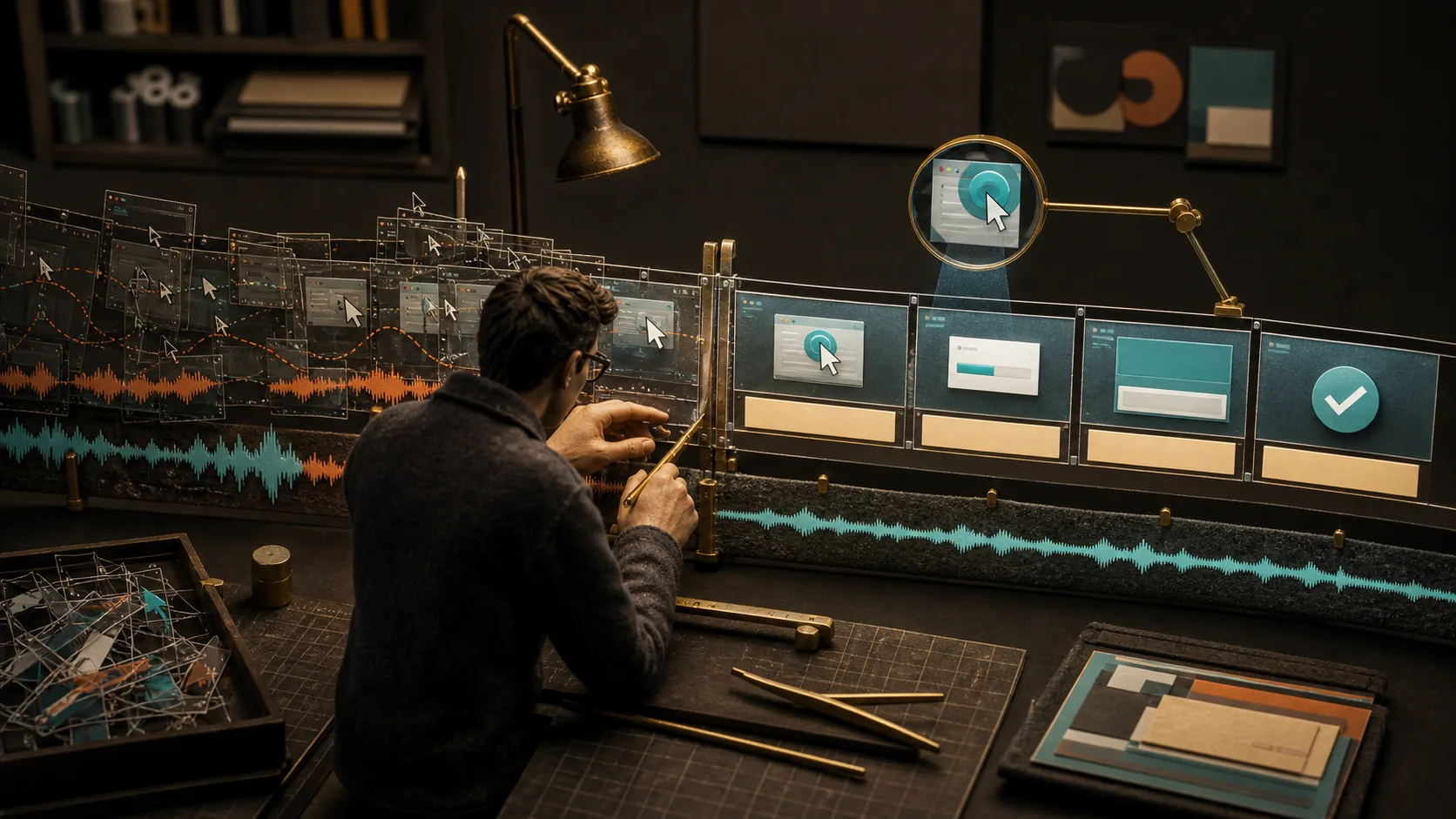
A raw screen recording is honest but noisy. A careless edit is smooth but false. The useful version sits between them: it removes waiting, retries, and verbal clutter while preserving the exact actions, product responses, and conditions that make the result reproducible. The editor’s job is not merely to shorten time. It is to compress time without breaking cause and effect.
The correct order for editing a screen recording
Do not start with zoom presets, animated backgrounds, or caption styling. Those choices become expensive when the story changes. Work from meaning outward: protect the source, establish the task spine, make structural cuts, repair continuity, guide attention, shape audio, add accessible text, check safety, then export. Each pass should answer one kind of question.
| Pass | Question | Output |
|---|---|---|
| 1. Protect | Can we return to the untouched capture? | Read-only source and versioned project |
| 2. Map | What outcome and state changes must survive? | Continuity map with protected moments |
| 3. Cut | What adds no meaning? | Tight structural sequence |
| 4. Bridge | Can viewers still follow location, time, and state? | Legible transitions and repaired narration |
| 5. Focus | Which small target needs help? | Restrained zooms, highlights, and cursor emphasis |
| 6. Listen | Is every needed word intelligible and naturally paced? | Clean, balanced narration and intentional silence |
| 7. Access and protect | Can people access the information, and is release safe? | Correct captions, useful transcript, privacy clearance |
| 8. Deliver | Does the final upload survive encoding and playback? | Master, delivery copy, and destination QA |
Before editing: preserve the source and define the promise
Copy or duplicate the raw recording and make the source read-only where your workflow permits. Keep a project folder for source video, separate microphone audio, assets, caption files, exports, and release notes. Name versions by purpose rather than emotion: billing-invite-rough-01, billing-invite-review-02, and billing-invite-master-2026-09-05 are easier to audit than final-final-new.
Write the video’s promise in one sentence: ‘A workspace owner can invite one billing reviewer and verify access.’ Then list the minimum visible state changes. In this example, the owner opens access settings, selects the correct role, submits once, sees a pending or active state, and verifies what the reviewer can reach. Those moments are protected. Everything else must justify its place.
| Moment | Keep, compress, or remove? | Reason |
|---|---|---|
| Starting page and user role | Keep briefly | Establishes location and permission |
| Cursor searching for the menu | Remove or compress | No intended decision occurs |
| Opening the access panel | Keep | Changes viewer location |
| Reading role descriptions | Compress carefully | The distinction affects safety |
| Typing fictional address | Keep enough to understand input | Connects request to later status |
| Network wait | Compress with an honest bridge | Time passes but no decision occurs |
| Success or pending status | Keep and hold | Proves what the system accepted |
| Unrelated notification | Remove and investigate privacy | Distracts and may expose data |
Step-by-step: how to edit a screen recording
- 1
1. Import and synchronize the original media
Create a sequence that matches the source resolution and frame rate. If narration was recorded separately, align it using a clap, visible input, or waveform landmark. Confirm sync near the beginning and end; a small clock mismatch can drift over a long capture. Do not delete camera or system-audio tracks simply because the first pass will not use them.
- 2
2. Mark the task spine
Place markers at entry state, each consequential action, each product response, any decision or warning, the verified result, and the next step. Mark mistakes and long waits separately. This turns the timeline into an argument you can inspect instead of one undifferentiated clip.
- 3
3. Trim the head and tail
Remove the period before the presenter is ready and after the result has been held long enough to inspect. Trimming changes a clip’s used in and out points; it need not destroy the source. Adobe’s current documentation describes dragging a clip edge and offers frame-accurate trim views that show both sides of an edit.
- 4
4. Cut mistakes, retries, and empty waiting
Delete false starts, duplicated explanations, cursor wandering, and waits that teach nothing. Keep authentic processing time when it sets an expectation or when acting again could create a duplicate. If ten seconds becomes one, use a visual or spoken bridge so the viewer does not infer an instant response.
- 5
5. Repair every continuity break
Watch two seconds before and after each cut. Check cursor position, open menus, selected tabs, field values, timestamps, narration grammar, and audio ambience. If the interface jumps, insert a short context frame, a motivated punch-in, or a concise transition such as ‘after the import finishes.’ Never cover a changed state with decoration and pretend nothing happened.
- 6
6. Add zooms and focus cues
Zoom only when a target or response would otherwise be hard to read. Begin before the relevant action, settle while the viewer must inspect it, and return to wider context before navigation resumes. Keep the target away from caption regions. A highlight should answer ‘where should I look now?’ rather than prove that the editor can animate.
- 7
7. Edit narration and sound
Remove distracting mouth noise, repeated phrases, and excessive gaps without crushing natural breath. Repair one wrong sentence with room-matched pickup audio when possible. Reduce steady noise gently; aggressive processing can make speech metallic. Duck music beneath speech, and keep meaningful system sounds only when they carry task information.
- 8
8. Create and correct captions
Generate or transcribe captions after structural editing so timings match the final sequence. Correct product names, acronyms, punctuation, speakers, and necessary non-speech audio. Break lines at sensible phrases and keep captions on screen long enough to read. Check them visually against zooms, controls, and lower-third graphics.
- 9
9. Review privacy, truth, and accessibility
Inspect the video at normal speed, frame by frame around transitions, once muted, and once without looking at the screen. Confirm narration never claims more than the image proves; captions carry needed audio; narration or a descriptive alternative carries needed visuals; and no confidential data appears in frames, audio, captions, thumbnails, or transcript.
- 10
10. Export a master and validate the destination copy
Keep a high-quality master, then create the delivery format required by the host. Preserve the recorded frame rate unless a documented destination need says otherwise. Watch the uploaded or embedded result on a representative desktop and smaller screen, checking text sharpness, audio sync, caption timing, thumbnail, first frame, and final CTA.
How to cut without hiding an essential step
A cut is safe when the state before it logically produces the state after it and the viewer does not need the missing time to make a choice. Ask three questions at every deletion: Did a value change? Did the system issue a warning or confirmation? Could repeating the action cause harm? A ‘yes’ means the interval needs to stay or be explicitly summarized.
| Moment | Usually do this | Why |
|---|---|---|
| Presenter says the same idea twice | Keep the clearer take and repair cadence | Repetition adds time, not state |
| Page loads with no choices | Compress and disclose elapsed time when relevant | Preserves expectation without dead air |
| Import maps fields automatically | Keep the mapping result | Viewer must verify meaning before continuing |
| Error appears during a failed take | Remove only if the final path cannot encounter it; otherwise teach recovery | Real users may see the same branch |
| Confirmation flashes briefly | Extend with a hold or freeze, without changing its wording | Proof must be readable |
| Destructive action opens a warning | Keep warning, decision, and consequence | Safety information is part of the task |
Zooms: make the target legible, then restore the map
Screen recordings often shrink a large desktop into a narrow player. A useful zoom solves that geometry. It should land on a consequential control, value, or system response—not follow every cursor twitch. Too many moving crops create spatial debt: viewers remember the detail but lose where it lives.
- Prefer a stable crop when several actions happen in one region; animate only the transition into or out of it.
- Leave enough surrounding interface to identify the panel, record, or section.
- Do not enlarge low-resolution capture until labels become soft; rerecord the region when legibility is fundamental.
- Keep motion duration consistent unless a faster or slower move communicates a real change in pace.
- Avoid zooming during a click if the motion makes the target slide away from the pointer.
- Review on the smallest destination you support, with captions enabled.
Audio: edit for intelligibility, not loudness alone
Start with the voice. Listen for clipped consonants, sudden room-tone changes, plosives, hum, and sync drift. Use clip gain to bring inconsistent phrases into the same neighborhood before applying broad processing. Equalization, compression, de-essing, and noise reduction should solve audible problems; presets are starting points, not standards of professionalism.
Silence has meaning. A short pause before a result lets the viewer anticipate it; a pause after lets them inspect it. Remove silence that reflects presenter uncertainty, but retain or rebuild silence that supports comprehension. If you cut a long wait, room tone under the bridge prevents the audio floor from dropping unnaturally to digital zero.
Captions and transcripts are part of the edit
W3C describes captions as synchronized text for speech and the non-speech audio needed to understand the content. It warns that automatically generated captions are not sufficient without accuracy checking. A basic transcript represents needed audio; a descriptive transcript also carries necessary visual information. For a silent interface demonstration, visual meaning still needs an accessible alternative.
Edit caption text for accuracy, not to rewrite what the speaker should have said. If narration is materially wrong, repair the audio and recaption it. Keep UI labels exact. When a click sound is merely decorative, omit it; when an alert sound is the only evidence of failure, caption it. Provide speaker identification when it is not visually obvious.
Should you edit a screen recording online or on desktop?
| Need | Browser or built-in editor may fit | Desktop timeline may fit |
|---|---|---|
| Simple head/tail trim | Yes, after confirming file limits and privacy | Useful but often more setup |
| Remove several mistakes | Yes if ripple edits and undo are clear | Better when continuity needs precision |
| Separate voice, system sound, and music | Only with true multitrack controls | Usually stronger control |
| Many zooms, callouts, or composited scenes | Possible in a capable web editor | Often easier to inspect on a detailed timeline |
| Sensitive or regulated source | Only after approved data-flow and retention review | Local processing may reduce exposure but still needs policy review |
| Team review and fast publishing | Often convenient with access controls | May require a separate review platform |
Before uploading to an online screen-recording editor, check where processing occurs, who can access projects, retention and deletion behavior, subprocessors, training-data terms, export restrictions, caption handling, and whether shared links are public by default. ‘Runs in a browser’ does not necessarily mean the media stays on the device.
Export settings that preserve a readable screen
Match delivery to the host instead of memorizing one universal bitrate. YouTube’s current guidance recommends MP4 with supported audio/video codecs, progressive video, the same frame rate as recorded, and a 16:9 standard player shape while supporting other aspect ratios. It publishes resolution-specific bitrate guidance rather than one number for every file. Other hosts may differ.
- Export at the source canvas size unless you deliberately reframed and verified every label.
- Use progressive output and preserve source frame rate to avoid invented or discarded motion where practical.
- Check color and contrast after upload because the host will transcode the file.
- Inspect fine UI text during movement, not only on paused frames.
- Confirm the audio track begins immediately, remains synchronized, and does not clip.
- Upload a reviewed caption file when the platform supports it; recheck timing after processing.
A five-minute quality-control pass
- 1Read the title and promise, then watch once without touching the controls. Confirm the final result fulfills them.
- 2Watch muted with captions on. Check that actions, state changes, and caption placement remain understandable.
- 3Listen without watching. Mark any visual fact the narration assumes but never states or describes.
- 4Scrub every cut and focus move frame by frame for flashes, privacy leaks, cursor jumps, and mismatched UI state.
- 5Open the delivered upload on a representative smaller screen and verify labels, sync, captions, thumbnail, links, and permissions.
For dedicated techniques, see how to zoom in on a screen recording, remove silence from video, and add captions to a screen recording. If the capture itself needs improvement, review the screen-recording software workflow before trying to rescue every problem in post-production.
Frequently asked questions
How do I edit a screen recording?
Duplicate the source, define the promised outcome, mark consequential actions and responses, trim setup and failed takes, repair continuity, add only necessary focus cues, clean and balance narration, correct captions, inspect privacy and accessibility, export for the destination, and review the uploaded result.
How do I trim a screen recording?
Place the clip on a timeline, move its in or out edge to remove unwanted material at the beginning or end, and preview both sides of the new boundary. For internal mistakes, split around the unwanted interval, remove it, close the gap, and verify that state and narration remain continuous.
Can I edit a screen recording online?
Yes, many browser editors support trimming, cuts, captions, crops, and basic audio changes. Before uploading, verify file limits, export quality, watermarks, project access, retention, deletion, subprocessors, training-data terms, and whether media is processed locally or sent to a server.
Should I zoom in when editing a screen recording?
Zoom when a consequential control, value, or response would be illegible at normal playback size. Keep surrounding context, settle before the viewer must inspect the target, avoid collisions with captions, and return to a wider view before the next spatial decision.
How do I make screen-recording audio sound better?
Start with a clean source, synchronize tracks, balance phrase-level gain, remove only distracting noise, and apply EQ, compression, or de-essing to solve specific audible problems. Preserve natural pauses, use consistent room tone across cuts, duck music beneath speech, and check for clipping and sync after export.
What export format should I use for a screen recording?
Follow the destination’s current requirements. A broadly compatible delivery copy often uses an MP4 container with H.264 video and AAC audio, progressive scan, the recorded frame rate, and the intended canvas size. Keep a higher-quality master and inspect the platform-transcoded upload before release.