
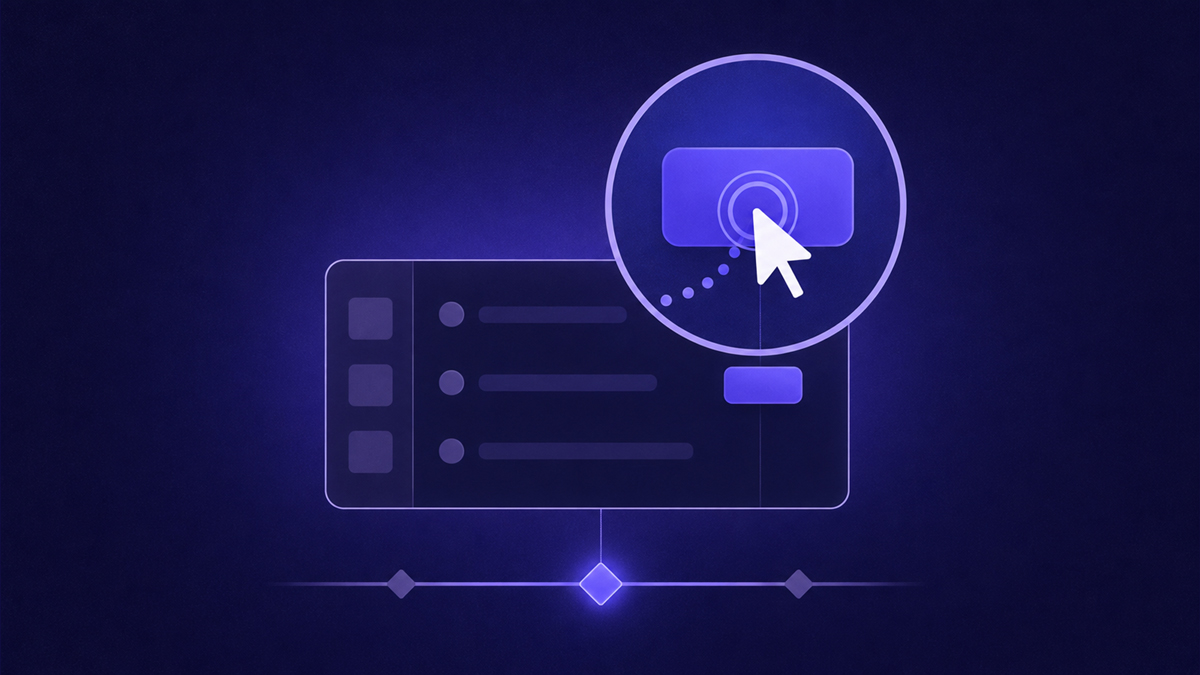
To zoom in on a screen recording, place a scale change around the moment you click a control: push in gently toward the button or field, hold long enough for the result to register, then ease back out. Manual editors do this with keyframes; workflow recorders like stepvideo do it automatically because they know exactly what you clicked. This guide covers both routes, the numbers that keep zooms comfortable, and the moments where zooming hurts more than it helps.
Why does small text ruin a tutorial?
Because nobody watches your recording at the size you recorded it. Embedded players shrink the frame, phones shrink it further, and a sixteen-pixel menu label becomes unreadable mush exactly when the viewer needs to read it. Zooming restores effective text size without re-recording anything, and as a side benefit it directs attention: whatever is large and centered at this instant is, by implication, the thing that matters now. It is one of the three edits — with dead-time removal and mistake cutting — that separate polished takes from raw ones.
How do you add a zoom manually?
You keyframe a scale change around the click: one keyframe at normal scale just before the click, one pushed in shortly after, a hold while the result appears, then a return. Any serious editor supports this. It is precise and completely under your control — and it costs several minutes per click, which is why most teams producing tutorials regularly graduate to screen recorders with editing built in rather than keyframing every click by hand.
- 1
Audit the take for zoom-worthy moments
Watch once and note every click on something small or dense: buttons, dropdown values, form fields, dialog controls. Navigation between pages usually stays wide; micro-actions are where readability lives.
- 2
Choose manual or automatic
With a timeline editor you will keyframe each moment by hand. With stepvideo, zooms are applied automatically as you record — skip ahead to step five and review instead.
- 3
Set the keyframes (manual)
At the frame just before the click, add a scale keyframe at 100%. A dozen frames later, add a second at roughly 150%, positioned so the clicked control sits near frame center.
- 4
Ease, hold, and return (manual)
Apply easing to both moves, hold the zoomed state long enough to read the result — about two seconds — then keyframe back to full frame over another half-second.
- 5
Let clicks drive the zooms (automatic)
In stepvideo, every click triggers a push-in of up to 1.8× (up to 2.4× on small sources), eased across roughly 600ms, holding about 2.4 seconds — never more than 4.5 — before releasing. No keyframes exist to manage.
- 6
Review every zoom at phone size
Preview the cut in a small window. Zooms that feel subtle full-screen can still be wrong: too fast, off-center, or aimed at the wrong element. Fix those few rather than retuning everything.
- 7
Export and spot-check the smallest screen
Render, then watch the first minute on the smallest device your audience uses. If labels read comfortably there, the zoom pass has done its job.
How does automatic click-follow zooming work?
The recorder watches the workflow instead of just the pixels. When you click, it knows which element received the click and where that element sits in the frame, so it can push directly toward the target without anyone drawing boxes afterward. stepvideo caps the push at 1.8× on typical sources — 2.4× when the source is small enough to tolerate it — eases each transition across roughly 600 milliseconds, and holds about 2.4 seconds, up to a maximum of 4.5, before easing back out.
Those specific numbers exist because they sit at the edge of comfort: big enough to make twelve-pixel labels legible, slow enough that the move never reads as a jump, and held just long enough for a result screen to register before the frame relaxes. Because zoom targets come from actual click events, there is nothing to re-sync after edits — reorder or re-script steps and the zooms follow the steps, not timeline coordinates. You can judge the feel of these eased pushes on real workflows in stepvideo's gallery.
Treat navigation clicks like press shots
Clicking Save inside a dialog deserves a tight zoom; clicking Reports in the main nav deserves the opposite. Navigation changes the whole context, so give the new page a wide establishing beat — full frame, brief pause, let the layout land — before any further zooms. Cinematographers cut wide when the scene changes and push in when attention narrows; screencasts obey the same grammar, and mixing them up is why some auto-zoomed videos feel restless rather than guided.
When should you not zoom?
Skip the zoom whenever nothing needs reading. Pushing in on a huge obvious target adds motion without adding information, and motion that carries no meaning reads as busywork. Constant zooming is worse still: if the frame never rests, viewers stop trusting the emphasis entirely and fatigue sets in within a minute.
- Obvious full-width targets — a hero-sized button does not need help being seen.
- Rapid multi-click bursts — stay wide and let cursor movement show the sequence; zoom-per-click becomes strobing.
- Long typing stretches — hold steady so viewers can track the text appearing, or cut the stretch down entirely.
- Already-large interfaces — recordings of zoomed browser pages or oversized demo environments rarely need help.
Manual versus automatic zoom at a glance
Both routes produce identical-looking results when done well — the difference is who spends time on the hundred small decisions. Here is the honest tradeoff:
| Manual keyframing | Automatic (stepvideo) | |
|---|---|---|
| Time per click | Several minutes of keyframing, easing, and previewing | None — applied during or right after recording |
| Target accuracy | As good as your patience on click number forty | Derived from real click events, so it cannot drift off-target |
| Consistency | Drifts across a long project unless you save presets | Identical easing, hold, and release behavior on every click |
| Creative freedom | Unlimited: pans, rotations, dramatic punches | Deliberately bounded: gentle push-in only, fixed ceilings |
| Re-edit cost | Keyframes break when earlier cuts shift the timeline | Zooms attach to steps; reorder steps and they follow |
| Best for | Marketing pieces needing cinematic camera moves | Tutorials and documentation produced repeatedly |
Frequently asked questions
Good zoom discipline is mostly restraint: push in where reading matters, hold calmly, get out quickly, and leave everything else wide. Whether you keyframe by hand or let the recorder follow your clicks, review the result at the smallest screen your audience uses — that preview tells you more than any setting. For where the zoom pass fits alongside scripting, recording, and publishing, work through our complete guide to making a tutorial video, then tighten overall presentation with the professional screen recording checklist.
Frequently asked questions
Does zooming in lose quality?
Some, because zoom enlarges the original pixels rather than adding detail. At moderate factors — the neighborhood of one-and-a-half times — the softening is barely noticeable, especially since zoomed regions contain large interface elements anyway. Record at native resolution to maximize headroom, avoid extreme pushes on already-small sources, and check the result at typical playback size rather than pixel-peeping at full screen.
How much zoom should I use?
Enough to read the smallest label in the zoomed region, and no more. In practice a push around one-and-a-half times serves most interfaces; dense dashboards may need slightly more, and spacious designs less. stepvideo settles on a maximum of 1.8× (2.4× on small sources) precisely because beyond that range the move starts feeling aggressive and the viewer loses surrounding context.
Can viewers follow fast sequences of clicks?
Not if every click triggers its own zoom — rapid push-release-push-release reads as strobing. For bursts of quick actions, stay wide and let the moving cursor carry the sequence, then optionally zoom once on the final state. If the sequence itself must be readable, the better fix is slowing down while recording: deliberate pacing helps comprehension more than any editing effect applied afterward.
Do I need a 4K recording for zooms to look good?
No. A native-resolution 1080p source tolerates a one-and-a-half-times push comfortably, because zoomed regions are judged at playback size, not full resolution. Higher resolutions buy headroom for stronger pushes, but consistency of framing matters more: a uniform window recorded at 1080p outperforms a sprawling 4K desktop that gets squeezed into the same player. Prioritize steady sizing over headline resolution.
Should I zoom on every single click?
No. Reserve zooms for moments where the viewer must read something: form fields, dropdown values, confirmation dialogs, small toolbar icons. Obvious targets, navigation between pages, and rapid multi-click bursts all play better wide. As a working rule, expect to zoom on perhaps half the clicks in a dialog-heavy task and far fewer elsewhere — restraint is what keeps the zooms you do use meaningful.
How long should a zoom hold last?
About two seconds covers most cases: long enough to read a label and register a resulting screen change, short enough to keep momentum. Hold longer when the result genuinely needs study, such as a dense confirmation panel. stepvideo holds around 2.4 seconds with a hard ceiling of 4.5 — beyond that range viewers start wondering whether the video stalled, which defeats the purpose.