
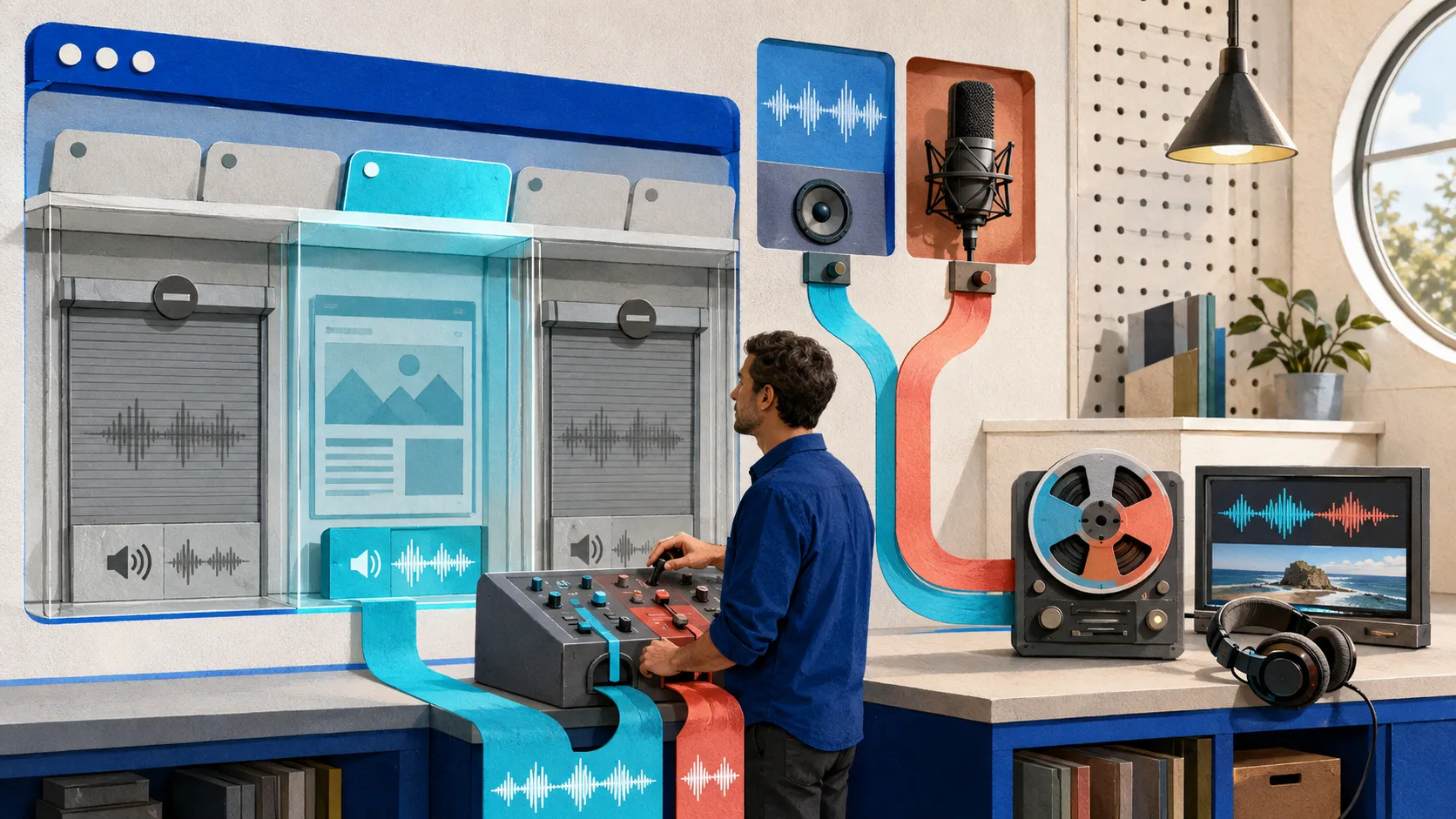
You finish a perfect browser tutorial, open the file, and hear nothing. Or worse: the tab sound is present twice—once directly and once through the microphone. The mistake usually happened before recording, inside the surface picker. ‘Record with audio’ is not one setting. It is a routing decision between the tab, microphone, application, and system.
The fastest correct answer
- 1
1. Open the exact tab you want to capture
Load the page, pause its media, set the desired zoom, and close unrelated tabs or move them to a clean profile. Prepare fictional data and disable notifications before requesting capture.
- 2
2. Start a trusted browser recorder
Choose tab or screen recording and enable microphone only if you need narration. A web recorder may ask separately for microphone access before or after the display picker.
- 3
3. Select the browser-tab surface
In the browser’s share dialog, choose the category for a browser tab—not a window or entire display—then select the intended tab by its title and preview.
- 4
4. Enable tab audio when the picker offers it
Turn on the option labeled along the lines of sharing tab audio or also sharing audio. If no audio option appears, cancel and check the troubleshooting section; do not assume the recorder will recover the sound later.
- 5
5. Record and replay a ten-second proof
Play a distinctive sound in the captured tab, speak a short microphone test if applicable, stop, and inspect the saved file. Confirm video, each intended source, sync, echo, and acceptable levels before the full take.
- 6
6. Record the real task and verify the deliverable
Restart from a clean state, capture the workflow, stop using the recorder’s control, and play the beginning, a middle state change, and the ending. Save or export only after the file proves all required tracks are present.
First decide what ‘with audio’ means
| Source | What it contains | Use it when | Main risk |
|---|---|---|---|
| Tab audio | Sound produced by the selected browser tab | Demonstrating web media, alerts, calls, or an app’s sound | Silent file if the chooser option was off or unavailable |
| Microphone | Your voice and everything the mic hears | Adding live narration or conversation | Echo, room noise, private speech, or speaker bleed |
| Window/application audio | Audio associated with a selected app or window when supported | The task spans one application rather than one tab | Availability varies; scope may not match the visible surface |
| System audio | Potentially sound from the wider computer | A legitimate multi-application workflow requires it and support exists | Unrelated calls, alerts, or private audio can enter the recording |
For a browser tutorial, tab audio is usually the narrowest useful choice. Microphone narration is a second source, not a replacement. If you play the tab through speakers while recording the microphone, the mic may capture that sound again with delay and room coloration. Use headphones, disable tab playback in the room where practical, or record narration separately.
Why browser audio capture varies
The W3C Screen Capture specification defines getDisplayMedia() as a user-mediated request for a display surface. The browser must let the user choose a surface each time and must not persist a permanently granted display-capture permission. A request can ask for audio, but the browser may return a video track without audio. Available audio may represent a tab, window, application, system, or a combination, and the implementation decides what it can offer.
That architecture explains why a tutorial saying ‘tick this box’ can fail on another device. The recorder, browser version, selected surface, operating system, managed-browser policy, and page context all participate. Google Meet’s current troubleshooting guidance, for example, notes operating-system minimums for audio with window or desktop sharing. That is a product-specific support statement, not a promise for every recorder.
| Surface choice | Visual scope | Audio expectation | Use with |
|---|---|---|---|
| Browser tab | One selected browsing context | Tab audio is the most likely narrow source when offered | Web-app tutorials and browser media |
| Application window | One application window | Window audio may be absent or implementation-dependent | Apps that cannot fit one browser tab |
| Entire screen/monitor | Everything on the selected display | System audio may be offered on supported combinations | Only workflows that truly cross applications |
A reliable preflight before the real recording
- 1Identify the minimum visual surface: one tab, one window, or a display. Choose the narrowest surface that contains the task.
- 2List the required audio sources: tab sound, narration, both, or neither. Do not enable sources ‘just in case.’
- 3Open a clean browser profile with only the required account, tabs, extensions, bookmarks, and history suggestions.
- 4Set site zoom and window size so the smallest consequential label remains readable in the final player.
- 5Disable notifications and close messaging, password, email, calendar, finance, and customer-data surfaces.
- 6Connect headphones when tab sound and live narration are both needed, then select the intended microphone explicitly.
- 7Make a proof clip containing a visible change, recognizable tab sound, spoken phrase, and a moment of silence.
- 8Replay the exported or saved file through headphones and laptop speakers before recording the real task.
How to record tab audio and microphone together
Enable the microphone in the recorder, then separately enable the selected tab’s audio in the browser picker. Use headphones so the tab does not re-enter the microphone. Set the tab sound low enough that narration remains understandable, but do not judge only from live monitoring—the recorded mix or tracks may differ.
If the recorder stores sources on separate tracks, preserve them until export. Separate tracks let you lower a loud alert, mute an accidental cough, repair one narration phrase, or retain system evidence without competing with speech. If the recorder bakes everything into one track, run a longer proof and balance the sources before capture because repair options are limited.
| Listen for | Pass condition | If it fails |
|---|---|---|
| Tab sound | Distinct sound is present once and at the expected time | Reopen chooser and confirm the tab plus its audio option |
| Narration | Voice is clear and closer than room noise | Select the correct mic, move closer, reduce gain or noise |
| Echo | Tab sound has no delayed duplicate | Use headphones or remove speaker playback from mic path |
| Balance | Needed alerts remain audible beneath speech | Adjust source levels or record separate tracks |
| Sync | Click, animation, and sound align throughout | Test another recorder path, reduce load, or resync in editing |
| Silence | No hum, fan surge, private background speech, or notification | Fix the environment before the long take |
Troubleshooting: browser screen recording has no audio
The audio checkbox never appeared
Cancel the share request. Confirm the recorder actually requested audio, then choose the browser-tab category and select a tab that can produce sound. If the option remains absent, the selected surface/browser/OS combination may not offer it. Update through the browser’s official channel, check managed policies, or use an approved alternative capture path. Do not select a broader surface merely to chase audio without reconsidering privacy.
The checkbox was enabled, but the file is silent
Confirm the selected tab—not a similarly named duplicate—was playing during capture. Check that the tab, site, media element, and operating-system output were not muted. Replay the raw saved file rather than an editor preview, then inspect whether the file contains an audio track. Repeat with a short known source before changing several settings at once.
The tab is audible, but the microphone is missing
Tab sharing and microphone access are separate. Check the recorder’s microphone toggle, the selected input device, browser site permission, operating-system microphone permission, hardware mute, and whether another application holds exclusive access. Watch the recorder’s input meter while speaking, then prove the saved output.
The recording contains echo or doubled audio
The microphone is probably hearing speakers that play the captured tab, or the same source was routed twice. Switch to headphones, turn off unnecessary monitoring, select only one tab-audio route, and test again. Echo cancellation designed for calls can help speech but may distort music or product sound; source isolation is safer.
Audio drifts out of sync
Check a short and then longer proof to distinguish a fixed offset from progressive drift. Reduce competing CPU/memory load, close unused tabs, avoid changing audio devices mid-capture, and preserve original tracks. A fixed offset can often be aligned in an editor; progressive drift may require time adjustment or rerecording with a more stable path.
Security, privacy, copyright, and consent
Permission from the browser is not permission from the people or rights holders represented in the recording. Before capturing meetings, calls, courses, music, streamed media, customer accounts, or third-party products, confirm applicable law, contract, workplace policy, platform terms, copyright/license, and participant notice or consent. If uncertain, record a fictional demonstration you control.
Choose a browser screen recorder by evidence, not labels
| Area | Question | How to verify |
|---|---|---|
| Audio | Does it capture the exact tab and microphone combination you need? | Record and inspect a proof on your actual browser and OS |
| Processing | Does media stay local, upload during capture, or upload after? | Read current privacy/security documentation and observe the workflow |
| Failure recovery | What happens if the tab, browser, or network closes? | Run a disposable interruption test |
| Output | Which container, resolution, frame rate, and separate tracks are delivered? | Inspect a downloaded sample, not a feature list |
| Limits | Are duration, size, export, watermark, or retention limits acceptable? | Verify current plan terms before a critical recording |
| Control | Can you stop capture visibly and revoke permissions? | Test the indicator, stop control, site permissions, and stored project deletion |
After recording: verify before you edit
Save the raw file and play it outside the recorder when possible. Check the first seconds, a point where tab sound and speech overlap, a quiet interval, the longest continuous section, and the final action. Confirm no private material appeared and that audio remains synchronized. Only then move into screen-recording editing.
If you need a Chrome-specific tool comparison, use the Chrome screen-recorder extension guide. For a broader platform decision, see screen-recording software. If your goal is a repeatable lesson rather than raw capture, the tutorial video software guide explains the wider workflow.
Frequently asked questions
How do I record a browser tab with audio?
Start a trusted recorder, choose the browser-tab category in the share picker, select the exact tab, enable the tab-audio option when offered, add microphone access separately if needed, and record a short test. Replay the saved file to verify every intended source before the full recording.
Why is there no audio in my browser screen recording?
The recorder may not have requested audio, the chosen surface may not offer it, the share-audio option may be off, the wrong tab may be selected, or the tab/site/system may be muted. Browser, operating-system, and managed-policy support also vary. Isolate the cause with a short known-source test.
Can I record tab audio and my microphone at the same time?
Yes, when the recorder supports both and the browser offers tab audio for the selected surface. Enable the microphone in the recorder and tab audio in the share picker. Use headphones to prevent speaker sound from entering the mic, and verify the saved mix or separate tracks.
Does choosing a Chrome tab automatically include audio?
No. Select the browser tab and explicitly enable its audio-sharing option when the chooser provides one. A recorder can request audio, but the browser is allowed to return video only, so availability and wording can vary by browser, version, operating system, policy, and surface.
Is an online browser screen recorder safe?
Safety depends on capture scope, processing, storage, access, retention, deletion, and your content. Use the narrowest surface and fictional data, review the provider’s current terms and security information, test permissions and deletion, and never record secrets or regulated data without an approved workflow.
Can a website remember screen-recording permission?
The current W3C Screen Capture specification requires the user to choose a display surface for each request and does not allow display-capture permission to remain in a permanently granted state. Microphone and camera permissions follow separate browser and operating-system controls.