
How stepvideo turns a screen recording into a how-to video and a written guide
You record a workflow once in Chrome, and stepvideo turns that one take into two things: an edited how-to video and a written step-by-step guide. It zooms on each control you click, speeds through dead time, writes and voices a script for every step with word-by-word captions, and screenshots each step for the guide.
Which screen recorder zooms in on clicks automatically?
stepvideo does. Its Chrome extension records every click as data, including where the control you pressed sits on the page, and the edit pushes in on that control as you click it, up to 1.8× (up to 2.4× on a small recording), then eases back out. You place no zoom yourself.
The zoom is planned from the click itself, not guessed from the picture afterwards, so it lands on the button or field you touched rather than on wherever the pointer drifted. Clicks close together are framed as one shot instead of a zoom per click, and you can move, resize or remove any zoom in the editor. Read more in how to zoom in on a screen recording.
How do you remove dead air from a screen recording automatically?
stepvideo speeds it up for you. Any stretch of 4 seconds or more with no click, typing, scrolling, page change or speech plays at up to 3× speed, and a page that is still blank while it loads goes by faster still. A pause just after a new page opens stays at normal speed.
Dead time is sped through, so the viewer still sees the page load or the spinner finish without waiting for it. How much it speeds up is fitted to the voiceover, so each step's footage runs about as long as its narration, and a long wait at the end of a step that would still outlast its narration is trimmed. Read more in how to remove silence and dead time from a video.
How do you turn a screen recording into a written step-by-step guide?
stepvideo writes the guide from the same recording that makes the video. Every step becomes a numbered heading, a short instruction and a screenshot from that step with the control you clicked highlighted, so the video and the document describe the same take. You edit it in the browser, then share it or download a PDF.
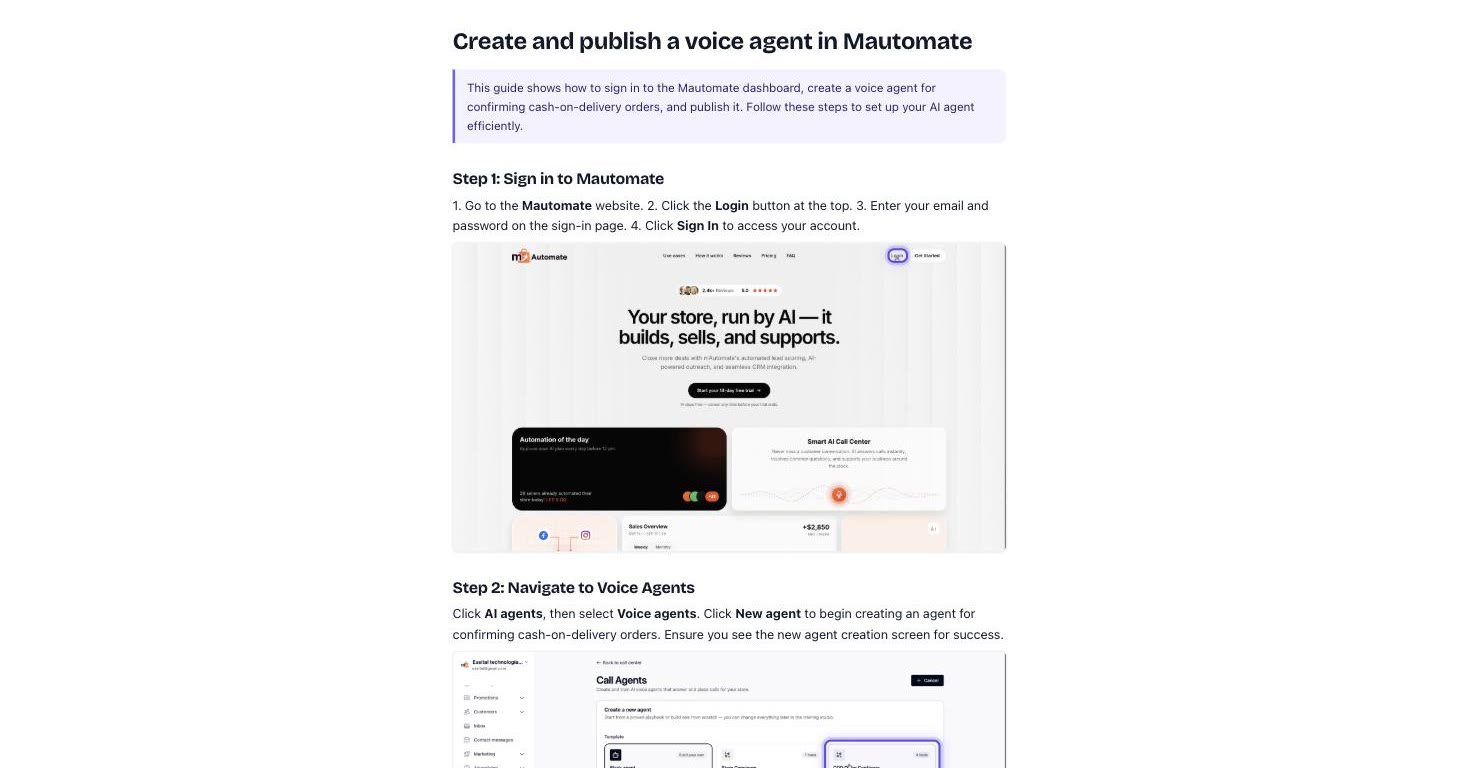
The guide uses the same steps the video is cut into. You can rewrite any step, replace a screenshot, hide the highlight or draw boxes, arrows and labels on it, and the share page can carry the guide under the video. Read more in how to create a user guide with screenshots and video.
Can AI add a voiceover and captions to a tutorial video?
Yes. stepvideo writes a short script for each step from what happened on screen and anything you said while recording, reads it in an AI voice, and burns word-by-word captions into the MP4. Rewrite one step's text and only that step's voiceover and captions are made again.
Narrate while you record or stay silent. If you would rather keep your own voice, one switch uses your recorded narration, cut to each step, instead of the AI voice. Captions can be turned off or moved to the top of the frame, and every spoken video also comes with .srt and .vtt caption files. Read more about AI voiceover for videos and adding captions to a video.
Can the same tutorial come out in another language?
Yes. stepvideo transcribes 96 languages and publishes narration in 58. Translating a project makes a new version in the target language with the same cuts and zooms: a new voiceover, new captions and a translated written guide, with no second recording.
You pick the language you will speak in the extension before you record. A translation is a new video, so it counts the recording's AI minutes again. The languages page lists every language and what each one can do. Read more in how to translate a video.
How do you blur sensitive information in a screen recording?
In stepvideo you place the blur yourself, and it needs a paid plan: a trial export shows the area as recorded. Draw a blur over an area in the editor, or hide a page element from the recording bar while you record. Typed text that looks like a secret is flagged for you to review, never hidden automatically.
You decide what is hidden; nothing is blurred on a guess. The extension never captures what you type into a password field. The plans that include blur are on the pricing page. Read more in how to blur sensitive data in a screen recording.
From recording to finished video
- Add the extension. Install stepvideo from the Chrome Web Store and sign in once; the extension page says what it captures and what it never does.
- Record the workflow once. Pick the language you will speak, choose the tab or your whole screen, and do the task. Talk through it or stay silent.
- Fumble a step? Do it again. Keep going rather than starting over. The edit is told to leave out an attempt you redid, and you can trim or delete any step afterwards.
- Stop. The editor opens by itself and the take is cut into steps, with the zooms, the sped-up dead time, a script and voiceover per step, captions and the written guide.
- Review step by step. Rewrite a line, change the voice, reorder or delete steps, move a zoom, add a blur. You work on steps, not on a timeline of frames.
- Export and share. Download the MP4 (wide, vertical, or the shape you recorded), send the share page, and download the guide as a PDF.
What stepvideo does not do
- It records through the Chrome extension, with no desktop app and no mobile recording. It can film your whole screen, but clicks are captured only on Chrome pages, so the zooms and step breaks need the workflow to happen in the browser.
- It plays dead time faster and cuts it only at the end of a step, where a long wait is trimmed so the step ends with its narration. There is no speed control, only a trim.
- It is not built for camera or talking-head footage, AI avatars, or interactive click-through demos.
- It does not decide what is secret. Flagged text is a suggestion you accept or ignore, and blur reaches the export only on a paid plan.
Questions
Do I need the Chrome extension?
Yes, to record. stepvideo records through its free Chrome extension, which films the tab or your screen and captures every click on a Chrome page as data; that click data is what places the zooms and the step breaks. If the video already exists, you can upload it instead.
How long can a recording be?
Up to 5 minutes on the free trial, 12 minutes on Creator and 15 minutes on Studio. A longer take is not refused: the video is made from its start, up to your plan's limit. One task per video usually reads better anyway.
Can I change what the AI wrote?
Yes. Every step's script is editable, and rewriting a line makes that step's voiceover and captions again without re-recording anything. You can also reorder, merge, split or delete steps, move or remove a zoom, keep your own voice instead of the AI one, and edit the written guide.
What do I get at the end?
An MP4 with the zooms, voiceover and captions in it, the captions again as .srt and .vtt files, a share page that plays the video and can carry the guide (public, link-only or limited to your organization), and the written guide as a PDF.
What does the free trial include?
Every account starts with a 10-day free trial (5 AI minutes, no card, watermarked), including up to 5 written guides. Trial exports render at draft quality, and a paid plan re-exports anything you made without the watermark and at full quality.