
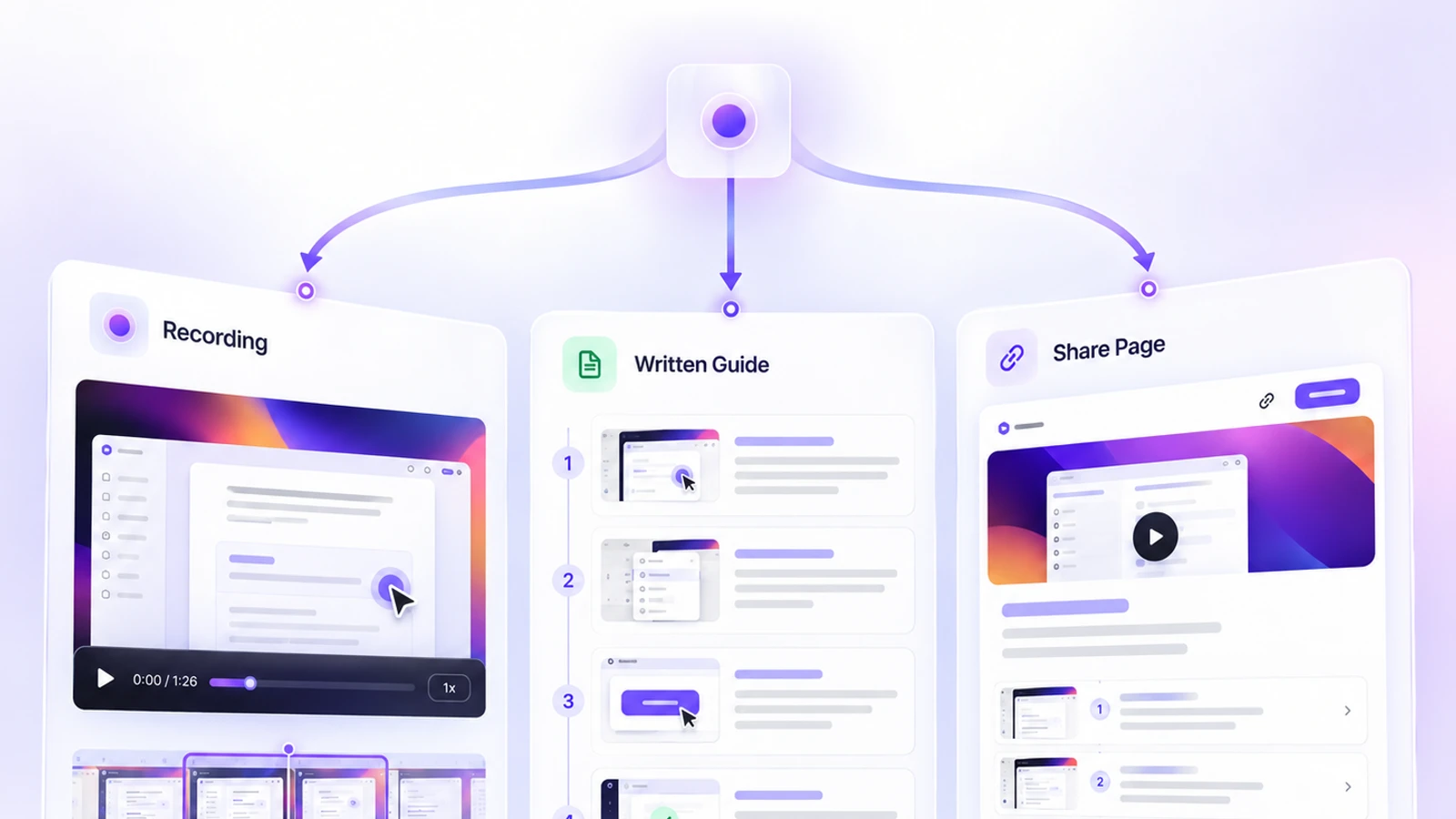
A customer service knowledge base is a searchable library of help articles, such as how-tos, troubleshooting fixes, policies and answers to common questions, that customers use to solve problems without contacting support and that agents link to instead of typing the same answer again. To build one, take the questions your tickets already ask, write the most frequent ones first, group the articles the way customers describe their problems, and give every article an owner.
What is a customer service knowledge base?
A customer service knowledge base is the self-service part of support: a set of articles, usually on a help center site, that answers the questions customers would otherwise send to your team. Customers search it whenever they need it, and agents answer tickets with a link to the same articles.
It goes by several names. Help desk software calls it a help desk knowledge base, support teams say customer support knowledge base, and companies with a phone team often keep a call center knowledge base that agents read while a customer is on the line. The idea under all of them is the same: one written answer per question, kept in one place, checked by someone who owns it.
Here is what a knowledge base does for a support team:
- Customers help themselves. Someone who finds the answer at 11 p.m. does not wait until morning for a reply, and does not become a ticket.
- Agents give the same answer. A link to a checked article replaces five agents' five versions of the same steps, including the version that skips the step that matters.
- New agents get up to speed faster. The articles double as training material for the questions they will meet in their first weeks.
- Gaps show up. Searches that find nothing and tickets on topics you already cover tell you what to write or fix next.
Self-service or agent-facing: which knowledge base do you need?
Most support teams need both layers, sharing one set of facts. The self-service layer is public and written for people who have never seen your internal tools. The agent-facing layer holds what customers should not see: refund approval limits, escalation rules, how to verify an account holder, and workarounds for bugs you have not fixed yet.
| Layer | Who reads it | What goes in it | Where it usually lives |
|---|---|---|---|
| Self-service (customer-facing) | Customers, prospects and search engines | How-tos, troubleshooting, short answers, policies, plan details | A public help center on your site or in your help desk |
| Agent-facing (internal) | Support and call center agents | Procedures, approval rules, escalation paths, saved replies, workarounds | A restricted section of the same help desk, or an internal wiki |
Keep both in the same system if you can, with permissions deciding who sees what, so a policy change is edited once and not in two places that drift apart. A company-wide internal knowledge base for HR, IT and engineering is a bigger project with different readers; this guide stays with support.
What should a customer service knowledge base include?
A customer service knowledge base should include getting-started articles, how-to articles for everyday tasks, troubleshooting articles for errors and symptoms, short answers about accounts and billing, your policies in plain words, reference pages for plans and settings, a page for known issues and recent changes, and a clear way to reach a person.
| Section | What goes in it | Example titles |
|---|---|---|
| Getting started | The first tasks a new customer has to finish, in order | Set up your account · Connect your first integration |
| How-to articles | One task per article, for the jobs customers do every week | Export a report as a spreadsheet · Add a user to your team |
| Troubleshooting | Symptoms and exact error messages, with fixes from quickest to slowest | “Link expired” when you sign in · Our emails go to your spam folder |
| Account and billing | Short answers about plans, invoices, payment methods and cancelling | Why was I charged twice? · Where do I find my invoices? |
| Policies | Refunds, returns, shipping, cancellation and data, written for customers rather than lawyers | Our refund policy · How we handle your data |
| Reference | Plan limits, settings, roles, supported browsers and a glossary | What each role can do · Supported browsers |
| Updates and known issues | What changed recently, problems you already know about, a link to your status page | Known issues · What changed this month |
| Contact | How to reach a person, your hours, and what to send so the first reply can solve it | Contact support |
The site around the articles matters as much as the articles. Plan these parts from the start:
- A search box at the top of every page.
- Categories named in customer words, with the most-read articles listed first.
- On every article: the answer in the first two sentences, a last-updated date, links to related articles and a “Was this helpful?” vote.
- A contact link at the end of each article, so a reader who is still stuck can reach you without starting over.
- An agent-only section behind permissions for the procedures customers should not see.
For the parts of a single article, such as the title, summary, steps and fixes, use the knowledge base article template. It has formats for how-to, troubleshooting, FAQ and reference articles, so this guide can stay with the library as a whole.
Which articles should you write first?
Write first the articles behind your most frequent tickets that customers could solve on their own: how-to questions, error messages and short questions about accounts or policies. Your ticket history ranks them for you, so you write answers people already need instead of guessing at them.
Export one to three months of tickets and group them by contact reason. If your team tags tickets, the tags are a starting point; if not, read a sample of a few hundred and sort them by hand. Then judge each group by two questions: how often does it come in, and could a customer finish it alone with the right instructions?
| The ticket asks | Can the customer solve it alone? | What to publish |
|---|---|---|
| “How do I…?” | Yes | A how-to article, one task per article |
| An error message, or “it's not working” | Often | A troubleshooting article titled with the exact error or symptom |
| “Can I…?”, “Do you…?”, “How much…?” | Yes | A short answer, with a link to the task if there is one |
| “Where is my order?”, “When will my refund arrive?” | Partly: they need their own account data | An article that explains the timeline and where to check status, so a ticket only comes when something is late |
| A bug, an outage, a billing dispute or a request for an exception | No | Keep these with an agent; publish a known-issue note when a problem affects many customers |
Tickets are not your only source. Look at the saved replies agents paste most often (each one is an article waiting to be published), help-center searches that return nothing, chat transcripts, and the questions that come up on onboarding and sales calls. If a feature is about to launch, write its articles before release day rather than after the first tickets arrive.
A launch does not need hundreds of articles. A few dozen that cover your top contact reasons will do more than a large library written from guesses, and the measurement section below tells you what to add next.
How do you build a customer service knowledge base?
Build a customer service knowledge base in nine steps: list contact reasons from your tickets, decide who it serves and where it lives, sketch categories in customer language, set one format per article type, write the first batch from real tickets, add visuals where clicks matter, put it where customers ask for help, assign owners, and measure every month.
- 1
Export your tickets and list the contact reasons
Pull one to three months of tickets, group them by reason and count each group. Mark the groups a customer could solve alone. That list is your writing plan, already in priority order.
- 2
Decide who the knowledge base serves and where it lives
The usual homes are the knowledge base built into a help desk, a dedicated knowledge base tool, or pages on your own website. The tool matters less than three things: a public layer that customers and search engines can read, a restricted layer for agents, and search that works. Make public the default and restrict only what is private.
- 3
Sketch the categories in your customers' words
Aim for five to eight top-level categories, no more than two levels deep, named the way customers describe their problem: Billing, not Revenue Operations. Sort a sample of ticket reasons into the draft and rename any category they do not fit.
- 4
Set one format per article type and a short style guide
Decide how a how-to, a troubleshooting article, a short answer and a reference page are laid out, and write down the house rules: second person, button names in bold exactly as the screen shows them, screenshots cropped, no customer data in any picture. The article template linked above gives you the four formats.
- 5
Write the first batch from real tickets
Start at the top of your list. Put the answer in the first two sentences, use the words customers used in their tickets, and ask someone who has never done the task to follow each article before it goes live. Fix every step where they hesitate.
- 6
Add screenshots or a short video where clicks matter
Text is enough for policies and short answers. For tasks that cross several screens, add a cropped screenshot wherever readers would otherwise hunt for a control, and a short video when the order of the clicks is the hard part.
- 7
Put the knowledge base where people ask for help
Link it from the help menu in your product, your contact form, your chat widget and your onboarding and order emails. If your help desk can suggest articles while a customer types into the contact form, turn that on, and add article links to the saved replies agents use.
- 8
Give every category an owner and a review date
The owner is the person who hears about product changes first in that area. Add a line to your release checklist that asks which articles a change touches, and update them before the change ships.
- 9
Check the numbers every month and write the next batch
Read the searches that found nothing, the articles with poor votes and the ticket reasons that are still growing. Each month, fix the weakest articles and write the next batch from the top of the remaining list.
If your team already answers tickets with screen recordings, those recordings are drafts for step 5. Screen recording for customer support covers turning a recorded reply into an answer the whole team can reuse.
How should you organize a knowledge base so customers find answers?
Organize a knowledge base around what customers are trying to do, not around your teams or your internal feature names, and treat search as the main way in. Keep categories shallow, title every article with the words customers type, and give each question exactly one article.
For a typical online service, a good first set of categories is Getting started, Account and sign-in, Billing and plans, one category per area of your product, Integrations, Troubleshooting and Policies. Every label is something a customer would say out loud. Inside each, list the most-read articles first, and stop at two levels; a reader who has to open three menus to find “Reset your password” is likely to open a ticket instead.
Many visitors type a question before they look at a single category, so search deserves as much care as structure. Four habits make it work:
- Use the customer's words in titles. Ticket subjects and your search log show the phrasing. If customers say “delete my account” and your product says “deactivate workspace”, put both in the article.
- Quote error messages exactly. People paste the error text into your search box and into Google, so the exact wording belongs in the title or the first lines.
- One question, one article. Duplicates split your search results and your votes. Merge them and redirect the old address so existing links keep working.
- Read the failed searches every month. Each one is a missing article, a missing synonym, or a title written in your words rather than theirs.
If most of your articles will carry a walkthrough, the guide to building a video knowledge base covers structure, captions and upkeep for a library that leans on video.
What should a SaaS knowledge base include?
A SaaS knowledge base should include everything above plus the sections software customers need most: onboarding for each role, integrations, user and permission management, security and data questions, plan differences, release notes, and troubleshooting organized by error message. Label articles that depend on a plan or a role.
Software support has its own shape. Many tickets are how-to questions about screens that change with every release, many readers are admins setting things up for a whole team, and the same feature can behave differently on different plans. That pushes a SaaS knowledge base toward more task articles, more frequent updates and clearer labels.
| Section | Why SaaS customers need it | Example articles |
|---|---|---|
| Onboarding by role | An admin, a manager and an everyday user need different first steps | Set up your workspace (admins) · Your first day as a member |
| Integrations | Connecting other tools is a common source of setup tickets | Connect your calendar · Sync contacts from your CRM |
| Users, roles and sign-in | Admins manage seats, roles and single sign-on | Add or remove users · Set up single sign-on |
| Security and data | Buyers and IT teams ask before and after they sign up | Export your data · Delete your account · Where your data is stored |
| Plans and limits | Features differ by plan, and customers run into limits | Compare plans · What happens when you reach a limit |
| Release notes and known issues | Screens change often, and customers need to know what moved | What's new · Known issues |
| Troubleshooting by error | Error text is what customers search for | “Permission denied” when you open a project |
| Developer documentation | API users need text they can copy, not screenshots | Kept as separate docs, linked from the help center |
Two habits matter especially in software. Put an “Applies to” line at the top of any article that depends on plan, role or platform, so a reader on the wrong plan stops before step one. And treat your release notes as a to-do list for the knowledge base: every visible change names the articles it breaks. For onboarding content that goes beyond the help center, see customer onboarding videos.
How do you write how-to articles that end tickets?
A how-to article ends a ticket when a reader can follow it to the result without guessing. That takes one task per article, the outcome stated first, one action per numbered step with every control named exactly as it appears, a screenshot wherever the reader would hunt for something, and a short video when the click path is long.
How-to articles usually fail in small ways. A button was renamed in the last release. A step the writer does without thinking is missing. A screenshot shows a menu that has since moved. The reader gets stuck, opens a ticket, and nobody learns that the article caused it. The fix is to write from a real run of the task and to make updating cheap enough that it actually happens. For wording each step, see how to write step-by-step instructions.
One recording for the video and the written steps
For tasks done in a browser, stepvideo.io makes both formats from one take. You record the task once with the Chrome extension, which records a browser tab, a window or your whole screen; click-accurate editing comes from tab capture with the extension. From that recording it writes a step-by-step guide, where every step is a numbered heading, a short instruction and a screenshot from that step with the control you clicked highlighted, and it edits a narrated how-to video with an AI voiceover and captions. The how it works page shows a real recording turned into both.
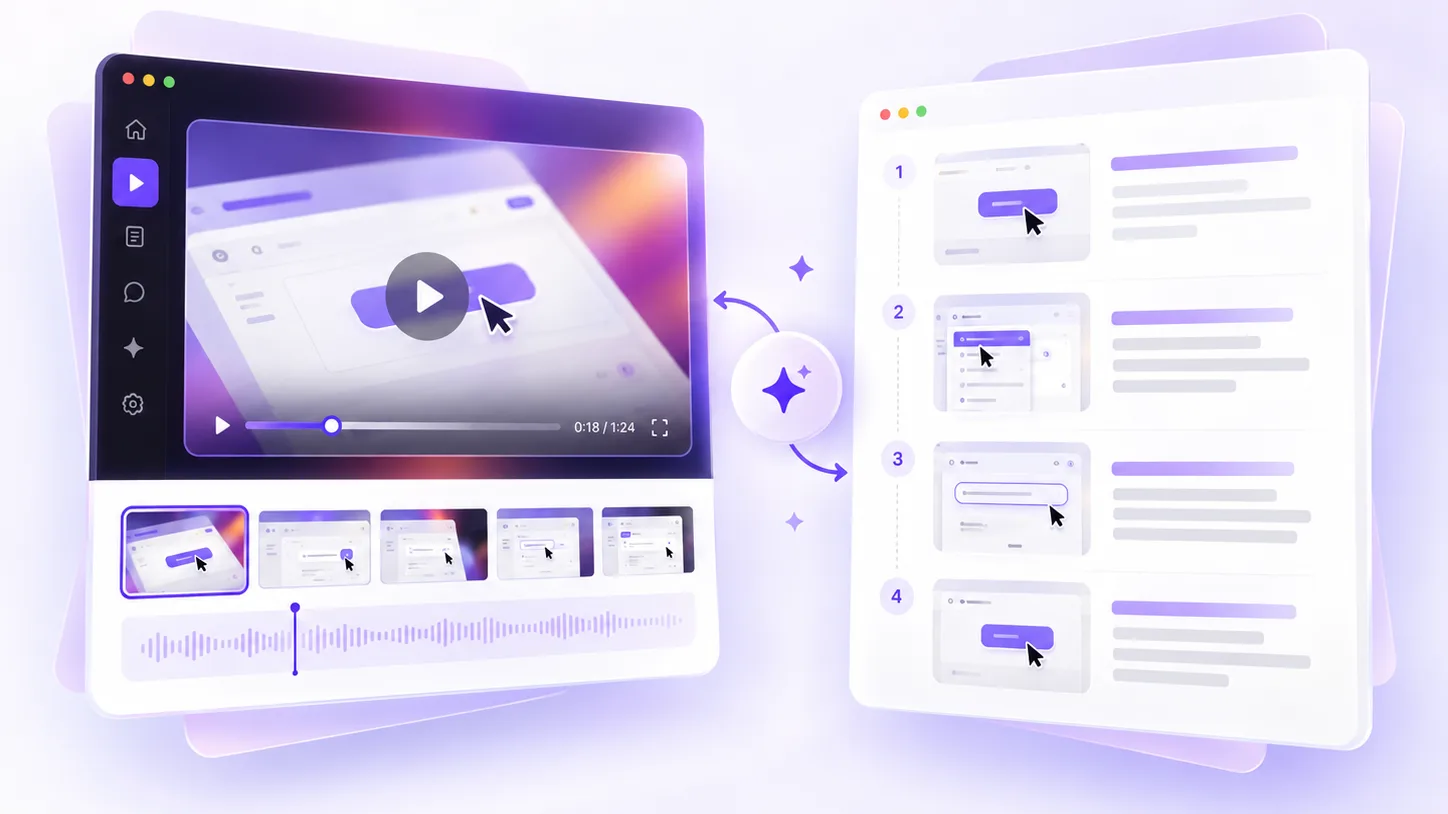
Treat the result as a draft of the article body. A recording knows which buttons were clicked; it does not know which plan the article applies to, what the customer should check first, or what to do when the expected screen does not appear. You add those. You correct the draft by editing steps rather than a timeline: rewrite a step's text, or reorder, merge, split or delete steps. Rewrite a step's narration and that step's voiceover and captions are made again, with no new recording.
Getting the steps and the video into your help center
Your knowledge base lives in your own help desk or website, so the output has to move there. There are three ways to do it:
- Paste the steps into the article. Copy the step text, and the screenshots you need, into your help desk's editor, so the words are indexed by your own search and by search engines.
- Link or frame the share page. A project's share page plays the video and can carry the written guide, and you choose whether anyone, anyone with the link, or only your organization can open it. Share pages are served without the headers that stop other sites from framing them, so a help center can show one in an iframe. There is no ready-made embed code, so you or your help desk's embed field supplies the iframe tag.
- Download the files. The guide downloads as a PDF for agents or offline readers, and the video as an MP4 with the captions in it, with the captions again as .srt and .vtt files for players that take a separate caption track.
This matters most when something changes. A share link made from the editor's Share dialog belongs to the project rather than to one export: it plays the newest export and shows the guide as you last edited it. Fix a step's text and the page shows the new wording on its next load; export again and it plays the new video. The iframe in your article can stay as it is. When the interface changes enough to make the screenshots wrong, record the task again and swap the new steps and video into the article.
Two cautions. Share pages tell search engines not to index them, so keep the summary and the written steps in the article itself and let the video show the clicks. And caption every video you publish: the W3C's accessibility guidelines list captions for prerecorded video as WCAG 2.2 success criterion 1.2.2, at Level A (read 15 November 2026). If you support customers in more than one language, stepvideo transcribes 96 languages and publishes narration in 58, and a share page can switch its written guide between the languages you have translated it into. Every account starts with a 10-day free trial (5 AI minutes, no card, watermarked); plans are on the pricing page.
How do you keep a knowledge base accurate?
Keep a knowledge base accurate by giving each category an owner, tying article updates to your release process, letting agents flag wrong articles in one place, and reviewing the most-read articles more often than the rest. Show a last-updated date on every article so readers and owners can both see its age.
A knowledge base rarely fails all at once. The product changes a little with each release, nobody checks the articles, customers learn that the help center is often wrong, and they stop using it. These habits prevent that:
- Owners by product area. The person closest to a feature owns its articles. A single knowledge base manager for everything becomes a bottleneck as the library grows.
- A release-day check. Every change customers can see lists the articles it affects, and those are updated before or on release day.
- One place for agents to flag problems. A ticket tag, a form or a shared channel. Agents hear about broken articles first, because customers tell them.
- Reviews by traffic. Check the most-read articles every quarter and the long tail once a year, plus any article with poor votes.
- Merge, redirect, archive. Combine duplicates, redirect old addresses so links keep working, and archive articles for retired features instead of leaving them live.
Pictures are the expensive part to keep current, because every screenshot records the screen on one day. Use them where they save the reader effort, crop them tightly so a small change elsewhere on the page does not date them, and prefer visuals you can regenerate from a new recording over images edited by hand.
How do you measure whether your knowledge base works?
Measure a knowledge base by whether people find answers and stop needing to contact you: searches that return nothing, article feedback, tickets on topics you have covered, the share of help-center visitors who still open a ticket, and how often agents link articles in replies. Watch the trends month to month rather than a single headline number.
| Metric | What it tells you | How to act on it |
|---|---|---|
| Searches with no results | Questions you have not answered, or answered in different words | Write the article, or add the customer's words to an existing one |
| Searches followed by a ticket | An answer exists, but it did not help or the search found the wrong one | Rewrite it, starting with the step where readers get stuck |
| Article votes and comments | Which articles readers find unhelpful | Read the comments, then fix or split the weakest articles each month |
| Tickets per topic over time | Whether an article reduced contacts on its subject | Compare the weeks before and after it went live, allowing for seasonal swings |
| Help-center visitors who still contact you | How much of your demand self-service absorbs overall | Follow the trend; a falling share means the library is working |
| Article links in agent replies | Whether agents trust and use the knowledge base | If agents rewrite answers instead of linking, ask them why |
| Articles past their review date | How much of the library nobody has checked lately | Send the overdue ones to their owners |
Be careful with deflection figures. A customer who read an article and did not open a ticket may have solved the problem, given up, or phoned instead, so most deflection numbers are estimates. Use them to compare months and topics, not as proof on their own, and pair them with ticket volume per topic, which is harder to misread.
Start with this month's top contact reasons
Open your ticket export, find the five questions your team answered most this month that a customer could have solved alone, and write those five articles first. Test each one on someone new, link them from your contact form and saved replies, and give each an owner. Next month, read the searches that found nothing and write the next five. Built this way, the knowledge base grows from what customers actually ask, and every article has someone who will notice when it goes wrong.
Frequently asked questions
What is a customer service knowledge base?
A customer service knowledge base is a library of help articles, usually a public help center, that answers the questions customers would otherwise send to support: how-tos, troubleshooting fixes, account and billing answers, and policies. Customers search it on their own, and agents link to the same articles when they reply to tickets.
What is the difference between a self-service knowledge base and an internal one?
A self-service knowledge base is public and written for customers. An internal, agent-facing knowledge base holds what customers should not see, such as refund approval rules, escalation paths and account verification steps. A call center knowledge base is usually the agent-facing kind, read during calls. Keeping both in one system with permissions means each policy is edited once.
How do you create a self-service knowledge base?
Start from your tickets: group a few months of them by contact reason and write articles for the frequent questions customers could solve alone. Organize them in categories named in customer words, test each article on someone new, link the knowledge base from your product, contact form and saved replies, and give every category an owner.
How many articles should a knowledge base have at launch?
Enough to cover your most frequent self-solvable contact reasons, which for many teams means a few dozen articles rather than hundreds. A short library written from real tickets serves customers better than a large one written from guesses. After launch, failed searches and ticket trends tell you what to write next.
How do you measure ticket deflection from a knowledge base?
Most teams estimate it, for example from help-center sessions where the visitor read an article and did not open a ticket, or contact forms abandoned after an article was suggested. Because a reader may also give up or phone instead, treat deflection as an estimate and pair it with ticket volume per topic before and after an article goes live.
Should a customer service knowledge base include videos?
Include short videos for tasks that cross several screens or have a click order that is easy to get wrong, and keep the written steps on the same page, because text is what readers skim, what search engines index and what screen readers read aloud. Caption every video. Policies, short answers and reference tables work better as text alone.
What software do you need for a customer service knowledge base?
You need somewhere to host and search the articles: the knowledge base built into a help desk, a dedicated knowledge base tool, or pages on your own site. Look for search with reports on failed searches, article feedback, permissions for an agent-only section and review reminders. Tools that produce content, such as screen recorders, help you write articles but do not replace that platform.
Can you create knowledge base articles from a screen recording?
For tasks done in a browser, yes, as a draft. stepvideo turns one screen recording into numbered steps with a screenshot for each and a narrated video with captions; you can paste the steps into your help center, link the share page or show it in an iframe. You still write the title, summary, prerequisites and fixes, and check every step.