
A troubleshooting guide is a document that lists the problems people run into with a product, system or process, the likely cause of each, and the steps to fix it, in the order they should be tried. A good one also says how to confirm the cause before changing anything, and when to stop and escalate. Below you get a free troubleshooting guide template in Word and PDF, a filled-in example for sign-in problems in a web app, the step-by-step troubleshooting method behind the format, five more examples and how to write one your team will use.
Download the free troubleshooting guide template
Both versions have the same seven sections: scope and audience, quick checks, information to collect, the troubleshooting table, fix procedures, escalation and revision history. Use the Word file to write the guide on a computer, or print the PDF and fill in the table by hand during a week of tickets before you type anything up.
- Troubleshooting guide template, Word (.docx): blank, with a short instruction in gray under every heading and an eight-row troubleshooting table. It opens in Microsoft Word and Apple Pages, and in Google Docs if you upload it to Drive and choose Open with Google Docs.
- Troubleshooting guide template, PDF: the same layout for printing, with ruled tables to write in.
- Filled-in example, Word and as a PDF: a complete guide to sign-in problems in a made-up customer portal, with six problems, three fix procedures and an escalation table. It is the example further down this page.
The links go straight to the files, with no email address and no account. The template is plain headings, lists and tables, so it moves easily into a help desk, a wiki, a shared drive or a printed binder. Copy it, change it and use it however you like.
What is a troubleshooting guide?
A troubleshooting guide is a structured list of known problems for one system, each paired with its likely causes, a way to confirm the cause and the fix, so that someone can solve the problem without working it out from scratch. It starts from the symptom, meaning what the person sees, because that is all they know when something goes wrong.
Three kinds of reader use them. Customers use one in a help center to fix a problem on their own. Support agents use one to answer the same ticket the same way every time, and to know when a problem belongs to someone else. IT staff and on-call engineers keep one beside their runbooks to bring a system back quickly at a bad hour. The structure barely changes between them; the wording and the escalation rules do.
What separates a troubleshooting guide from its neighbors is scope: it covers many problems, for one system, starting from symptoms.
| Document | Covers | Starts from | Use it when |
|---|---|---|---|
| Troubleshooting guide | Many problems with one system | A symptom or an error message | People keep hitting the same failures and asking the same questions |
| Troubleshooting article | One problem | A single symptom | One problem deserves its own page in a help center |
| User manual | A whole product, end to end | A task or a feature | People need to learn the product, not just get unstuck |
| SOP or work instruction | One routine piece of work | A trigger, such as a new order | The work is done the same way every time |
| Runbook | Running and recovering one system | An alert or a planned task | Engineers need exact commands and checks under pressure |
If your help center publishes one page per problem, the knowledge base article template has a troubleshooting article format for exactly that. A troubleshooting guide is the collection behind those pages: every known problem for one system in one place, ranked, with one escalation path. For a complete product reference, start from the user manual template instead. Teams that document internal systems, rather than a product they sell, will find the storage side of the job covered in IT documentation software.
What should a troubleshooting guide include?
A troubleshooting guide should include its scope and reader, a few quick checks, the information to collect, a troubleshooting table of symptoms, likely causes, checks and fixes, step-by-step procedures for the longer fixes, and an escalation path. An owner, a review date and a revision history are what make readers trust it.
| Section | What goes in it | Why it matters |
|---|---|---|
| 1. Scope and audience | The system and version it covers, who it is for and what it leaves out | A reader on the wrong guide finds out in seconds, not after trying three fixes |
| 2. Quick checks | Three or so one-line checks that settle the most problems | Many problems end here, before anyone opens the table |
| 3. Information to collect | The error text, account, device, time, recent changes and what was already tried | Nobody has to ask twice, and an escalation arrives complete |
| 4. Troubleshooting table | One row per symptom: likely cause, check, fix and what to do if the fix fails | The reader works down it in order instead of guessing |
| 5. Fix procedures | Numbered steps for any fix longer than an action or two | Keeps the table short enough to scan |
| 6. Escalation | When to stop, who takes over, how to reach them and what to send | Stops people trying risky fixes, and keeps easy problems away from engineers |
| 7. Revision history | What changed, when, by whom and why | Shows the guide is current, and why each row exists |
Above the sections sit the guide's details: an ID, a version, the system, the plans or platforms it applies to, an owner, the date it was last reviewed and the next review date. They take a minute to fill in, and they are the first thing a careful reader looks for.
What format should a troubleshooting guide use?
Use a troubleshooting table when problems are independent and each has a short fix, a decision tree when the right fix depends on several questions in sequence, and a separate article per problem when each one needs a long explanation. Most guides end up pairing a table for the common problems with numbered procedures for the long fixes.
| Format | Best for | Weak at |
|---|---|---|
| Troubleshooting table (symptom, cause, fix) | Many independent problems with short fixes, scanned by symptom | Problems where the next check depends on the last answer |
| Decision tree or flowchart | Diagnosis that branches on yes-or-no questions | Editing: a new branch can mean redrawing the chart |
| One article per problem | Help centers where readers arrive from a search on one error | Seeing all of a system's problems in one place |
| Numbered fix procedure | Fixes with several steps and things to check along the way | Diagnosis: it assumes you already know the cause |
| Video of the fix | Fixes that are a sequence of clicks on a screen | Skimming and search: it needs written steps beside it |
A troubleshooting table, sometimes called a symptom, cause and solution table, is the format most guides need first. Write each row so it can be read on its own: someone who jumps to row 4 from a search should not need rows 1 to 3. The template adds two columns that many tables leave out. Check tells the reader how to confirm the cause before changing anything, which prevents fixes that create a second problem. If not fixed tells them where to go next, so a fix that fails never leaves them stuck.
When one symptom has several causes that take a sequence of questions to tell apart, you can still keep it in the table. Give the symptom one row per cause, in the order to check them, and let each row's If not fixed column point to the next. That is a decision tree written as rows, and it is far easier to edit than a drawing.
Troubleshooting guide example: sign-in problems in a web app
This is the filled-in example from the download. The portal and its screens, messages, roles and time limits are placeholders, so copy the structure rather than the facts. It is written for customers and for the support agents who answer sign-in tickets, and the fix procedures that need admin rights say so in their titles.
Scope: signing in to the customer portal with an email address and password, including two-step verification; single sign-on and billing access have guides of their own. Quick checks: type the portal address yourself instead of using an old bookmark, check the status page, and try a private browser window.
| Symptom | Likely cause | Check | Fix | If not fixed |
|---|---|---|---|---|
| 1. “Incorrect email or password” | A typo, Caps Lock, or a different email address from the one on the account | Ask which address they typed. Search for it under Users in the admin console. | If the address is right, reset the password: F1. | Reset email missing: row 2. Account locked: row 4. |
| 2. The password reset email does not arrive | A spam filter, a typo in the address, or the company's mail filter | Ask them to search spam and quarantine. Compare the address with the one under Users. | Click Send reset email again. Ask their IT team to allow mail from the portal's sending address. | Nothing after 30 minutes: escalate to tier 2. |
| 3. “Code expired” or “Invalid code” at two-step verification | An old code, or a phone clock that is out of step with the real time | Ask if they typed the newest code, and if the phone sets its time automatically. | Wait for a new code and type it at once. Turn on automatic date and time on the phone. | Phone lost, or codes still fail: an admin resets two-step verification, F3. |
| 4. “Account locked” | Too many failed sign-ins in a row | Open the user in the admin console. The status reads Locked. | Wait 15 minutes for the lock to clear, then use F1. An admin can unlock it sooner: F2. | Locked again right after unlocking: escalate as a security concern. |
| 5. The sign-in page reloads, or loops back after signing in | Blocked cookies, old stored site data, or a browser extension | Try a private window. If sign-in works there, the cause is in the usual window. | Allow cookies for the portal, delete its stored site data, then turn extensions off one at a time. | Loops in a private window too: escalate to tier 2. |
| 6. “Your organization requires single sign-on” | The customer's company has turned on single sign-on for the workspace | The message confirms it. | Click Sign in with SSO and use the company account, not a password. | SSO fails: the customer contacts their own IT team (TSG-SUP-009). |
Read across any row and you get a complete answer: what the reader sees, why it usually happens, how to confirm it, what to do and where to go next. Read down and the order does the work. The common, harmless causes come first, and the rows that might involve a security problem send the reader to a person instead of to another fix.
The fixes that take several steps live in their own procedures, so the table stays short. Here is fix procedure F1 from the example:
| Step | Do this | You should see |
|---|---|---|
| 1 | On the sign-in page, click Forgot password. | The Reset your password page opens. |
| 2 | Type the email address you sign in with, then click Send reset email. | The message Check your email appears. |
| 3 | Open the email and click Reset password within 60 minutes. | A page opens with two password boxes. |
| 4 | Type a new password in both boxes and click Save password. | The message Password changed appears, with a Sign in button. |
| 5 | Click Sign in and sign in with the new password. | Your portal dashboard opens. |
Every step names the control exactly as the screen shows it, and every row says what the reader should see, so they can tell at which step something went wrong. The full example adds F2 (unlock an account) and F3 (reset two-step verification) for admins, an escalation table with three routes, and a revision history that records why row 3 gained its phone clock check.
More troubleshooting guide examples
Each example below is a short extract in the same shape: one symptom, the likely causes in the order to check them, and the fix for each. They are generic, written to show how the format bends to different systems and readers, so check every step against your own setup before you use it.
IT help desk: “The VPN will not connect”
| Likely cause | Check | Fix |
|---|---|---|
| No internet connection underneath the VPN | Open any website with the VPN turned off | Fix the network first: rejoin the Wi-Fi or try a wired connection |
| An expired password or the wrong account | Sign in to another company system with the same account | Reset the password on the company's self-service page, then reconnect |
| An out-of-date VPN app | Compare the app's version with the one the IT team supports | Update the app from the company's software portal |
| The device's date and time are wrong | Compare the device clock with the real time | Turn on automatic date and time; a wrong clock can make security certificates look invalid |
Escalate when all four checks pass and colleagues on the same network connect without trouble, and send the error text, the app version and the time of the last attempt. These are IT troubleshooting steps a help desk runs again and again, which is why they belong in writing.
End users: “People on the call cannot hear me”
| Likely cause | Check | Fix |
|---|---|---|
| Muted in the call app, or by a button on the headset | Look for a crossed-out microphone in the call window and on the headset | Unmute in the app and on the device |
| The app is using a different microphone | Open the app's audio settings and see which microphone it lists | Choose the headset or microphone you are speaking into |
| The browser or computer blocks the microphone | Look for a blocked-microphone icon in the address bar, or check the computer's privacy settings | Allow microphone access for the call app, then rejoin the call |
This one shows why the order matters. The mute check takes two seconds, so it goes first even if another cause is just as likely. The privacy settings take longest to reach, so they come last.
Software customers: “The CSV import fails”
| Likely cause | Check | Fix |
|---|---|---|
| The file is not saved as CSV | Look at the file name and how the file was exported | Export or save it again as CSV, not as a spreadsheet file |
| Column headers do not match the import template | Compare the first row with the template's headers | Rename the headers to match, or use the import's column mapping if it has one |
| A date, number or email address in the wrong format | If the error message names a row, look at that row | Correct the value to the format the import expects |
| The file is over the import's size limit | Compare the file's size or row count with the limit in the help center | Split the file and import the parts one at a time |
Software customers: “The integration stopped syncing”
| Likely cause | Check | Fix |
|---|---|---|
| The connection's sign-in expired or was revoked | Open the integration settings and read the connection status | Reconnect, signing in again with an account that has admin rights |
| Someone renamed or deleted a field the sync depends on | Compare the sync's field mapping with the other app | Map the renamed or replacement field again |
| The other app is having an outage | Check the other app's status page | Wait for the outage to end, then run the sync again if it does not catch up |
When a problem crosses two systems, say in the guide which side owns each fix. A customer should know whether to contact you or the other company before they open a ticket with either.
Front-line operations: “The receipt printer prints blank receipts”
| Likely cause | Check | Fix |
|---|---|---|
| The thermal paper roll is loaded the wrong way round | Scratch the paper with a fingernail: only the coated side darkens | Turn the roll over so the coated side faces the print head |
| The paper is not thermal paper | Compare the roll's label with the paper the printer's manual lists | Use the paper the manual lists |
Hardware guides follow the same pattern, but photos do the job that screenshots do for software. For anything electrical or mechanical beyond paper and cables, point to the manufacturer's manual rather than writing a fix of your own.
How do you troubleshoot a problem step by step?
Step-by-step troubleshooting means identifying the problem, forming a theory about its cause, testing that theory, fixing it, confirming everything works and writing down what you found. CompTIA, which certifies IT support technicians, teaches it as a seven-step troubleshooting methodology:
- 1Identify the problem. Collect the error, who is affected and what changed. Section 3 of the template is this step written down.
- 2Establish a theory of probable cause. Start with the obvious and the common. In a guide, this is the Likely cause column.
- 3Test the theory to determine the cause. Confirm it before changing anything. This is the Check column.
- 4Establish a plan of action to resolve the problem and identify potential effects. Decide on the fix and what else it could touch, such as other people who share the same setting.
- 5Implement the solution or escalate as necessary. Apply the fix, or hand the problem over. These are the Fix and If not fixed columns.
- 6Verify full system functionality and, if applicable, implement preventive measures. Check that the person can now do what they were trying to do, not only that the error has gone.
- 7Document findings, actions, outcomes and lessons learned. This is how a troubleshooting guide grows: a solved problem the guide does not cover yet becomes a new row.
Source: CompTIA, “Use a Troubleshooting Methodology for More Efficient IT Support”, read on 15 November 2026. The step names are CompTIA's; the notes after them are ours.
That is why a troubleshooting guide works: each row is steps 2 to 5 done in advance by someone who has already solved that problem, so the next person can go straight to the check.
How do you write a troubleshooting guide?
Write a troubleshooting guide from real problems, not imagined ones: choose one system and one reader, collect the problems people really report, write each symptom in the reader's words, list causes and checks in the order to try them, add the fix and the point to escalate, then test the guide on someone new before you publish it.
- 1
Choose one system and one reader
Name both in the scope line. A guide to the customer portal, for customers and the agents who support them, is usable. A guide to all your software, for everyone, is not. Where readers can do different things, mark what needs admin access, as the example does with its admin-only fix procedures.
- 2
Collect the problems people really have
Pull them from ticket tags, chat transcripts, help-center searches that found nothing, on-call notes and the answers agents give from memory. Count how often each one comes up; the top five or ten are the first version of the guide.
- 3
Write each symptom the way the reader would say it
Describe what they see, not what broke: “The reset email does not arrive”, not “Mail delivery failure”. Quote error messages exactly, capitals and punctuation included, because readers search for the exact text.
- 4
List the likely causes in the order to check them
Put the most common causes first, then break ties by speed and safety: a check that takes seconds and changes nothing comes before one that resets a setting. When one symptom has several causes, give each cause its own row.
- 5
Add a check for every cause
Write how the reader can confirm the cause before they change anything. A check stops people applying a fix that cannot help and might break something else.
- 6
Write the fix, and move long fixes into procedures
One action per step, starting with a verb, with buttons and fields named exactly as they appear. If a fix takes more than an action or two, write it as a numbered fix procedure that says what the reader should see after each step, and point to it from the table.
- 7
Decide where troubleshooting stops
Fill in the If not fixed column for every row, then write the escalation section: who takes over, how to reach them and what to send. List the problems that skip the table entirely, such as possible data loss or a security concern.
- 8
Test it, publish it and give it an owner
Hand the guide to someone who has not seen these problems, watch them use it on a real or staged case, and fix every place they hesitate. Publish it where the problem happens, with an owner and a review date.
For wording the steps themselves, see how to write step-by-step instructions. If support agents will use the guide while they answer tickets, screen recording for customer support covers recording the answers that end up in it.
Should a troubleshooting guide include screenshots or video?
Add a screenshot wherever the reader has to find a control, and a short video when a fix is a sequence of clicks that is easier to watch than to read. Keep the written steps either way, because text is what readers skim, what search engines index and what a screen reader can read aloud.
Pictures matter most in fix procedures, which is where readers stop reading and start doing. A cropped screenshot of the right menu saves more time than a sentence describing where it is. The cost is upkeep: every screenshot shows the screen as it looked on one day, and a redesign can make all of them wrong at once, so capture only the screens that need it. For a guide built around tasks rather than problems, how to create a user guide covers screenshots and video in more depth.
Record each fix once
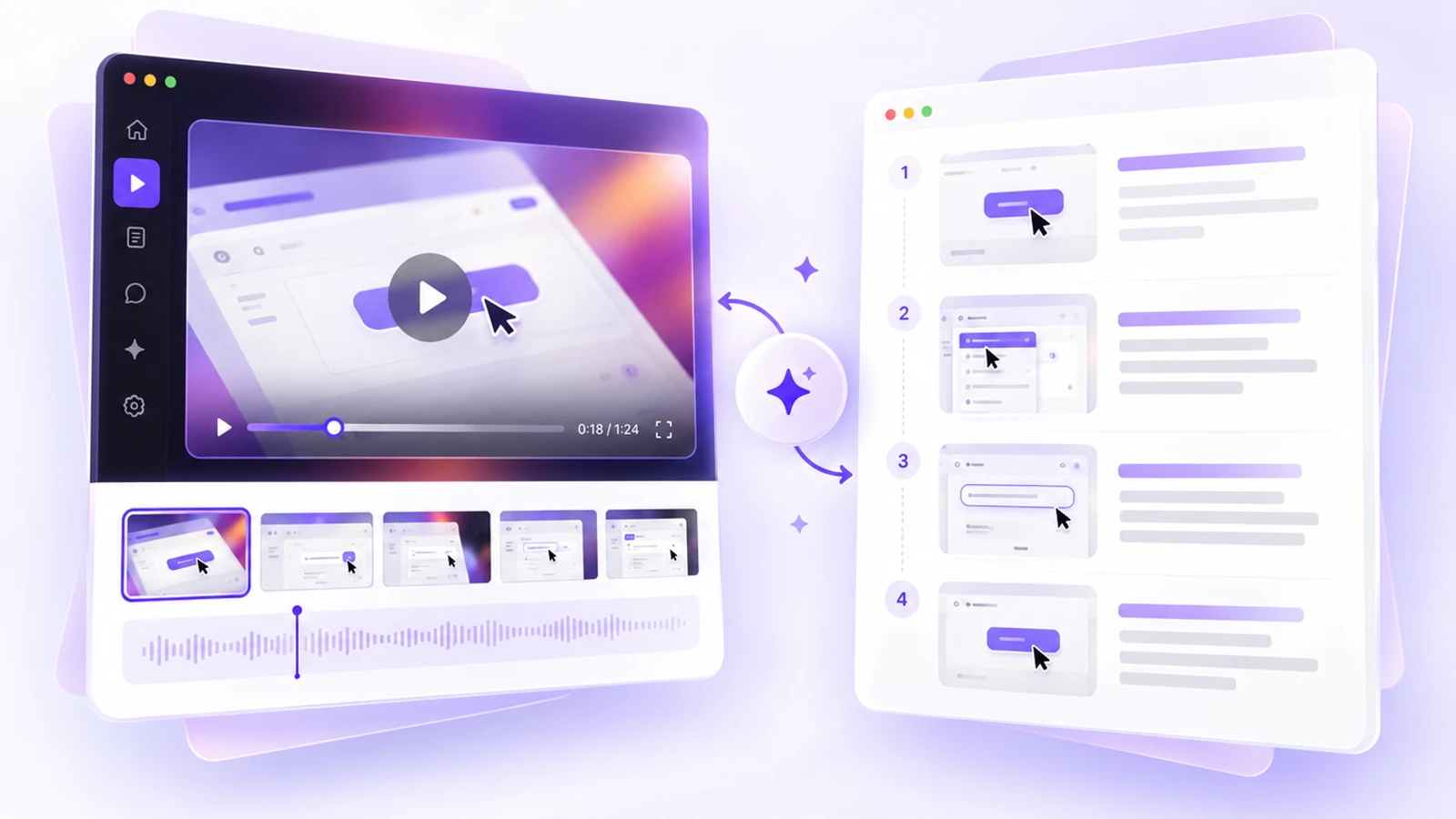
For fixes done in a browser, stepvideo.io can produce the steps and the video from one recording. You perform the fix once with the Chrome extension, which records a browser tab, a window or your whole screen; click-accurate editing comes from tab capture with the extension. From that take it writes a step-by-step guide in which each step is a numbered heading, a short instruction and a screenshot from that moment with the control you clicked highlighted, and it edits a video of the same fix with an AI voiceover and captions. The how it works page shows a real recording turned into both.
Treat what comes out as the body of a fix procedure, not the whole guide. A recording knows which buttons were clicked. It does not know the symptom that sent someone to the fix, the causes to rule out first, or when this fix is the wrong one to try. Those come from you, which is why the template gives them their own columns. You correct the draft by editing steps rather than a timeline: reorder, merge, split or delete them and rewrite their text, then download the guide as a PDF or paste the step text into section 5.
Then put the result where the guide lives. Paste the share link into the row's Fix cell, so a reader who would rather watch can open the narrated fix, or paste the written steps into the fix procedure so the words stay in your own document. A share page can be open to anyone, to anyone with the link, or only to your organization, and it asks search engines not to index it, so keep the symptoms and fixes as text in your own help center if you want them found. If your readers work in different languages, stepvideo transcribes 96 languages and publishes narration in 58, so one recording of a fix can serve each language of the guide. Plans are on the pricing page.
How do you keep a troubleshooting guide up to date?
Keep a troubleshooting guide current by giving it an owner and a review date, adding a row whenever someone solves a problem it does not cover, and checking it against every release that changes the screens or messages it quotes.
- Add rows from tickets. When an agent solves something new, the last part of the job is a draft row: symptom, cause, check and fix. The owner reviews it and adds it.
- Retire rows as well as adding them. When a product change makes a problem impossible, delete the row and note it in the revision history. A long table full of dead problems hides the live ones.
- Re-check on release day. Add one line to the release checklist: which troubleshooting rows quote a screen, button or message that this change touches?
- Watch what still becomes a ticket. If people open tickets for a problem the guide covers, the row is hard to find, its symptom is not in their words, or its fix does not work. Rewrite it.
Start with the five problems your team fixes most
Download the template, pull last month's tickets and pick the five problems that came up most. Write one row for each, with its check and its fix, and fill in the escalation section. Then give the guide to someone new and watch them use it on the next real ticket.
Frequently asked questions
What is a troubleshooting guide?
A troubleshooting guide is a document that lists the known problems with one product, system or process, the likely cause of each, how to confirm the cause and the fix, in the order to try them. It starts from what the reader sees, such as an error message, and says when to stop and escalate.
What should be included in a troubleshooting guide?
Include the system and the reader it covers, a few quick checks, the information to collect, a table of symptoms with likely causes, checks and fixes, numbered procedures for longer fixes, and an escalation path. An owner, a review date and a revision history show readers that the guide is current.
What format should a troubleshooting guide follow?
Most troubleshooting guides work best as a table: one row per symptom with the likely cause, a check, the fix and what to do if the fix fails, most common problems first. Use a decision tree when the fix depends on several questions in sequence, and numbered procedures for fixes with many steps.
What are the steps of troubleshooting?
A widely taught model, CompTIA's troubleshooting methodology, has seven steps: identify the problem, establish a theory of probable cause, test the theory, plan the fix and its effects, implement the solution or escalate, verify the system works and add preventive measures, then document what you found. A troubleshooting guide records the middle steps in advance.
What is a troubleshooting table?
A troubleshooting table lists problems in rows and splits each one into columns, usually symptom, cause and solution. The template on this page adds a check column, so the reader confirms the cause before changing anything, and an if-not-fixed column that sends them to the next row or to escalation.
Is there a troubleshooting guide template in Word?
Yes. The troubleshooting guide template on this page is a Word (.docx) file that opens in Microsoft Word, Apple Pages and Google Docs, with a PDF version for printing. A filled-in example for sign-in problems in a web app comes in both formats, and neither download asks for an email address.
What is the difference between a troubleshooting guide and a knowledge base article?
A knowledge base article usually covers one problem or one task on its own page. A troubleshooting guide collects every known problem for one system in one place, with the most common first and one escalation path. Many teams keep the guide for their agents and publish its most common rows as separate articles.
Can you make a troubleshooting guide from a screen recording?
Partly. For fixes done in a browser, stepvideo turns one recording of the fix into numbered steps with a screenshot for each and a narrated video with captions, which covers the fix procedures. The symptoms, likely causes, checks and escalation rules still come from the people who solve the problems.