
This free user manual template gives you a complete software user manual in Word and PDF: ten sections from setup to troubleshooting, plus a filled-in example for a web app to copy from. Download it below, then use this page for the rest: what each section is for, user manual examples you can borrow wording from, the format that works for software, and how one screen recording can supply a task's screenshots and a narrated video.
Download the user manual template
There are two versions with the same ten sections. Take the Word file if you will edit it, and the PDF if you want to print it or mark it up by hand.
- User manual template, Word (.docx): blank, with a one-line instruction under every heading and gray placeholders in square brackets. It opens in Microsoft Word and Apple Pages, and in Google Docs if you upload it to Drive and choose Open with Google Docs.
- User manual template, PDF: the same blank template laid out for printing, with ruled tables to write in.
- Filled-in example, Word and as a PDF: a short manual for a generic appointment scheduling web app, shown section by section further down this page.
The links go straight to the files, with no email address and no account. Copy them, change them and share them inside your company. The same file works as a user guide template too: change the title, keep the sections you need and delete the rest.
What is a user manual?
A user manual is the document that shows the people who use a product how to set it up, do their everyday tasks and get past the usual problems, in the order they meet them. A software user manual does that for a web app, a desktop program or an admin console, and it is written for the people using the product rather than the developers who built it.
Most teams use user manual and user guide for the same thing. Where a team does draw a line, the manual is the complete reference for one product and version, and a guide covers one task or one audience. A standard operating procedure is different again: it is an internal procedure your own staff follow, with an owner and a sign-off, and it has its own SOP template.
What is in this user manual template?
The template has a header block and ten numbered sections, in the order a new user needs them. The header says which product and version the manual covers; the sections run from what the manual is for, through the first sign-in and the everyday tasks, to troubleshooting and where to get help.
| Section | The question it answers | Keep it to |
|---|---|---|
| Header block | Which product, version and edition does this manual cover, and who owns it? | Eight fields in a grid |
| 1. About this manual | Is this the right manual for me? | Audience, scope and conventions |
| 2. Before you start | What do I need before the first task? | Browser, account, role, data |
| 3. Getting started | How do I sign in and find my way around? | One or two pages |
| 4. Tasks | How do I do the job I came here to do? | One subsection per task |
| 5. Settings and administration | Who can change what, and what happens when they do? | One row per setting |
| 6. Troubleshooting | Why did that not work, and how do I fix it? | What you see, cause, fix |
| 7. Frequently asked questions | What do people usually ask? | Real questions only |
| 8. Glossary | What does this word mean in this product? | Product terms only |
| 9. Getting help | Who do I ask when the manual runs out? | Channels, and what to send |
| 10. Revision history | Which release does this manual match? | One row per manual version |
Section 4 is where most of the work goes, and its layout is the part worth copying exactly. Each task has a goal, what to have ready, numbered steps and a You should see column that says what the screen shows when a step worked. That column is what lets a reader notice a mistake at step 3 instead of at the end.
What is the right format for a software user manual?
Order a software manual the way a new user meets the product: purpose, requirements, first sign-in, then one section per task, with settings, troubleshooting, a glossary and help at the back. Inside each task, write numbered steps that start with a verb, each followed by the result the reader should see.
- Title each task with a verb and an object. Book an appointment is something a reader searches for; Calendar is a menu name.
- One action per step. If a step says and then, it is two steps, and merged steps are where readers lose their place.
- Write button and field names exactly as the screen shows them, in bold and with the same capitals.
- Put the expected result after every step that changes something, so readers can check their own work as they go.
- Use a screenshot where the reader has to find something, not after every click. A screenshot per click buries the one that matters.
- Keep reference material out of the steps. Settings, limits and terms go in their own tables, and the step points to them.
- Number the sections, so support can say see 4.2 and everyone lands in the same place.
- Say which product version the manual matches, on the cover and in the revision history.
| Format | Good for | Watch out for |
|---|---|---|
| Word or Google Docs | Drafting, review with comments, small teams | Downloaded copies drift away from the master |
| A fixed copy per release, printing, attaching to a contract or a support ticket | Hard to correct once sent; readers keep old copies | |
| Help center pages | Search, linking one task from another, fixing one page without reissuing the manual | Pages go stale one at a time unless someone owns them |
| A short video per task | Showing where things are and what happens on screen | Hard to skim; needs captions and written steps beside it |
Most software teams end up with a mix: the manual is drafted in a document, published as help center pages so it can be searched, exported to PDF for each release, and given short videos for the tasks people ask about most. If you are choosing the tool to publish it in, our comparison of user manual software weighs the options on versions, formats and translation.
A filled-in user manual example: an appointment scheduler
The example file is a short manual for a generic appointment scheduling web app used at a front desk. The product, its screens, settings and dates are invented; the structure and the level of detail are the point. Download the Word version of the example to start from it.
Header and section 1. Appointment scheduler (web app), product version 3.2, manual version 2.0, written for front-desk staff and practice managers and owned by the support lead. It covers booking, moving and cancelling appointments in a desktop browser, and says plainly that billing has a manual of its own.
Section 2, before you start. A current browser on a computer, an invitation email, the right role (staff book appointments; only a manager changes opening hours and reminders) and the client's details to hand. Stating up front which role can do what saves a support ticket for every new starter.
| Step | Do this | You should see |
|---|---|---|
| 1 | Click New appointment. | The booking form opens. |
| 2 | Type the client's name in Client and pick them from the list. For a new client, click Add new client and enter their name, phone number and email. | The client's phone number and email appear under the field. |
| 3 | Choose the Service. | The appointment length fills in by itself. |
| 4 | Choose the Staff member, then click a free time slot. | The slot turns blue. Gray slots are not available and cannot be picked. |
| 5 | Add anything the staff member should know in Notes. | Notes are visible to staff only, never to the client. |
| 6 | Click Book. | The form closes and the appointment appears on the calendar. |
| What you see | Likely cause | What to do |
|---|---|---|
| A slot is gray although the staff member is free | The slot is outside opening hours, or the buffer after the previous appointment covers it | Ask a manager to check Opening hours and Buffer time in Settings. A manager can still book the slot with Override. |
| The client says no confirmation email arrived | The email address is mistyped, or the email went to spam | Open the client and check the address, then click Resend confirmation on the appointment. Ask the client to look in their spam folder. |
| Times on the calendar are an hour out | Your profile's time zone does not match your location | Click your initials, then Profile, and correct the time zone. Sign out and back in. |
| Settings is missing from the left menu | Your role is Staff | Ask a practice manager to make the change, or to change your role. |
The rest of the example covers the first sign-in, a map of the main screen, moving an appointment, three settings with their defaults, three frequently asked questions, a glossary, how to reach support and a revision history. Read the revision history in particular: version 2.0 records that every screenshot was retaken for a new left menu. That line tells the next editor why the pictures changed, and tells a reader on an older release that this manual is not theirs.
User manual examples: seven sections to copy
These seven user manual examples are the sections software teams write most often. Each one describes a generic, unnamed product, so you can lift the wording and swap in your own screen names, and each says why it works.
1. A quick start page for a web app
A quick start gets a new user to one real result in a few minutes, then stops. It is the page most people read, and for many of them the only one.
- 1Open the invitation email and click Join workspace, then choose a password.
- 2On the welcome screen, type your team's name and click Continue.
- 3Click New project, give it a name and click Create.
- 4Click Invite people, enter a colleague's email address and click Send. They receive an invitation straight away.
Why it works: four steps, one outcome, and the last step brings a second person into the product. Everything else in the manual can wait until the reader needs it.
2. A task page in an admin console
Goal: a new employee can sign in to the product with their company account. Before you start: you need the Admin role, and the employee needs a company email address.
| Step | Do this | You should see |
|---|---|---|
| 1 | Go to Admin, then Users, and click Add user. | The Add user form opens. |
| 2 | Enter the employee's work email and choose the Member role. | The role's permissions are listed under the field. |
| 3 | Click Save. | The user shows as Invited until they sign in for the first time. |
Why it works: the goal and the prerequisites come before step 1, and the last row explains what Invited means, which is the question the admin would otherwise send to support.
3. A troubleshooting entry
What you see: “Import failed: 12 rows skipped.” Likely cause: those rows hold a date in a format the importer does not read. What to do: download the error report from the import screen, change the dates in the listed rows to YYYY-MM-DD and import those rows again. If the report is empty, contact support with the file attached.
Why it works: it starts from the exact message on screen, which is what the reader will paste into a search box, and it says when to stop trying and ask for help.
4. A settings reference table
| Setting | What it does | Default | Who can change it |
|---|---|---|---|
| Session timeout | Signs a user out after a period with no activity. | 8 hours | Admin |
| Two-step sign-in | Asks for a code from an authenticator app when a user signs in. | Off | Admin |
| Daily summary email | Sends each user their mentions and assignments once a day. | On | Each user |
Why it works: reference material lives in one table instead of being repeated inside every task, and the Default column answers “did someone change this?” at a glance.
5. A permissions table for a team workspace
| Action | Owner | Admin | Member | Guest |
|---|---|---|---|---|
| Invite people | Yes | Yes | No | No |
| Change billing | Yes | No | No | No |
| Edit projects | Yes | Yes | Yes | Shared projects only |
| Delete the workspace | Yes | No | No | No |
Why it works: most “the button is missing” tickets are permission questions, and a grid answers them faster than a paragraph can.
6. A what's-new section for a release
Version 4.1. Reports can now be scheduled: open a report, click Schedule and choose who receives it and how often (see 4.6). The Export button has moved from the toolbar to the More menu. The screenshots in sections 4.3 and 4.6 were retaken for this release.
Why it works: it says what changed, where the new steps live and which pictures were replaced, so a returning reader knows exactly what to read again.
7. A manual page for a website's content editors
- 1Sign in to the site's editor and open Pages.
- 2Click the page you want to change, then Edit.
- 3Change the text in the page editor. To swap an image, click it and choose Replace.
- 4Click Preview and check the page in the phone view as well.
- 5Click Publish. Visitors see the change the next time they load the page.
Why it works: a user manual for a website is usually read by editors who are not technical, so it covers the one job they do every week and makes previewing a step of its own, because that is the step people skip.
How do you turn one screen recording into a manual section?
Record the task once while you do it for real, and let the recording supply the parts that are slow to make by hand: numbered steps, a screenshot for each step and a narrated video. You still write the goal, the prerequisites and the troubleshooting. Here is real stepvideo output, to show what that looks like.
We recorded one short task in a web hosting control panel (Hostinger's): search for a domain name and add it to the cart. From that single recording, stepvideo produced two things. The first is a written guide of eight steps, each with a heading and an instruction, and seven of them with a Check line saying what you should see. The second is a 67-second video of the same take, with an AI voiceover and captions burned in. The table is the guide exactly as the product wrote it, rough edges included.
| Step | Heading | Instruction | Check line |
|---|---|---|---|
| 1 | Open the Hostinger Dashboard | Navigate to https://hpanel.hostinger.com/ in your web browser. | You should see the Hostinger dashboard. |
| 2 | Go to the Domains Section | Click on Domains in the menu. | The Domains page opens. |
| 3 | Open the Domain Search Tool | Click on Domain search in the Domains menu. | The Domain Checker page appears. |
| 4 | Enter the Domain Name to Search | Type your desired domain name into the field labeled 'Type a domain or describe your idea'. Type a domain or describe your idea : Enter 'niaz.com' as the domain name. | None |
| 5 | Search for the Domain | Click the Search button to look up the domain. | Search results for 'niaz.com' are displayed. |
| 6 | Add the Domain to Your Cart | Click Add to cart next to your chosen domain. | The domain is added to your cart. |
| 7 | Proceed to Checkout | Click Continue to checkout to proceed. | A confirmation message appears indicating you are moving to the checkout process. |
| 8 | Choose a Payment Method | Click Choose payment method to select your preferred payment option. | The payment page is displayed, allowing you to complete your purchase. |
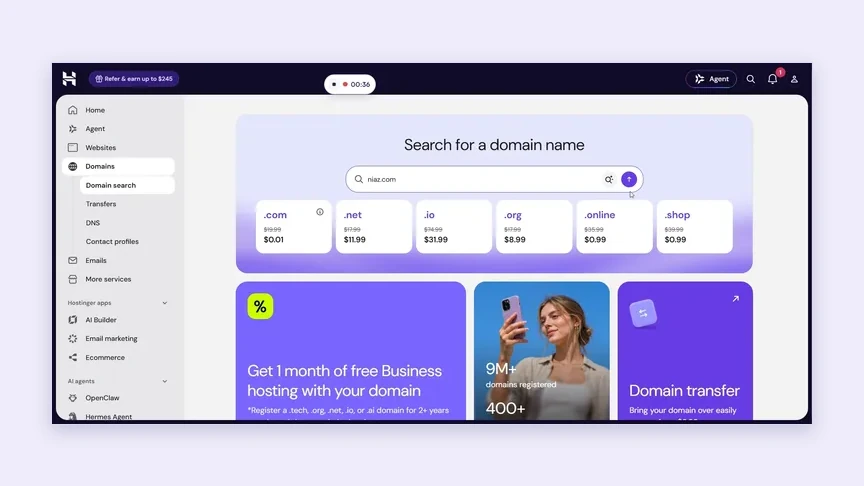
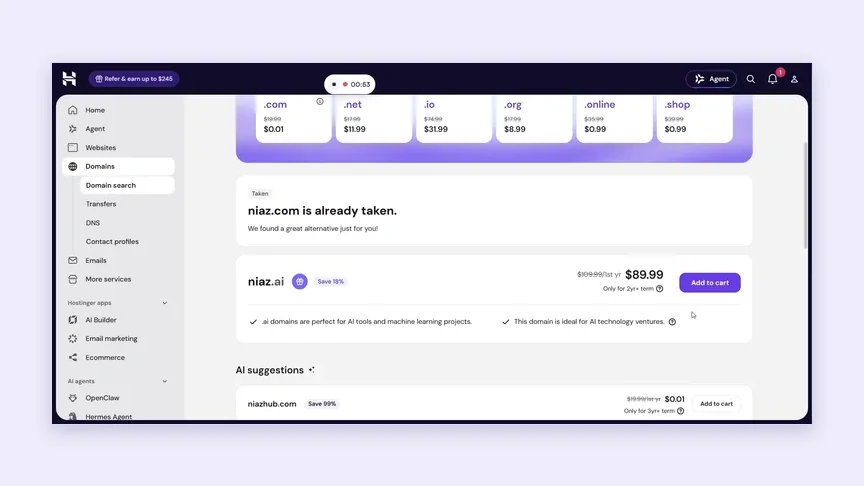
The video. The same recording became an MP4 with an AI voiceover and word-by-word captions. The voiceover is written for each step rather than read off the guide: over step 1 the voice says “Start by opening your Hostinger dashboard”, where the guide's heading says “Open the Hostinger Dashboard”. You can watch it beside its guide in the English tab on our how it works page.
What we would edit before it goes into section 4 of the template. A generated guide is a draft, and this one shows why:
- Step 4 repeats the field's label. It should read: Type niaz.com in the search box.
- Step 7's check line is vague. After Continue to checkout, a dialog lists the order and its total, so the check should say that.
- Step 6 says your chosen domain, but the recording shows the domain already taken and an alternative offered. That becomes a troubleshooting row: The domain is already taken: pick one of the suggestions or search again.
- The goal, the prerequisites (an account with the hosting provider and a payment method) and where to get help are in no recording. Those you write yourself.
The workflow, one task at a time:
- 1
Pick one task and prepare clean sample data
Choose a task with a clear start and end, such as booking an appointment. Use a test account and invented details, so no real names, email addresses or account numbers end up in the screenshots or the video.
- 2
Record it once with the extension
Install the Chrome extension, open the app and do the task at a normal pace, explaining out loud what you are doing if that helps. stepvideo records a browser tab, a window or your whole screen; click-accurate editing comes from tab capture with the extension, so a web app recorded in a Chrome tab gives the cleanest steps.
- 3
Review the steps, not a timeline
Rename, reorder, merge, split or delete steps, and fix any instruction that reads like step 4 above. Rewriting a step's text makes that step's voiceover and captions again, with nothing recorded twice.
- 4
Check every screenshot
Look for personal data, notifications and other open tabs. In the written guide you can draw a box over anything a screenshot should not show; blur on the video is something you place yourself in the editor, and it needs a paid plan. Nothing is hidden for you automatically.
- 5
Move it into the manual
Download the guide as a PDF or open its share page, copy the steps into the task's table in section 4, and put the video's share link in the task's Screenshot or video line. Then add the goal, the prerequisites and any troubleshooting rows yourself.
- 6
Re-record one task when the screen changes
When a release moves a button, record that task again and replace its subsection. The rest of the manual stays as it is, which is why one recording per task beats one long recording of everything.
If the manual ships in more than one language: stepvideo transcribes 96 languages and publishes narration in 58. Translating a project makes a new version with a new voiceover, new captions and a translated written guide, without a second recording. The screenshots still show the interface in the language you recorded it in, so for a fully localized manual, record the task again with the app set to that language. How to translate a video covers the details, and plans are on the pricing page.
How do you write a user manual with this template?
Start from the people who will read it and the jobs they come to do, not from the product's menus. List the tasks, write each one from a real run of it, test the draft on someone new, and only then fill in the reference sections around the tasks.
- 1Name the reader. Write down their role, what they already know and what they need to get done in their first week.
- 2List the tasks. Collect them from support tickets, onboarding calls and the questions colleagues ask. Each one becomes a subsection of section 4.
- 3Write each task from a real run. Do the task, or record it, and write the steps with the screen in front of you.
- 4Fill in the frame around the tasks: sections 1 to 3 at the front, and settings, troubleshooting, glossary and help at the back.
- 5Test it on someone new. Give the manual to a person who has never used the product and watch where they hesitate. Every pause is a step to rewrite.
- 6Publish it with a version and an owner, and add the first row to the revision history.
For the full method, with screenshots, video and accessibility, read how to create a user guide with screenshots and video. For the wording of each step, how to write step-by-step instructions covers verbs, decisions and warnings.
How do you keep a user manual up to date?
Review the manual as part of every release, not on a fixed date. When a release changes a screen, the task that shows that screen is wrong from that day, whatever the review calendar says. Three habits keep a software manual honest:
- Give the manual one owner, who approves changes and answers questions about it.
- Add the manual to your release checklist: for every changed screen, name the sections that show it and update them before the release goes out.
- Log each change in the revision history with the product version, so readers on an older release know whether the manual is theirs.
Internal documentation for your own engineers follows different rules; technical documentation software covers wikis, API references and runbooks.
Start with the task people ask about most
Download the template, pick the one task your support inbox hears about most, and write that subsection first, from a real run of it. Test it on someone new, then build the sections around it. A manual written one tested task at a time is more useful in its first week than a complete one nobody has tried to follow.
Frequently asked questions
Is there a user manual template in Word?
Yes. The template on this page is a standard .docx file that opens in Microsoft Word and Apple Pages, and in Google Docs once you upload it to Drive and choose Open with Google Docs. It has ten numbered sections with a short instruction under each heading, and a PDF of the same template is there for printing.
What should a software user manual include?
At minimum: who the manual is for and which version it covers, what a reader needs before starting, how to sign in and find their way around, one section per task with numbered steps and the expected result of each, troubleshooting, and where to get help. A glossary, a settings reference and a revision history earn their place as the product grows.
What is the format of a user manual?
A user manual is usually laid out in the order a new user meets the product: introduction, requirements, getting started, task sections, settings, troubleshooting, glossary and contact details. Inside each task, numbered steps start with a verb and are followed by what the reader should see, with a screenshot wherever something is hard to find.
How do you create a user manual for a web application?
List the tasks your users come to do, then write each one from a real run of it in the browser, naming buttons exactly as the screen shows them and adding the result after each step. Put getting started at the front and troubleshooting at the back. Recording each task once can supply its steps, screenshots and a short video.
What is the difference between a user manual and a user guide?
Most people use the two terms for the same thing. Where a team distinguishes them, a user manual is the complete reference for one product and version, from setup to troubleshooting, while a user guide covers one task, one feature or one audience. This template works for both: keep the sections you need and delete the rest.
How long should a user manual be?
As long as the tasks your users actually do, and no longer. A small web app's manual might run to ten pages, while a large product is often split into several manuals by role, such as one for users and one for administrators. If a single task runs past a page or two, it is probably several tasks.
What is the best program to create user manuals?
It depends on how the manual will be published. Word or Google Docs is enough for a manual one team drafts and shares as a PDF. A help center or documentation tool suits manuals that need search, versions and translation. Our comparison of user manual software explains how to choose by output format, versioning and who does the writing.
Can you make a user manual from a screen recording?
You can make most of a task section from one. Record yourself doing the task, and a tool such as stepvideo turns the recording into numbered steps with a screenshot each, plus a narrated video. You still write the goal, the prerequisites, the troubleshooting and the reference sections, and you should edit the generated steps before you publish.