
Training videos are short recordings that teach someone a specific task, such as using a system, following a process or meeting a rule, so they can then do it on their own. The ones that work teach one task at a time, show the real screen or setting, and come with written steps to scan later. This guide covers the six common types, examples to copy, how to make one step by step, where AI helps, and real output from a single screen recording.
What is a training video?
A training video is a recording made to teach a skill or a procedure, so that the viewer can perform it afterwards. That sets it apart from a marketing video, which tries to persuade, and from a recorded meeting, which captures a conversation. Many training videos inside companies are screen recordings with narration, because so much work now happens in software.
Video suits training because it shows and tells at the same time. Richard Mayer's research on multimedia learning, collected in his book Multimedia Learning, found that people learn better from words and pictures together than from words alone, better when a lesson is split into short segments the learner can pace, and better when cues point at the essential material. A good training video does all three: the narration explains while the screen shows the action, the task is broken into steps, and the eye is led to the control being used.
- It shows the exact click. A sentence like “open the billing settings” leaves room for doubt; watching the pointer go there does not.
- It is the same every time. Every new hire gets one explanation, not whichever version the busiest colleague remembers that day.
- It scales. Record it once and it serves ten people or a thousand, in any time zone, at the moment they need it.
- It can be replayed. Viewers pause, rewind and come back when they meet the task for real.
Video has two weaknesses. It is hard to search inside, and it goes out of date when the screen it shows changes. Both are reasons to keep written steps next to every video and to keep each video short enough to re-record without pain.
Training video vs instructional video
The terms overlap. An instructional video teaches anyone how to do something, often in public, like a recipe or a repair. A training video is usually made by an organization for its own employees, partners or customers, and it is tied to a job: a system they must use, a process they must follow or a rule they must meet. The craft is the same, and the method later in this guide works for both, including how to make an instructional video with a screen recording.
When should you use training videos for employees?
Use training videos for employees when many people do the same task the same way, when it is easier to show than to describe, and when it changes rarely enough for a recording to stay accurate for months. Tasks done in software, handoffs between teams and new-hire setup fit well. One-off decisions and policies that change every week are better handled in a conversation or a short written note.
| Situation | Better format |
|---|---|
| A new hire sets up accounts and tools in the first week | A short series of videos plus a checklist |
| Staff complete a task in a business system: a refund, a CRM record, an approval | A video with written steps |
| Work on a warehouse floor or a machine | Phone video or photos with a checklist |
| A policy people must read and acknowledge | The written policy with a sign-off; a short video can summarize it |
| A judgment call, such as calming an angry customer | Coaching or role play; a filmed scenario can support it |
| A process that changes every week | A written note now; record the video once it settles |
In larger companies, corporate training videos also carry compliance, safety and culture topics. Those are usually filmed with people or animated, which is a different production from the screen-based employee training videos this guide focuses on. Many organizations need both, and the screen-based kind is usually the one that grows into a large library, because software keeps changing.
What are the main types of training videos?
Most training videos fall into six types: onboarding, software how-to, compliance, process, product and microlearning. They differ more in audience and length than in technique, and one video can belong to two types, such as an onboarding video that is also a software how-to.
| Type | What it teaches | Who watches | Can it be a screen recording? |
|---|---|---|---|
| Onboarding | First-week setup, tools and where things live | New hires | Partly: tool setup yes, a welcome from the founder no |
| Software how-to | One task in one system | Employees or customers | Yes |
| Compliance | How to follow a rule in practice | Everyone the rule covers | The on-screen steps, such as filing a report |
| Process | A routine procedure, often written as an SOP | The people who run it | Yes, when the procedure happens on screen |
| Product | How customers use your product | Customers, partners, support staff | Yes |
| Microlearning | One small action or fact | Anyone, at the moment of need | Yes, when the point is on screen |
Each type has its own guide here. For new hires, see employee onboarding videos; for lessons about your own product, customer onboarding videos; for procedures, the SOP examples, several of which work best as video; and for a library of lessons about an application, the software training videos guide.
Training video examples you can copy
Here are six training video examples, one per type, each written as a plan you can adapt: who it is for, what it covers and why it works. They show structure, not customer stories. The next section shows a real video made with stepvideo.
1. Onboarding: set up your accounts on day one
For: new hires. Shape: three short videos, one per task. Covers: signing in with single sign-on, setting up multi-factor authentication, and finding the shared drive and team channels. Why it works: each video matches one thing the new person does that morning, with the video open beside the real screen, so IT stops answering the same three questions every Monday.
2. Software how-to: issue a refund
For: support agents. Shape: one video of about two minutes. Covers: finding the order, checking it was not refunded already, issuing the refund and noting it on the ticket. Why it works: it shows the exact screens the agent uses and dwells on the check that prevents a double refund, which is the mistake that costs money.
3. Compliance: report a suspected phishing email
For: every employee. Shape: about a minute. Covers: two or three warning signs in the narration, then the report button in your email client and what happens after you press it. Why it works: the policy says report it; the video shows where to click, which is the part most people were never shown.
4. Process: approve a supplier invoice
For: accounts payable staff. Shape: one video per procedure, linked from the written SOP. Covers: matching the invoice to the purchase order, coding it, sending it for approval and scheduling payment. Why it works: the video carries the clicks and the SOP document carries the approval limits and exceptions, so neither has to do the other's job.
5. Product: invite a teammate and set their role
For: customers, and the support team who answer them. Shape: one short video on the help center article. Covers: opening settings, sending the invite, choosing a role and what the teammate sees when they accept. Why it works: it answers a question customers already ask in tickets, so support can paste a link instead of typing the steps again.
6. Microlearning: find last month's report
For: managers who open a report once a month and forget the way between visits. Shape: under a minute. Covers: one path through the menu and one filter. Why it works: it is short enough to watch at the moment of need, which is when people actually look for help.
What does a training video made from a screen recording look like?
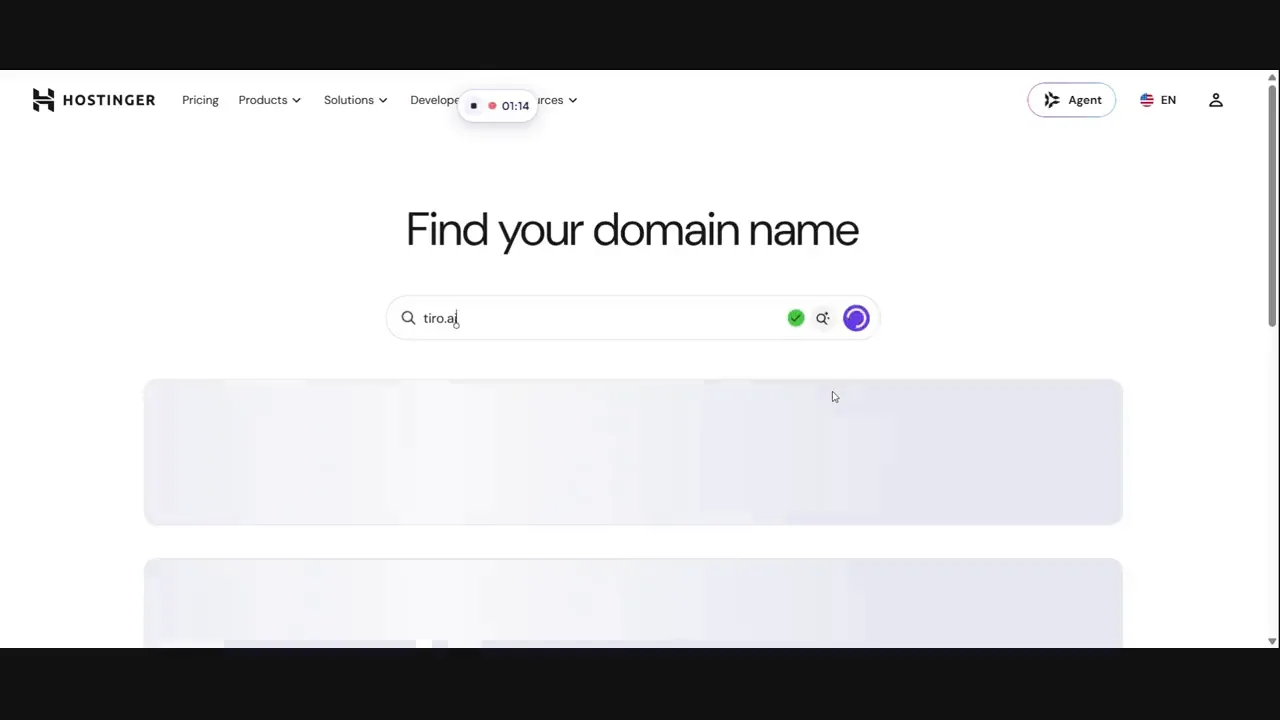
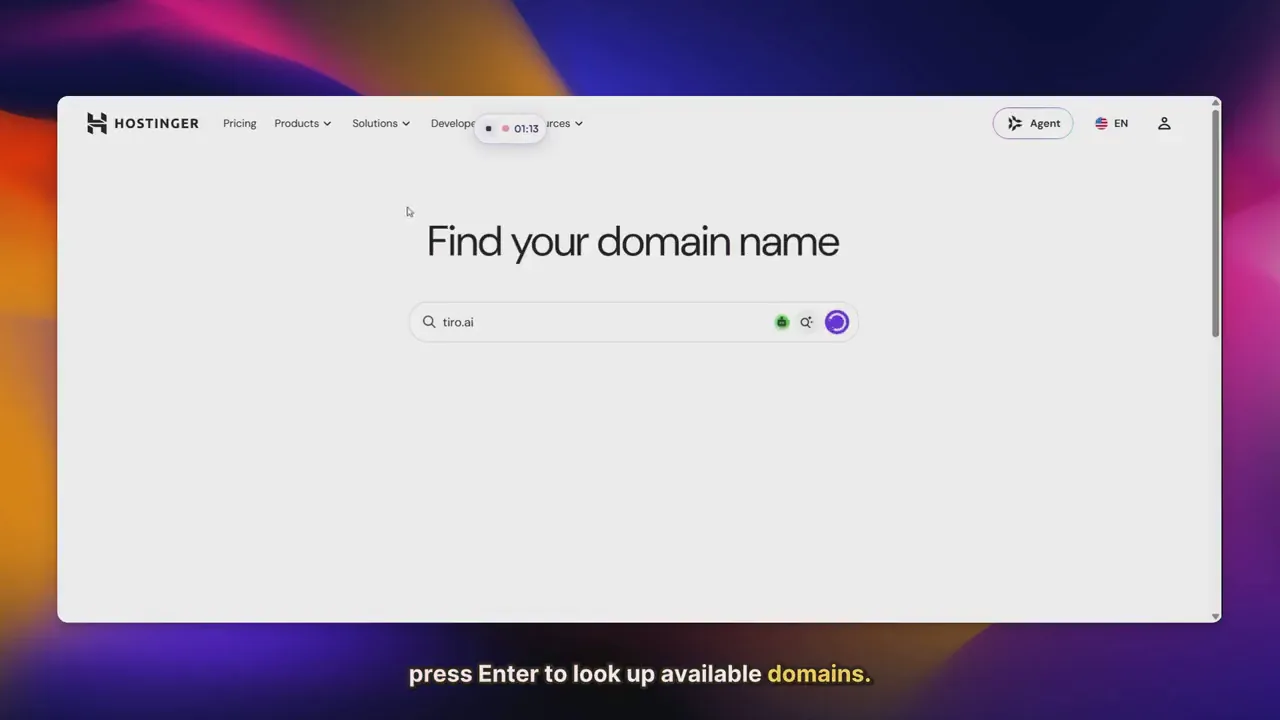
Here is real stepvideo output, not a mock-up. We recorded a domain search on Hostinger's website, a task with clicks, typing and waiting, which is what most software training looks like. The raw capture ran 2:07. stepvideo edited the same take into a 1:29 video with zooms on the clicks, an AI voiceover and word-by-word captions. Both versions play as a before and after on our homepage and on how stepvideo works.
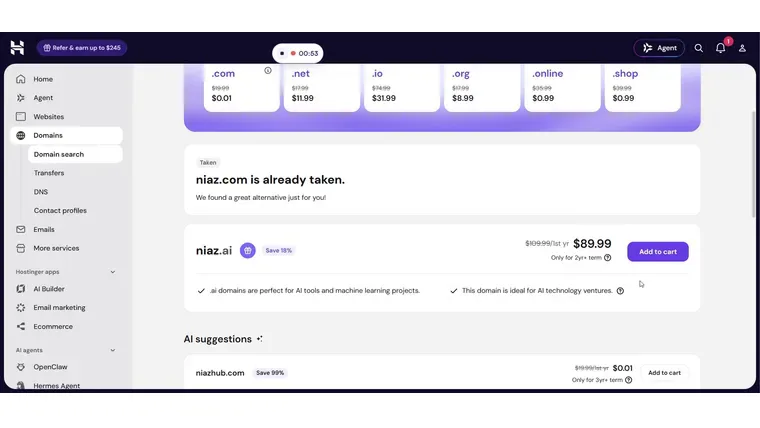
The written half comes from the recording too. Below is step 6 of the eight-step guide stepvideo generated from a separate, shorter English recording of the same task. Each step has a heading, one instruction and a screenshot from that step, and most end with a Check: line that says what you should see next.
The homepage's translation section plays tutorials of this task in English, Spanish, German, Japanese, Hindi and Chinese. The table shows how three of the generated guides wrote the add-to-cart step. They came from separate takes, so the step numbers differ, and each keeps the button label in English because that is what the screen said, which is what a learner needs to match.
| Guide | Step heading | Instruction |
|---|---|---|
| English | Add the Domain to Your Cart | Click Add to cart next to your chosen domain. |
| Spanish | Agregar el dominio seleccionado al carrito | Haz clic en “Add to cart” junto al dominio que deseas agregar. |
| German | Domain zum Warenkorb hinzufügen | Klicken Sie auf Add to cart, um die gewünschte Domain in den Warenkorb zu legen. |
The output is not flawless. In some of the other language guides a heading repeats the first line of its instruction, or a step has no heading at all, which is exactly the kind of thing you fix in the editor before publishing. Treat generated training material as a strong first draft that someone who knows the task signs off.
How to make training videos, step by step
Pick one task, write down the outcome and the steps, prepare a clean screen, record one real run, shorten the waiting, add narration and captions, then publish the video beside written steps and re-record it when the screen changes. The steps below work for any screen-based training video, whatever tool you use.
- 1
Choose one task and one learner
Name the task as a verb and an object (approve a supplier invoice, not the invoicing module) and name who needs it. If you cannot describe the finish line in one sentence, the video covers too much, so split it.
- 2
Write the outcome and the steps
List the steps in order and what the viewer should see after each one. For a screen recording, that outline is most of your script: you talk through the steps while you do them, and the list keeps you from wandering.
- 3
Prepare the screen
Use a test account with realistic but fake data, close unrelated tabs, turn off notifications and make the text large enough to read. Hide anything private before you press record; blurring it afterwards is slower and easy to miss.
- 4
Record one real run
Do the task at a normal pace from start to finish. Narrate as you go or stay silent and add a voiceover later. If you fumble a step, redo it and carry on rather than restarting the whole take.
- 5
Edit for clarity
Cut the false start, shorten the waiting, zoom in where a control is small, and remove anything that does not help the viewer finish the task. Keep the pace a little slower than feels natural to you: the viewer is seeing these screens for the first time.
- 6
Add narration and captions
Narrate what to do and why in short sentences, one step at a time. Add captions for people watching with the sound off, for non-native speakers and for accessibility, and check names and product terms in them.
- 7
Add written steps
Put a numbered list with a screenshot per step next to the video. People who half-know the task skim it, and search can find text inside it, which a video alone does not allow.
- 8
Publish where people look, and keep it current
Put the video in the knowledge base, LMS or wiki your team already uses, and link it from where the task happens, such as a ticket macro or the onboarding checklist. Note which screens it shows so you know when to re-record.
Equipment matters less than most people expect. For screen-based training you need a computer, a browser and a headset or USB microphone in a quiet room. Cameras, lights and studio software matter for filmed training, not for screen recordings. For more on recording technique, see how to make a tutorial video.
With stepvideo, steps 4 to 7 come from the one recording. You record the task in Chrome with the extension, and the edit zooms on each control you click, speeds through still stretches at up to 3× and trims a long wait at the end of a step, writes and voices a script for every step, burns in word-by-word captions and builds the written guide with a screenshot per step. You then correct the steps, not a timeline: reorder, merge, split or delete them, rewrite a line, and render again.
Should you produce training videos in-house or hire a studio?
Produce screen-based training in-house: the person who knows the task can record it, and it will need re-recording whenever the software changes. Hire a training video production company or a freelance training video producer when you need filmed scenes, actors, animation or a polished brand piece, and when the content will stay the same for a year or more.
| Option | Good for | What drives the cost | Watch out for |
|---|---|---|---|
| A screen recorder and your own editing | Occasional software and process videos | Your team's time | Editing hours pile up across a library |
| A tool that edits the recording for you | Software training at volume, in several languages | A subscription | Someone still has to review scripts and translations |
| A freelance training video producer | A short series with filmed or animated parts | Days of work, scripting and revision rounds | Who updates the videos after the handover |
| A training video production company | Corporate training videos with actors, sets or animation | Scripting, filming days, crew, talent, animation and revisions | Slow and costly to change once released |
Corporate training video production is usually priced per project, so ask for quotes against a written brief that names the length, the filming days, any actors or animation, and how many revision rounds are included. In-house cost is mostly time: planning, recording, editing and, above all, re-recording when the product changes. If you are choosing a tool, our comparison of training video software covers seven options and when each fits. stepvideo's plans are on the pricing page, starting with Creator at $29/month.
How can you use AI for training videos?
AI now handles four jobs that used to take longest: drafting the script, recording the voiceover, captioning and translating. It does not decide what is worth teaching, and it cannot tell whether a step is the right way to do the task. That review stays with someone who knows the work.
Script
From a screen recording, AI can write narration from what happened on screen and anything you said while recording. stepvideo writes it per step, so each line matches the action it describes. Read every line before you publish: the AI describes what it saw, and only you know why a step matters or which field people get wrong.
Voice
An AI voice removes the need for a quiet room and a confident narrator, and a corrected line can be voiced again without recording again. In stepvideo, rewriting one step's text makes that step's voiceover and captions again, and you can keep your own voice from the recording instead. The AI voiceover guide covers when a synthetic voice fits and when it does not.
Captions
Captions serve viewers with the sound off, non-native speakers and anyone who is deaf or hard of hearing, so training videos should always have them. stepvideo burns word-by-word captions into the MP4 (in Japanese, Chinese, Thai and right-to-left languages such as Arabic, a line at a time) and also gives you .srt and .vtt files for players that show their own. Other methods are in how to add captions to a video.
Translation
If your teams work in several languages, translation is where AI saves the most re-recording. stepvideo transcribes 96 languages and publishes narration in 58. Translating a project makes a new version with the same cuts and zooms, a new voiceover, new captions and a translated written guide, with no second recording. The languages page lists them, and how to translate a video covers the options. Have a native speaker review any translation used for compliance, safety or customers.
What about AI avatars?
Avatar tools generate a presenter who reads your script on camera. stepvideo does not make avatars or presenters: it works from a recording of the real screen, which for software training is what the learner needs to see. If a talking presenter matters more than the screen, choose a tool built for that.
How do you measure whether a training video works?
Measure whether people can do the task afterwards, not how many times the video was played. The useful signals are fewer repeat questions about the task, less time until a new person does it alone, fewer errors in the work itself, and a quick check where the learner does the task while someone reviews the result.
- Repeat questions. Count tickets or chat messages about the task for a month before the video and a month after.
- Time to independence. For onboarding, note the day a new hire first completes the task without help.
- Errors in the work. Look at the output: refunds issued twice, invoices coded wrong, required fields left blank.
- Completion, read with care. An LMS completion rate tells you who pressed play, not who learned. Use it to find videos nobody opens.
- Feedback where the video lives. A one-question “Did this help?” next to the video finds confusing steps quickly.
For a quick check of understanding, stepvideo can draft a multiple-choice knowledge check with an answer key from the same recording, in the editor's Document tab; review it, then put it in the form or LMS you already use to collect answers. stepvideo's share pages also count how often each one is opened, which tells you a video is being found. Pair that with one of the signals above to know whether it is also working.
Start with the task people ask about most
You do not need a training program to start. Pick the one task your team or your customers ask about most, record a real run of it this week, publish the video next to its written steps, and watch whether the questions stop. Then do the next one.
Frequently asked questions
What are training videos?
Training videos are recordings made to teach a specific skill or procedure, so the viewer can do it afterwards without help. In companies they usually cover onboarding, software tasks, processes, compliance steps and product use. Most are short screen recordings with narration and captions, published next to written steps in a knowledge base, wiki or learning system.
What is the best way to make training videos?
Record one real run of a single task, then edit it for clarity: shorten the waiting, zoom in on small controls, add narration and captions, and publish it beside written steps. Planning the outcome and the steps before you record matters more than equipment. For software tasks, a tool that edits the recording automatically means you review an edit instead of building one.
How can I create training videos for my employees?
Start with the tasks new hires ask about most and give each one its own short video. Record a real run in a test account, narrate the steps, add captions, and publish the videos where employees already look, such as the onboarding checklist, the wiki or your learning system. Then ask one new hire to follow each video and fix every point where they hesitate.
How long should a training video be?
As long as one task takes, which for most software tasks is one to five minutes. If a video needs a table of contents, it covers several tasks and works better as separate videos. Short videos are also cheaper to keep current, because a change to one screen means re-recording one short video instead of a long one.
Can I create training videos for free?
Yes. Free screen recorders, including the ones built into Windows and macOS, can capture a training video, and free editors can trim it and add captions. stepvideo starts with a 10-day free trial (5 AI minutes, no card, watermarked), enough to try it on a few short tasks and see the video and written guide it makes before you decide whether to pay.
How much does it cost to produce a training video?
It depends on who makes it and what it shows. Screen-based training made in-house costs mainly staff time plus any software subscription. A production company prices each project by its scripting, filming days, actors or animation and revision rounds, so ask for quotes against a written brief. Budget for updates too: software changes, and each change means re-recording.
Can AI make training videos in different languages?
Yes. AI can translate the script, voice it in another language and caption it, so one recording can serve teams that work in several languages. stepvideo transcribes 96 languages and publishes narration in 58, and a translated version keeps the original's cuts and zooms. Have a native speaker review any translation used for compliance, safety or customer-facing training before you publish it.