

This free work instruction template gives you a one-task format in Word and PDF, with eight filled-in work instruction examples to copy from. Download it below, then use this page to fill it in: what each section is for, how a step should read, what good examples look like for office, software, support and light operations work, and when a picture or a short video does the job better than a sentence.
Download the work instruction template
There are two versions with the same eight sections. Take the Word file if you will edit it on a computer; take the PDF if you want to print it and fill it in by hand at the desk or bench where the task happens.
- Work instruction template, Word (.docx): blank, with a short instruction in grey under every heading. It opens in Microsoft Word and Apple Pages, and in Google Docs if you upload it to Drive and choose Open with Google Docs.
- Work instruction template, PDF: the same blank template laid out for printing, with ruled tables to write in.
- Filled-in example, Word and as a PDF: a complete work instruction for escalating a customer bug report to engineering, which is example 5 further down this page.
The links go straight to the files, with no email address and no account. Copy them, change them and share them inside your company however you like. For the longer method behind each section, read how to write work instructions alongside this page.
What is a work instruction?
A work instruction is a short document that tells one person how to do one task correctly: what to have ready, which actions to take in order, what they should see after each action and how they know the task is done. It usually sits under a standard operating procedure and gives the exact steps for one task inside it, at the screen, desk or bench where the work happens.
Because it is written for the moment of doing, a good work instruction is short, specific and visual. It names the buttons, fields and parts the person will actually see, it puts a warning in front of the step that needs it, and it gives the person a way to check their own work as they go.
Work instruction vs SOP: what is the difference?
An SOP describes how a piece of work is done across a team: why it exists, its scope, who does what and the controls around it. A work instruction describes how one person does one task inside that SOP, action by action, with what they should see after each one. One SOP often links to several work instructions.
| Aspect | SOP | Work instruction |
|---|---|---|
| Answers | What is done, by whom and why | How to do one task correctly |
| Scope | A routine piece of work, often across several roles | One task, one role |
| Detail | Main steps, decisions and approvals | Every action, with a check for each |
| Usual format | A document with purpose, scope, roles and controls | A steps table with pictures, often a page or two |
| Example | Handle a customer-reported problem | Escalate a customer bug report to engineering |
Companies draw the line in different places, and some call everything an SOP. What matters is that each document answers one kind of question and links to the others. For the SOP layer, start with what an SOP is and the free SOP template; for ten worked procedures, see these standard operating procedure examples.
What should a work instruction template include?
A work instruction template needs a header that identifies the document, then the task and its result, who does it, what must be ready, warnings, numbered steps with a check for each, what to do when something goes wrong, the finish line and a revision history. Here is the template's layout, section by section:
| Section | The question it answers | Keep it to |
|---|---|---|
| Header block | Which task, which version, who owns it, which SOP is it part of? | Eight fields in a grid |
| 1. Task and result | What am I doing, and what exists when I am done? | Task, result, trigger |
| 2. Who does this | Is this for me, and do I have the access it needs? | Role, permission, who to ask |
| 3. Before you start | What must be ready before step 1? | A short list |
| 4. Safety and warnings | What could hurt someone, lose data or cost money? | Real warnings only |
| 5. Steps | What do I do, how, and how do I know it worked? | One action per row |
| 6. If something goes wrong | What do I do when I see something unexpected? | What you see, what to do, who to call |
| 7. Done when | How do I know I can stop, and who gets the work next? | Final check, record, handoff |
| 8. Revision history | What changed, when and why? | One row per version |
The steps table is the heart of it, with four columns: the step number, the action, a key point and a check. The key point holds the one thing that makes the step go right, such as a setting to choose or the reason the step exists. The check is what the person should see when the action worked: a status, a message, a number that matches. That is how a mistake gets caught at the step where it happens instead of at the end of the task.
Sample work instruction format: how should each step read?
Each step should be one action that starts with a verb, names the control or part exactly as the person will see it, and ends in something they can check. If you need the word “and” to describe a step, it is probably two steps. If the person could carry on after the action silently failed, the step needs a check.
| Instead of | Write |
|---|---|
| Update the customer's details as needed. | In the customer record, select Edit, replace the email address and select Save. Check: the record shows the new address. |
| Make sure the label is right. | Compare the name and postcode on the label with the order. Check: both match letter for letter. |
| Submit the claim. | Select Submit. Check: the status changes to Submitted. |
| Be careful with bank details. | Before the step, as a warning: never change bank details because of an email. Call the number already on file. |
- Keep it short. If the steps table runs past fifteen or so rows, the task is probably two tasks with a handoff between them.
- Put the picture next to its step, cropped to the control or part, not a full screen the reader has to search.
- Warn before the risky action, in that row, as well as in section 4. A warning after the step arrives too late.
Work instruction examples
Each example below is one task in the template's format: who does it, what to have ready, the steps with a check for each, and when it is done. They are generic on purpose. System names, limits and timings are placeholders; replace them with your own, then paste the result into the template to add warnings, problems and revision history.
1. Submit an expense claim (office)
Who: any employee. Before you start: the receipt as a photo or PDF, the cost code for the spend and a one-line business reason. Done when: the claim shows Submitted and your manager has the approval request.
| Step | Action | Check |
|---|---|---|
| 1 | Open the expense app and select New expense. | A blank expense form opens. |
| 2 | Upload or photograph the receipt. | The date, supplier and total are readable in the image. |
| 3 | Enter the date, amount and currency exactly as printed on the receipt. | The total matches the receipt, tax included. |
| 4 | Choose the expense category and the cost code. | If you cannot find the code, ask your manager before you submit. |
| 5 | Write the business reason: who, what and why, in one line. | Someone outside your team would understand it. |
| 6 | Select Submit. | The status changes to Submitted. |
Watch for: a wrong cost code. It sends the claim to the wrong approver, and it usually comes back days later, so step 4 says to ask first.
2. Set up a meeting room for a hybrid call (office)
Who: whoever booked the room. Before you start: the meeting invite includes the room and the video-call link. Done when: remote people can see and hear the room, and the room is left ready for the next booking.
| Step | Action | Check |
|---|---|---|
| 1 | Wake the room display and the meeting console on the table. | The console shows today's bookings for this room. |
| 2 | Select your meeting on the console and choose Join. | The call opens and the room appears in the participant list. |
| 3 | Look at the camera preview on the display. | Everyone at the table is in frame. |
| 4 | Ask a remote participant whether they can hear the room clearly. | If not, check the room microphone is selected and not muted. |
| 5 | To show a laptop screen, use the room's share cable or the share button in the call. | Remote people confirm they can see the screen. |
| 6 | At the end, leave the call on the console and sign out of anything you signed in to. | The console is back on the bookings screen. |
Watch for: the call joined from a laptop instead of the room console. The room's camera and microphone then sit unused while everyone hears the laptop, which is why step 2 starts on the console.
3. Add a user to a business app and assign a role (software)
Who: the app's administrator. Before you start: an access request that names the person and the role, approved by their manager. Done when: the invitation is sent with the requested role and the request is closed with the role recorded.
| Step | Action | Check |
|---|---|---|
| 1 | Open the access request and confirm a manager approved it. | No approval, no account: send the request back. |
| 2 | In the app's admin settings, open Users and select Invite user. | The invitation form opens. |
| 3 | Paste the work email address from the request; do not retype it. | The address ends in your company's domain. |
| 4 | Choose the role named in the request. If you are unsure, choose the lower one and ask. | The role's permission summary matches the request. |
| 5 | Add the user to their team or group and send the invitation. | The user is listed under the team with the status Invited. |
| 6 | Record the role in the request and close it. | The request shows Done, with the role written in. |
Watch for: the admin role given “just for now”. Extra access is rarely taken back later, which is why step 4 defaults to the lower role.
4. Restore an earlier version of a shared document (software)
Who: anyone with edit access to the document. Before you start: roughly when the document was last right, and who else edits it. Done when: the document shows the right content and the other editors know what was restored.
| Step | Action | Check |
|---|---|---|
| 1 | Open the document's version history, usually under the File menu. | A list of versions with dates and editors appears. |
| 2 | Select the version from just before the unwanted change. | The preview shows the content you expect. |
| 3 | Tell the other editors, in the document's comments or your team chat, that you are about to restore it. | Nobody is mid-edit. |
| 4 | Select Restore this version. | The document shows the restored content. |
| 5 | Re-apply any changes made after that version that should stay, copying them from the newer version in the history. | Nothing wanted is lost. |
| 6 | Comment with what you restored and why. | The note is visible to every editor. |
Watch for: good edits made after the mistake. Restoring takes the whole document back, so step 5 exists to bring the wanted ones forward again.
5. Escalate a customer bug report to engineering (support)
This one is also the filled-in example file, so you can see every section of the template completed, with the key point column in use. Who: support agent. Before you start: the ticket is assigned to you and you can sign in to the support test account. Done when: the bug is filed or linked with evidence, the ticket is tagged and Pending, and the customer knows what happens next.
| Step | Action | Key point | Check |
|---|---|---|---|
| 1 | Open the ticket and read it to the end, attachments included. | One ticket, one problem. If it describes two, split it first. | You can say in one sentence what goes wrong. |
| 2 | Search the bug tracker for the error message, or the feature name. | A match saves engineering a duplicate bug. | If an open bug matches, go to step 7 and link that bug. |
| 3 | Sign in to the support test account and repeat the customer's steps. | Use the customer's browser and plan type where you can. | You see the same error or behavior. If not, see section 6. |
| 4 | Record the problem happening: a screen recording, or a screenshot of each step, with the page address, browser and time. | One clean run, from the first click to the error. | The recording shows the fault. |
| 5 | Create a bug from the Bug template: title, steps to reproduce, expected result, actual result. Attach the recording. | Title it [Area]: [what happens] when [action]. | The bug has an ID and the status New. |
| 6 | Set the severity from the table in SOP-SUP-003. | Severity is the impact on customers, not how upset this customer is. | The Severity field is filled in. |
| 7 | Link the bug to the ticket and add the tag bug-escalated. | The tag puts every open escalation in one view for the team lead. | The ticket shows the linked bug ID. |
| 8 | Reply to the customer: the problem is reported and what happens next. Set the ticket to Pending. | Never promise a fix date. Engineering sets it. | The ticket status is Pending. |
If something goes wrong: when you cannot reproduce the problem, ask the customer for a screen recording, their browser and when it happened. When customer data is lost or exposed, stop: do not file a normal bug, page the on-call engineer through the incident channel.
6. Verify a customer before changing their account email (support)
Who: support agent. Before you start: a ticket asking for the change, and the customer record open. Done when: the new address is on the account, both addresses have been told, and the ticket records how the customer was verified.
| Step | Action | Check |
|---|---|---|
| 1 | Open the customer record from the ticket. | The name and account match the person asking. |
| 2 | Send a verification code to the email address already on the account, never to the new one. | The help desk shows the code as sent. |
| 3 | Ask the customer to reply with the code. | The code matches. If it does not, stop and use the account-recovery route. |
| 4 | Replace the email address in the customer record and save. | The record shows the new address. |
| 5 | Send a change notice to both the old and the new address. | Both notices appear in the ticket's sent messages. |
| 6 | Add an internal note saying how you verified the customer, then close the ticket. | The note is on the ticket. |
Watch for: a convincing story instead of a code. Changing the email hands over the account, so step 2 has no exceptions, and anyone who cannot receive the code goes to account recovery.
7. Receive a delivery and check it against the order (light operations)
Who: whoever receives goods at the front desk, office or stockroom. Before you start: the list of open purchase orders and a login to the purchasing system. Done when: the order shows what actually arrived, any damage is photographed, and the goods are put away.
| Step | Action | Check |
|---|---|---|
| 1 | Find the purchase order number on the delivery note. | It matches an open order. If not, set the delivery aside, mark it Hold and tell the buyer. |
| 2 | Count the boxes against the delivery note before the driver leaves. | Write any shortage or visible damage on the driver's copy before you sign. |
| 3 | Open each box and check items and quantities against the order. | Every order line is ticked or marked short. |
| 4 | Photograph any damage, with the box label in the shot. | The photos are saved with the order. |
| 5 | Record the quantities received against each order line. | The order shows Received or Partially received. |
| 6 | Put the items in their labeled location and file the delivery note. | The shelf label matches what is on it. |
Watch for: signing for a delivery before counting it. A shortage noted on the driver's copy is easy to claim; one found after the driver has gone often is not.
8. Print a shipping label and book a collection (light operations)
Who: whoever ships orders. Before you start: the parcel is packed, weighed and measured, and the order is paid. Done when: the parcel carries one clear label, the order shows its tracking number, and a collection is booked.
| Step | Action | Check |
|---|---|---|
| 1 | Open the order in the shipping app and compare the delivery address with the order. | Name, street, postcode and phone are all filled in. |
| 2 | Enter the parcel's weight and dimensions, rounding up. | The units match what the app asks for. |
| 3 | Choose the delivery service the customer paid for. | The service matches the order's shipping line. |
| 4 | Buy and print the label. | The barcode is sharp and not cut off at the edge. |
| 5 | Stick the label flat on the largest side, away from seams, and cover any old labels. | Only one barcode is visible on the parcel. |
| 6 | Book a collection, or add the parcel to today's scheduled pickup. | The order shows a tracking number and the status Label created. |
Watch for: an old barcode left visible on a reused box. Scanners can read the wrong one, so step 5 asks for exactly one.
Visual work instructions: when do pictures or video help?
Visual work instructions put a picture beside each step: a photo for physical work, a cropped screenshot for software, or a short video when movement or order matters more than any single frame. Add a picture wherever the person would otherwise hunt for a control or a part, and leave it out where the sentence already does the job.
| Format | Best for | Watch out for |
|---|---|---|
| Text steps only | Short tasks people already half know | Steps that depend on finding something on screen |
| Screenshot per step | Software tasks: admin settings, forms, help desks | Screens change, and every release can make a picture wrong |
| Photo per step | Physical tasks: deliveries, labels, room equipment | Photos of the wrong model or an old layout |
| Short video | The first time someone does the task, and steps with movement | Hard to scan; keep the written steps beside it |
A real example: steps generated from one screen recording
Here is what it looks like when the steps come from a recording instead of a blank page. This is the English guide stepvideo.io generated from a real recording of a domain search in a web-hosting dashboard, quoted as it came out, rough edges included. The same guide sits beside its video on our how it works page.
| Step | Instruction | Check line |
|---|---|---|
| 1. Open the Hostinger Dashboard | Navigate to https://hpanel.hostinger.com/ in your web browser. | You should see the Hostinger dashboard. |
| 2. Go to the Domains Section | Click on Domains in the menu. | The Domains page opens. |
| 3. Open the Domain Search Tool | Click on Domain search in the Domains menu. | The Domain Checker page appears. |
| 4. Enter the Domain Name to Search | Type your desired domain name into the field labeled 'Type a domain or describe your idea'. Type a domain or describe your idea : Enter 'niaz.com' as the domain name. | (none) |
| 5. Search for the Domain | Click the Search button to look up the domain. | Search results for 'niaz.com' are displayed. |
| 6. Add the Domain to Your Cart | Click Add to cart next to your chosen domain. | The domain is added to your cart. |
| 7. Proceed to Checkout | Click Continue to checkout to proceed. | A confirmation message appears indicating you are moving to the checkout process. |
| 8. Choose a Payment Method | Click Choose payment method to select your preferred payment option. | The payment page is displayed, allowing you to complete your purchase. |
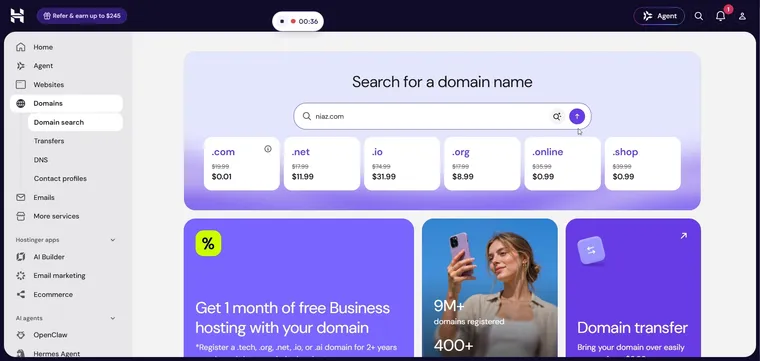
Read it as a draft work instruction, because that is what it is. Every step has an action and its own screenshot, and seven of the eight came with a check line. Step 4, though, repeats the field label and has no check, and nothing in a recording can say who the task is for, what must be ready, or what to do when the name is taken. Those are sections 2, 3 and 6 of the template, and they come from you.
That is where stepvideo fits if you are after an AI work instructions builder for software tasks. You record the task once with the Chrome extension, which records a browser tab, a window or your whole screen; click-accurate editing comes from tab capture with the extension. From that one take it builds the step list, a written guide with a screenshot for each step that downloads as a PDF, and an edited how-to video with AI voiceover and captions. You correct the steps rather than a timeline: rename, reorder, merge, split or delete them, rewrite a step's narration, and re-render.
Paste the guide or its share link into section 5 of the template, and keep the document as the record people approve. From the same project, stepvideo can also draft an SOP-style document with a purpose, scope, prerequisites, procedure and a way to verify success, which you edit like any other draft. If the people doing the task read different languages, stepvideo transcribes 96 languages and publishes narration in 58, so one recording can serve several teams. Plans are on the pricing page.
What are standard work instructions?
Standard work instructions (SWI) record the agreed best way to do a repeated task, in a fixed order, so every person and every shift does it the same way and any improvement starts from a known baseline. The idea comes from lean manufacturing, where standard work has three elements: takt time, the work sequence and the standard amount of work in progress.
Outside a factory, the idea still works without the stopwatch. A support queue, a mailroom or an accounts team can agree one sequence for a repeated task, write it down and change it on purpose when someone finds a better way. The difference from an ordinary work instruction is the word agreed: the standard is the baseline that improvements are measured against.
- To make a standard work instructions template from this one, add a Time column to the steps table and put the expected total time in section 1.
- Keep the key point column. It carries the reason behind each step, which is what stops a well-meant shortcut from becoming the new habit.
- Record each improvement in the revision history with what changed and why, so the standard moves forward on purpose and never drifts.
On a production line with takt times, operator stations and in-process stock, standard work needs the floor practice and forms that go with it, not only a document.
How do you fill in the work instruction template?
Fill it in from a real run of the task, not from memory. Start with the steps table, add warnings and problems from what you saw, and test the draft on someone who has never done the task before you publish it.
- 1
Pick one task with one performer
A work instruction covers what one person does in one sitting: “Escalate a bug report”, not “Support”. If two roles take turns, write one instruction for each and link them.
- 2
Watch the task done correctly, or record it
Ask the person who does it best to do a real one while you take notes. For work on a screen, a recording catches the clicks people no longer notice they make. Write down every question a beginner would ask.
- 3
Fill in the steps table first
One action per row, verb first, with labels exactly as the screen or the part shows them. Add a check to every step where the person could carry on after a silent failure.
- 4
Add key points only where they earn their place
A key point is the trick that makes the step go right, or the reason it exists. If a step has neither, leave the cell empty rather than repeating the action.
- 5
List what must be ready, and the warnings
Put systems and access, materials and the starting condition in section 3. Put each warning in the row before the risky action, as well as in section 4.
- 6
Turn every “it depends” into section 6
Write each problem as the person would see it, then what to do and who to contact. When the safe answer is to stop and ask, say exactly that.
- 7
Test it on someone new, then publish it where the work happens
Ask someone who has never done the task to follow it without help, and rewrite every step where they hesitate. Publish one copy next to the work, set an owner and a review date, and update it whenever the screen or the rule changes.
For the full method, including decision rules, recovery paths and how to run that test properly, read how to write work instructions. For wording individual steps, see how to write step-by-step instructions.
Start with the task people ask about most
Download the template, pick the task your team asks about most, and write one work instruction from a real run of it. Give it to someone new, fix what they stumbled on, and publish it with an owner and a review date. Then copy the closest example above for the next task; the format is already decided, so the second one goes faster.
Frequently asked questions
Where can I find a free work instruction template?
This page offers one in Word (.docx) and PDF, free and with no sign-up. It has a header block and eight sections, including a steps table with a key point and a check for every action. A filled-in example for escalating a customer bug report comes in both formats, so you can see how much detail each section needs.
What is the format of a work instruction?
Most work instructions use a short header with title, number, version and owner, then the task and its result, who performs it, what must be ready, warnings and a numbered steps table. Each step is one action starting with a verb, often with a picture and a check. The document ends with problems and responses, when the task is done and revision history.
Can you give an example of a work instruction?
Escalating a customer bug report is a typical one. The support agent reads the ticket, searches for an existing bug, reproduces the problem in a test account, records it, files a bug with steps to reproduce, sets the severity, links the bug to the ticket and tells the customer what happens next. Each step has a check, such as the bug showing an ID.
What is the difference between an SOP and a work instruction?
An SOP sets the method for a piece of work: its purpose, scope, roles and controls, often across several people. A work instruction gives one person the exact steps for one task inside it, with what they should see after each action. A single SOP often links to several work instructions, one for each task it contains.
How do I make work instructions in Word or Excel?
In Word, build the steps as a table with columns for the step number, action, key point and check, and paste a cropped picture into the action cell where it helps. Excel can hold the steps table but handles pictures and long sentences poorly. The template on this page is a .docx, so you can start from it instead of building the table yourself.
What are standard work instructions?
Standard work instructions record the agreed best way to do a repeated task, in a set order and often with a time for each step, so everyone does it the same way. In lean manufacturing, standard work combines takt time, the work sequence and standard work in progress. Improvements change the standard on purpose and are recorded in its revision history.
Can AI create work instructions from a screen recording?
For tasks done in a browser, yes, as a draft. stepvideo turns one screen recording into a list of steps, a written guide with a screenshot for each step and an edited video with voiceover and captions. A person still adds who the task is for, what must be ready, the warnings and what to do when something goes wrong, and checks every step.