
This free knowledge base article template gives you four ready-made formats in Word and PDF: how-to, troubleshooting, FAQ and reference, plus a filled-in how-to article to copy from. A knowledge base article is a single help page that answers one question or walks a reader through one task, written so they can solve it without contacting support. Below are the downloads, each format part by part, an example of every type and a step-by-step method for writing articles people finish.
Download the knowledge base article template
Both versions hold the same four formats, with the details every article needs at the top and a checklist to run before you publish at the end. Take the Word file to draft on a computer, or the PDF to plan an article on paper before you build it in your help center.
- Knowledge base article template, Word (.docx): blank, with a short instruction in gray under every heading. It opens in Microsoft Word and Apple Pages, and in Google Docs if you upload it to Drive and choose Open with Google Docs.
- Knowledge base article template, PDF: the same four formats laid out for printing, with ruled tables to write in.
- Filled-in how-to example, Word and as a PDF: a complete how-to article for inviting a teammate to a workspace in a made-up web app, which is example 1 further down this page.
The links go straight to the files, with no email address and no account. The template is plain headings, lists and tables, so you can rebuild it in whatever hosts your articles: a help desk such as Zendesk or ServiceNow, a wiki such as Confluence, or your own website. Copy it, change it and share it inside your company however you like.
What is a knowledge base article?
A knowledge base article is one page in a help center or internal wiki that answers one question, fixes one problem or explains one task, written so the reader can solve it on their own. Help desks often shorten it to KB article, and some platforms call it a knowledge article. The names differ; the job is the same: one reader, one need, one page.
Knowledge base articles serve two audiences at once. Customers use an external knowledge base to help themselves at any hour, and support agents answer tickets with a link to the same article instead of typing the steps again. An internal knowledge base does that job for employees, for IT requests, HR questions and the steps behind a company's own tools.
What makes it an article rather than a manual is scope. A user manual covers a whole product and an SOP covers a piece of work across a team, while a knowledge base article covers the one thing someone searched for. If you are writing the longer document, start from the user manual template or the SOP template instead.
What are the types of knowledge base articles?
Most knowledge bases run on four types of article: how-to articles for tasks, troubleshooting articles for problems, FAQ articles for short questions and reference articles for facts people look up. Choose the type from the question the reader arrives with, because each one is laid out to answer a different kind of question.
| Type | The reader is asking | Title pattern | Body |
|---|---|---|---|
| How-to | How do I do this? | A verb and an object: Export your invoices as a CSV file | Summary, what to have ready, numbered steps with a check for each, the result |
| Troubleshooting | Why is this not working, and how do I fix it? | The symptom or the exact error: “Payment declined” when you upgrade | Symptom, cause, fixes from quickest to slowest, who to contact |
| FAQ | Can I, does it, how much, how long? | The question itself: Can I change my billing date? | The short answer first, then details and a link to the task |
| Reference | What does this setting, role or limit mean? | A noun phrase: Roles and permissions | An overview, then a table of items, defaults and who can change them |
Help centers use other names too, and each is a variation on these four. A getting-started article is a short series of how-tos. A glossary is a reference article for terms. Release notes are reference articles dated by version. A conceptual article such as “How billing works” is an FAQ answer with room to explain. Start with the four, and add the others when your readers ask for them.
What format should a knowledge base article follow?
A knowledge base article should open with a title in the reader's words and a one- or two-sentence summary that gives the answer or the result, then say who it applies to and what to have ready. The body takes the shape its type needs, such as numbered steps, fixes, a short answer or a table, and the article ends with the next step and related links.
| Part | What it holds | Why it matters |
|---|---|---|
| Title | The task, symptom or question, in the words readers search with | It is what readers see in search results, in your help center and on Google |
| Summary | The answer or the result in one or two sentences | Many readers only need to confirm they are in the right place |
| Applies to | The plans, roles, platforms or versions the article covers | Stops a reader on the wrong plan from following steps that cannot work for them |
| Before you start | Permissions, settings and anything to have ready | Prevents a failure at step 4 that the reader could have avoided before step 1 |
| Body | Steps, fixes, the answer or a reference table | The part the article type decides |
| Result and next step | What the reader has now, and where to go next | Tells the reader they are done and keeps them in the help center |
| Related articles | Two or three links | Answers the next question before it becomes a ticket |
| Owner and review date | Who keeps the article right, and when it is checked again | The main defense against articles that drift out of date |
Keep the formatting plain: short paragraphs, numbered lists for steps, bullets for options, bold for the names of buttons and fields, and a table only where readers compare values. Each article should make sense on its own, because most readers land on it straight from a search and never see the page before it.
The four knowledge base article templates
Here is each template from the download, with what goes in every part. Copy the section that fits the question, fill it in and delete the instructions. Every type shares the article details at the top of the file (ID, type, product area, applies to, owner, status, last reviewed and next review) and the checklist at the end.
1. How-to article template
Use it for a task the reader wants to finish, one task per article. Title it with a verb, the way people search: “Invite a teammate”, not “Team invitations”. The summary says what the reader will do and what they will have at the end.
- Title: a verb and an object, such as Export your invoices as a CSV file.
- Summary: one or two sentences that end in the result.
- Before you start: the role or permission, the plan, and anything to have ready.
- Steps: a table with the step number, the action, and what the reader should see when it worked.
- Result, problems and related articles: what they have now, two or three common problems with their fixes, and links.
2. Troubleshooting article template
Use it when something is going wrong. Start from what the reader sees, not from the cause, and quote error messages exactly as the screen shows them, because readers paste the error text into search.
- Title: the symptom or the exact error text, such as “Payment declined” when you upgrade.
- Applies to and symptom: where it happens and what the reader sees, in their words.
- Cause: one or two sentences, if you know it.
- Fixes: a table of what to try, how to do it and how the reader can tell it worked, ordered from quickest and safest to slowest.
- Still not fixed? who to contact, and what to send so support can help on the first reply.
3. FAQ article template
Use it for one question with a short answer. The first sentence is the answer: yes, no or the fact. If the honest answer is a list of steps, you have a how-to article with a question for a title, so write it as a how-to and link to it.
- Question: the title, phrased the way customers ask it.
- Short answer: one or two sentences.
- Details: conditions, exceptions and an example.
- Next step and related questions: a link to the task, and to the questions people ask next.
4. Reference article template
Use it for facts readers look up rather than read: settings, limits, roles and permissions, fields, keyboard shortcuts and terms. A table does most of the work. Keep tasks out of it and link to the how-to articles instead.
- Title: a noun phrase, such as Roles and permissions.
- Overview: what the table covers and who it is for.
- Table: the item, what it does, its default or limit, and who can change it.
- Notes: exceptions, plan differences and anything that changed recently.
The checklist at the end of the file is short on purpose: a title in the reader's words, one task or question per article, the answer in the first two sentences, steps that start with a verb, cropped screenshots with no personal data, a test on someone new, and an owner with a review date. An article that fails one line usually fails a reader.
Knowledge base article examples
Each example below fills in one of the four formats. The product is an unnamed web app, and every screen name, role, limit and policy in them is a placeholder, so copy the structure rather than the facts.
Example 1: how-to article, “Invite a teammate to your workspace”
Summary: send an email invitation from the Team page and choose the teammate's role; they join the workspace when they accept. Before you start: you are an Admin or the Owner, you have the teammate's work email address, and your plan has a free seat.
| Step | Do this | You should see |
|---|---|---|
| 1 | In the left sidebar, click Settings, then Team. | The Team page lists everyone in the workspace and their role. |
| 2 | Click Invite teammate, at the top right of the list. | The Invite teammate window opens. |
| 3 | Type the teammate's email address. To invite several people, separate the addresses with commas. | Each address appears as its own entry in the box. |
| 4 | Open the Role menu and choose Member or Admin. | The role you chose shows next to each address. |
| 5 | Click Send invitation. | The message Invitation sent appears, and the teammate is listed with the status Pending. |
| 6 | Ask the teammate to open the email and click Accept invitation within 7 days. | Their status changes from Pending to Active. |
Notice that every action names the control exactly as the screen shows it, and every check is something the reader can see. That is what lets a reader catch a mistake at the step where it happens. The full example in the download adds the result, four problems with their fixes (from a grayed-out Invite button to an address that already belongs to another workspace) and three related articles.
Example 2: troubleshooting article, “Invitation email not received”
Applies to: all plans. Symptom: you invited a teammate and the Team page lists them as Pending, but they say no email arrived. Cause: usually a spam filter, or a typo in the address.
| Try this | How | Fixed if |
|---|---|---|
| Check the address | On the Team page, compare the pending address with the one the teammate uses. | The two match exactly. |
| Check spam | Ask the teammate to search their spam or quarantine folder for the invitation. | They find the email and accept it. |
| Resend | Click Resend next to their name. The new invitation replaces the old one. | A new email arrives. |
| Allow the sender | Ask the teammate's IT team to allow email from the address the invitations come from. | The resent email arrives. |
Still not fixed? Contact support with the teammate's address and the time you sent the invitation. The fixes run from the quickest, which the reader can do alone, to the one that needs another team.
Example 3: FAQ article, “Can I change my billing date?”
Short answer: yes. The workspace Owner can move the billing date once per billing period on the Billing page. Details: the next invoice is adjusted for the days added or removed, and annual plans keep their renewal month. Next step: Change your billing date (how-to). The answer comes first, the conditions second, and the task lives in its own article.
Example 4: reference article, “Roles and permissions”
| Item | What it does | Default or limit | Who can change it |
|---|---|---|---|
| Owner | Everything, including billing and deleting the workspace | One per workspace | The Owner, by transferring ownership |
| Admin | Invites and removes people, changes roles and sees billing | No limit | The Owner |
| Member | Creates and edits the projects shared with them | The default role for new invitations | Admins and the Owner |
A reference article like this one is what the how-to and FAQ articles link to whenever a role matters, so the facts live in one place and change in one place.
How do you write a knowledge base article?
Write a knowledge base article from a real question and a real run of the task: pick one question, choose the type, write the title and the answer first, then the body, and test the draft on someone who has never done the task before you publish it. Here is the process in order.
- 1
Start from a real question
Use what people actually ask: ticket tags, chat transcripts, help-center searches that returned nothing, and the questions agents answer from memory. A question that comes in every week deserves an article this week.
- 2
Choose the type from the question
A task is a how-to, a problem is troubleshooting, a short question is an FAQ, and a lookup is reference. If one question needs two types, write two articles and link them.
- 3
Write the title and the summary first
Title it with the words the reader would type into search, then write the one- or two-sentence answer. If the summary will not fit in two sentences, the article covers too much; split it.
- 4
Do the task yourself, or record it
Work through it in a test account and note every click, field and message. For tasks on a screen, a recording catches the clicks people no longer notice they make.
- 5
Fill in the body in the template's shape
One action per step, verb first, with buttons and fields named exactly as they appear. Add what the reader should see after each step, and put any warning before the step it belongs to.
- 6
Add screenshots only where they help
Crop each one to the part of the screen that matters, and hide customer or personal data. A full-screen picture with a small button somewhere in it slows the reader down instead of helping.
- 7
Test it on someone new, then publish it with an owner
Ask someone who has never done the task to follow the article without help, and fix every step where they hesitate. Publish it with an owner and a review date, and link it from its related articles.
For wording individual steps, see how to write step-by-step instructions. If your articles start life as answers to tickets, screen recording for customer support covers recording those answers in the first place.
Should a knowledge base article include screenshots or video?
Include a screenshot wherever the reader would otherwise hunt for a control, and a short video when the order of clicks matters more than any one frame. Keep the written steps either way, because text is what readers skim, what search engines index and what a screen reader can read aloud.
| Format | Best for | Watch out for |
|---|---|---|
| Text steps only | Short tasks with obvious controls, FAQs and reference tables | Steps that depend on finding something on screen |
| A screenshot per step | Settings pages, forms and admin consoles | Every interface change can make a picture wrong |
| A short video | Multi-step tasks and first-time setup | Hard to skim, and invisible to search without text beside it |
| Video plus written steps | The tasks behind your most common tickets | Two things to keep in step, unless both come from one source |
Pictures are also what make articles expensive to keep. Each screenshot is a copy of the screen on one day, and the next release can make it wrong. If video is going to be the default across your help center, the guide to building a video knowledge base covers structure, captions and upkeep for a whole library.
From one screen recording to a how-to article
For tasks done in a browser, stepvideo.io can draft the steps for you. You record the task once with the Chrome extension, which records a browser tab, a window or your whole screen; click-accurate editing comes from tab capture with the extension. From that one take it writes a step-by-step guide, in which every step is a numbered heading, a short instruction and a screenshot from that moment with the control you clicked highlighted, and it edits a how-to video with AI voiceover and captions. The how it works page shows a real recording turned into both.
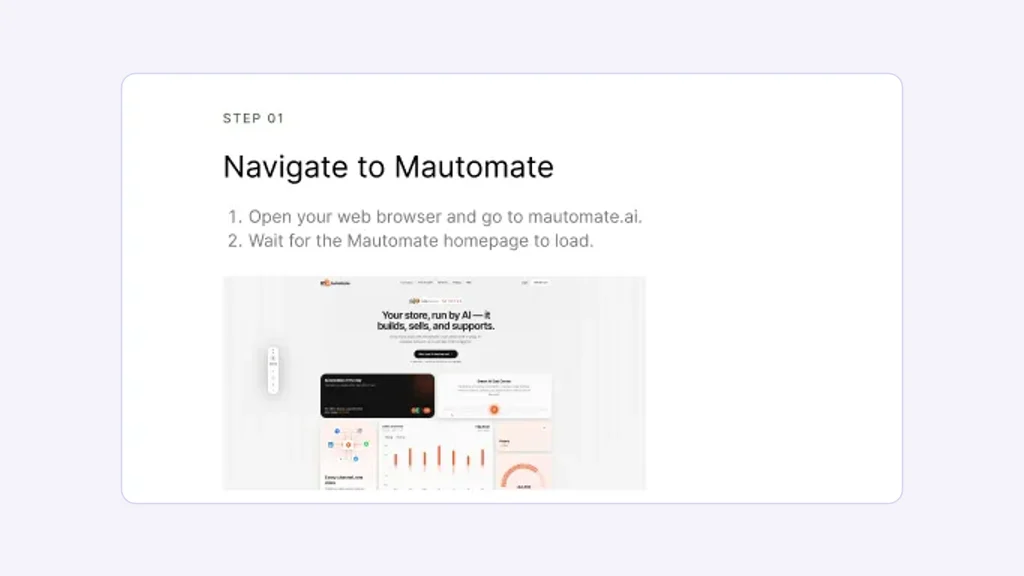
Treat the guide as the body of a how-to article, not the whole article. A recording knows which buttons were clicked; it does not know who the article is for, which plan it applies to, or what to do when an invitation bounces. The title, summary, before-you-start list and problems table still come from you, which is why the template keeps them. You correct the draft by editing steps rather than a timeline: reorder, merge, split or delete them and rewrite their text, then download the guide as a PDF.
Paste the steps, link the share page, or put it in an iframe
There are three ways to get the result into your help center. Paste the step text into the article, with the screenshots where they help, so the words live in your own knowledge base. Link to the share page, which plays the video and can carry the step-by-step guide, and which you can open to anyone, to anyone with the link, or only to your organization. Or show the share page inside the article: share pages are served without the headers that stop other sites from framing them, so your help center can display one in an iframe. There is no ready-made embed code, so you or your help desk's embed field supplies the iframe tag.
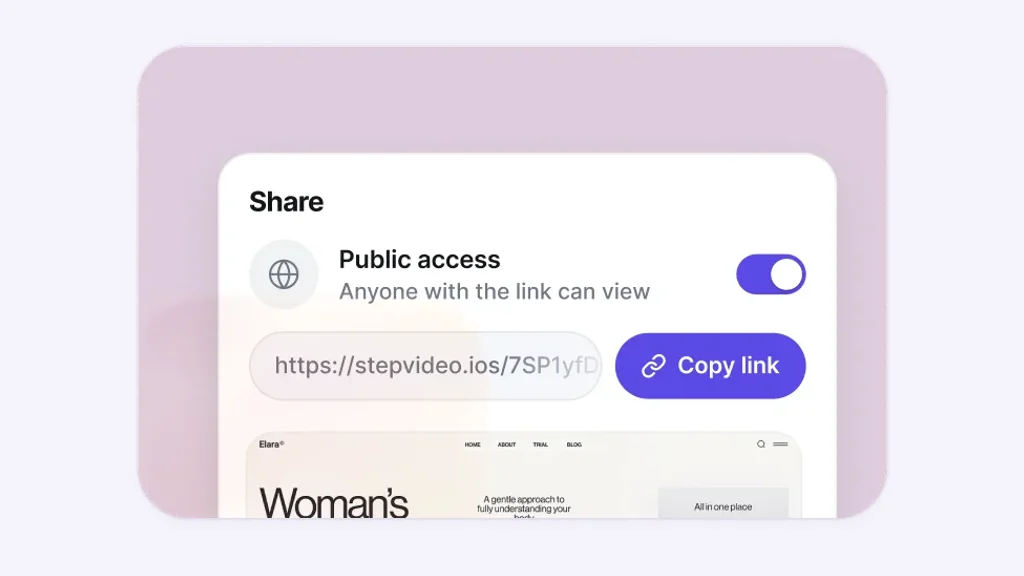
One caution if search traffic matters to you: share pages tell search engines not to index them, so their words do not count toward your help center's rankings. Keep the summary and the written steps in the article itself, and let the video or the framed page show the clicks. If your readers speak different languages, stepvideo transcribes 96 languages and publishes narration in 58, and its share pages offer each translated version, so one recording can serve each language of the article. On the Studio plan, Knowledge Base portals also publish chosen guides as a branded help center of their own, with a search box for readers. Plans are on the pricing page.
Knowledge base best practices that keep articles useful
The best practices that matter most keep an article findable, correct and short: write titles for search, keep one topic per article, review on a schedule and measure which articles fail. Most struggling knowledge bases did not start with bad articles. Their articles went out of date one release at a time.
- Write titles for search. Use the customer's words, not your feature names. Your help center's search log shows the exact phrases people type.
- Keep one topic per article. A long article that covers five tasks is hard to find and harder to keep current. Link small articles together instead.
- Put the answer first. The summary is the part most people read, and the part search engines and AI answers are most likely to quote.
- Review on a schedule, and whenever the product changes. Give every article a review date, and add a line to your release checklist: list the articles this change touches.
- Measure what fails. Searches that return nothing show missing articles. Articles with few helpful votes, or followed by a ticket on the same topic, need rewriting. Articles nobody opens may need a better title.
- Archive rather than leave an article wrong. A wrong article does more damage than a missing one, because the reader trusts it and follows it.
A renamed button or a moved menu breaks a how-to article quietly: readers follow the steps, fail and open a ticket, and nothing in the article warns you. That is why the template puts the owner and the last-reviewed date at the top, where whoever opens the article will see them.
Start with the question your team answers most
Download the template, pick the question your support team answers most often, and write one article for it in the format that fits. Give it to someone new, fix what they stumble on, and publish it with an owner and a review date. Then write the next one from the same template; the structure is already decided, so the second article goes faster than the first.
Frequently asked questions
What is a knowledge base article template?
A knowledge base article template is a fill-in layout for help articles: the parts every article needs, in order, with a note on what goes in each. The free template on this page covers four types, how-to, troubleshooting, FAQ and reference, in Word and PDF, with a filled-in how-to example in both formats.
What should be included in a knowledge base article?
A knowledge base article needs a title in the reader's words, a one- or two-sentence summary with the answer, who the article applies to, what to have ready, and a body of steps, fixes, a short answer or a table. It ends with the result or next step and related articles, and every article also needs an owner and a review date.
How do you write a good knowledge base article?
Start from a question customers really ask, choose the article type that fits it, and write the title and the answer first. Then work through the task yourself, write one action per step with what the reader should see, add cropped screenshots where they help, and test the article on someone who has never done the task before you publish it.
What are the main types of knowledge base articles?
The four most common types are how-to articles for tasks, troubleshooting articles for problems, FAQ articles for short questions and reference articles for facts such as settings, limits or roles. Getting-started guides, glossaries and release notes are variations on those four, built from the same parts and the same rules.
How long should a knowledge base article be?
A knowledge base article should be as long as one task, problem or question needs, and no longer. Many how-to articles run a few hundred words with five to ten steps, and an FAQ answer can be a short paragraph. If an article needs several headings for different tasks, split it into separate articles and link them.
Is there a knowledge base article template in Word?
Yes. The knowledge base article template on this page is a Word (.docx) file with all four formats, and it opens in Microsoft Word, Apple Pages and Google Docs. A PDF version is there for printing, and the filled-in how-to example comes in both formats. Neither download asks for an email address.
Can you create a knowledge base article from a screen recording?
For tasks done in a browser, yes, as a draft. stepvideo turns one screen recording into numbered steps with a screenshot for each and an edited video with voiceover and captions, and its share page can be linked or shown in an iframe. You still write the title, summary, prerequisites and fixes, and you check every step.