

A job aid is a short, quick-reference guide that tells someone how to do a task while they are doing it: the steps in order, the things to check, or what to do in each situation. This page covers what job aids are and are not, the five formats and when each one fits, eight job aid examples, how to create one step by step, and a free job aid template in Word and PDF with a filled-in example.
What is a job aid?
A job aid is a tool that holds the information someone needs to do a task, so they can look it up at the moment of work instead of remembering it. It can be a one-page step list, a checklist, a decision table, a flowchart or a reference sheet, on paper or on a screen.
What sets a job aid apart from training is when it is used. Training happens before the work and tries to put the knowledge in someone's head; a job aid sits beside the work and keeps the knowledge where the person can find it again. In their book Job Aids and Performance Support, Allison Rossett and Lisa Schafer call support used during a task a sidekick, and support consulted before or after it a planner. Most job aids are sidekicks: a step list open beside the screen, a decision table taped next to the phone.
Job aids pay off on tasks that are done rarely, have many steps, change often or cost a lot when done wrong. They also save training time. Instead of drilling every step of a task people do once a quarter, you show them that the job aid exists and how to use it, and let the sheet carry the detail.
What a job aid is not
- Not a course. It does not teach why the work matters or build a new skill. It reminds someone who can already do the task how to do it right.
- Not a manual or an SOP. It covers one task, cut to what the person needs at that moment. The full procedure lives somewhere else, and the job aid can link to it.
- Not a policy. It can apply a rule, the way a decision table does, but the rule itself is decided and owned elsewhere.
- Not a fix for tasks with no time to read. Anything that must happen in seconds, such as an emergency response, has to be practiced until it is automatic.
Download the free job aid template
There are two versions with the same six sections, and a filled-in example of each. Take the Word file if you will edit it on a computer; take the PDF if you want to print it and fill it in by hand.
- Job aid template, Word (.docx): blank, with a short instruction in grey under every heading. It opens in Microsoft Word and Apple Pages, and in Google Docs if you upload it to Drive and choose Open with Google Docs.
- Job aid template, PDF: the same blank template laid out for printing, with ruled tables to write in.
- Filled-in example, Word and as a PDF: a complete job aid for refunding a customer's order, which is example 1 further down this page.
The links go straight to the files, with no email address and no account. Copy them, change them and share them inside your company however you like.
| Section | What goes in it |
|---|---|
| Header | Job aid number, version, who uses it, the related SOP or training, owner, last-checked date, where it lives and the next review |
| 1. When to use this job aid | The task, the moment to reach for this sheet, and what done looks like |
| 2. Before you start | What must be open, ready or true before step 1 |
| 3. Steps | A numbered step list: what to do, and what you should see when it worked |
| 4. Checklist | Yes-or-no checks, with a Done column to tick |
| 5. Decision table | If this, then that, and who to ask, ending with a row for anything not covered |
| 6. Help and changes | Who to ask, how to report a mistake in the sheet, and the revision history |
Few tasks need all three layouts. Delete the ones yours does not need: a password reset is a step list, a review before sending something out is a checklist, and an approval rule is a decision table. The filled-in example keeps all three because refunding an order has a sequence, a set of checks before money moves, and a choice that depends on the situation.
What are the types of job aids?
Most job aids take one of five forms: a step-by-step list, a checklist, a decision table, a flowchart or a reference sheet. Software tasks often add a screenshot per step or a short video. Choose the form from the shape of the task, not from what looks best on the page.
| Format | Use it when | Example | Watch out for |
|---|---|---|---|
| Step-by-step list | The task is a fixed sequence | Reset a user's password | More than about ten steps usually means two tasks |
| Checklist | Several things must all be true, in any order, before work goes out | Checks before sending an invoice | Items that are really steps in a set order |
| Decision table | The right action depends on the situation | Which refunds need approval | Rows that overlap; say which row wins |
| Flowchart | A few yes-or-no questions lead to different actions | Is this email phishing? | More branches than fit on one page |
| Reference sheet | People look facts up rather than follow steps | Order status codes, shortcuts, contacts | Facts that go stale without an owner |
| Screenshots or a short video | A software task where finding the control is the hard part | Request time off in the HR system | Pictures go out of date when the screen changes |
What makes a good job aid format?
- One page or one screen. It is read in the middle of the work. A job aid that runs longer usually holds two tasks, or carries training that belongs somewhere else.
- The task in the title, as a verb phrase, so people pick the right sheet at a glance: Refund a customer's order, not Refunds.
- One action or one check per line, starting with a verb, with buttons and fields named exactly as the screen shows them.
- Warnings before the step they belong to, never after it. By the time someone reads a warning under a step, they have already done it.
- White space and large type, so it can be read at arm's length on a wall, or in a narrow window beside the work.
- An owner and a last-checked date in the footer, so anyone can tell a current sheet from an old printout.
Job aid examples
Each job aid example below is one task in one of the formats above, written the way it would appear on the sheet. They are generic on purpose: system names, amounts and limits are placeholders. Replace them with your own, then paste the result into the template to add the header, the owner and the date.
1. Refund a customer's order (step list, checklist and decision table)
This is the filled-in example file, so you can see every section of the template completed. Used by: support agents. Use it when: a customer asks for their money back on an order. Done when: the order shows the refund and the customer has a reply with the amount.
| Step | Do this | You should see |
|---|---|---|
| 1 | Open the order from the order number in the ticket. | The customer's name and email match the ticket. |
| 2 | Find the customer's situation in the decision table in section 5. | You know whether you can make this refund yourself. |
| 3 | On the order, select Refund. | The refund form opens with the full amount filled in. |
| 4 | For a partial refund, replace the amount with the figure you agreed. | The amount matches the agreed figure, not the order total. |
| 5 | Choose the reason that matches the ticket. | A reason is selected. Other needs a short note. |
| 6 | Run the checklist in section 4, then select Issue refund and confirm. | The order shows Refund pending. |
| 7 | Reply with the amount and when it should arrive, using the Refund sent macro. | The reply is in the ticket's sent messages. |
| 8 | Add the tag refund-issued and set the ticket to Solved. | The ticket shows Solved. |
| Check | Notes |
|---|---|
| The order number on the refund form matches the ticket. | |
| The amount is the amount you agreed with the customer. | For a partial refund, it is not the order total. |
| The refund goes back to the original payment method. | Never to a different card or account. |
| You have approval, if the decision table asks for it. | Put the approver's name in an internal note. |
| The reason matches what the customer asked for. |
| If | Then | Ask |
|---|---|---|
| The customer says they did not place the order | Stop. Do not refund. Report it as possible fraud. | Payments team, through the fraud form |
| The order already shows Refund pending or a completed refund | Do not refund again. Tell the customer the date of the first refund. | No one |
| The order was paid more than 30 days ago | Do not refund. Offer the options in SOP-SUP-007, section 4. | Support team lead, if the customer disputes it |
| The refund is more than $100 | Get approval before step 3 and note the approver's name on the ticket. | Support team lead |
| The refund is $100 or less | Make the refund yourself with the steps in section 3. | No one |
| Anything this table does not cover | Stop and ask before you refund. | Support team lead |
Why the rows are in that order: a refund over the limit could also be a fraud case, and only one answer can be right. Putting the rows that stop the work at the top, and telling the reader to take the first row that matches, settles every overlap before it happens.
2. Reset a user's password (step list, IT help desk)
Used by: the IT help desk. Use it when: someone cannot sign in and asks for a new password.
- 1Confirm who is asking: call them back on the number in the company directory, not a number given in the request.
- 2In the admin console, open Users and search for their work email address.
- 3Select Reset password and tick Ask the user to change it at next sign-in.
- 4Give them the temporary password on that call. Never send it to the address the request came from.
- 5Stay on the call until they sign in and set a new password, then note the time of the reset on the ticket.
Watch for: a reset requested from an address or number you cannot verify. Step 1 exists because a password reset handed to the wrong person hands over the account.
3. Send a customer invoice (checklist, finance)
Used by: whoever bills customers. Use it when: an invoice is ready and about to go out. Every line must be a yes before you select Send.
- The customer's legal name and billing address match the contract.
- The purchase order number is on the invoice, if the customer uses them.
- Quantities and prices match the order or the signed quote.
- Tax is applied for the customer's country or state.
- The due date follows the payment terms in the contract.
- It goes to the billing contact on file, not to whoever asked for a copy.
Why a checklist: none of these checks depends on another, so the order does not matter. What matters is that none is skipped, which is exactly what a checklist is for.
4. Route a new support ticket (decision table, support)
Used by: whoever triages the support queue. Use it when: a new ticket arrives with no tag. Read from the top and use the first row that matches.
| If the ticket is about | Send it to | Priority |
|---|---|---|
| Many customers unable to sign in or use the product | The on-call engineer, then post in the incident channel | Urgent |
| A charge, a refund or an invoice | The billing queue | Normal |
| One person who cannot sign in | Tier 1 support | Normal |
| A request for a new feature | The product feedback form; thank the customer and close the ticket | Low |
| Anything else | The Tier 1 lead, who decides | Normal |
5. Check a suspicious email (flowchart, all staff)
Used by: every employee. Use it when: an email asks you to do something and anything about it feels off. Drawn as boxes and arrows it is a flowchart; written down it reads like this:
- 1Were you expecting this email from this sender? If yes, go to 2. If no, go to 3.
- 2Does it ask you to sign in, pay, change bank details or open an attachment you did not ask for? If no, carry on. If yes, go to 3.
- 3Do not click anything in it. Use the Report phishing button in your email app, or forward it to the security team's address.
- 4If you already clicked a link or typed a password, change that password now and tell the IT help desk straight away.
6. Order status codes (reference sheet, support)
Used by: support agents. Use it when: a customer asks where their order is. Nobody follows a reference sheet from top to bottom; they find the line they need.
| Status | What it means | Tell the customer |
|---|---|---|
| Awaiting payment | The payment has not cleared. | Ask them to check their payment method; the order is held, not cancelled. |
| Processing | Paid, and being packed or prepared. | It ships within the time shown at checkout. |
| Shipped | Handed to the carrier, with a tracking number. | Send the tracking link from the order. |
| On hold | Stopped for a check, such as an address problem. | Say what is needed and when you will update them. |
| Returned to sender | The carrier could not deliver it. | Confirm the address and offer to send it again. |
7. Request time off in the HR system (screenshot per step, all staff)
Used by: every employee, a few times a year, which is exactly why nobody remembers how. Use it when: you want to book leave. Each step sits beside a screenshot cropped to the menu or button it names.
- 1Open the HR system and select Time off in the main menu.
- 2Select Request time off and choose the type of leave.
- 3Pick the first and last day, and mark any half days.
- 4Check the remaining balance shown on the form before you submit.
- 5Select Submit. The request appears in your list with the status Pending.
Why pictures: the task is easy but rare, and the hard part is finding the right menu. A cropped screenshot beside each step answers “where is that?” before anyone has to ask.
8. Export the monthly sales report (short video plus steps, sales operations)
Used by: a sales operations analyst, once a month. Use it when: the month has closed and the report is due. A one-minute narrated video shows the filters being set the first time; the written steps underneath are what people use every month after that.
- 1In the CRM, open Reports and select the saved report Monthly sales.
- 2Set the date range to last month.
- 3Check the owner filter says All, not just you.
- 4Select Export and choose the spreadsheet format.
- 5Save the file in the shared Sales reports folder, with the month in its name.
Watch for: step 3. A report that quietly shows only your own deals looks complete, which is why the check is written down.
How do you create a job aid?
To create a job aid, confirm that a job aid is the right fix, pick one task and one reader, watch the task being done, choose the format from the shape of the task, draft it short, test it on someone new and publish it where the work happens. Here are the seven steps in order.
- 1
Check that a job aid is the right fix
Ask what goes wrong today. If people know how to do the task but forget a step, mix up the order or meet a situation they rarely see, a job aid helps. If they lack the skill, the tool is broken or there is no time to read, it will not.
- 2
Pick one task and one reader
Name the task as a verb phrase, such as Refund a customer's order, and the person who will use the job aid. A job aid for everyone and every case turns into a manual nobody opens.
- 3
Watch the task done, or record it
Sit with someone who does it well and note every action, screen and choice, including the ones they no longer notice they make. For a task done on a screen, a recording catches every click and gives you the screenshots.
- 4
Choose the format from the shape of the task
A fixed sequence becomes a step list. Things that must all be true become a checklist. A choice that depends on the situation becomes a decision table, a chain of yes-or-no questions becomes a flowchart, and facts people look up become a reference sheet. Many job aids combine two.
- 5
Draft it short
One action per line, starting with a verb, with labels exactly as the screen or the part shows them. Cut background and reasons unless they stop a mistake; the rest belongs in training or the SOP.
- 6
Test it on someone new, at the real moment
Ask someone who has never done the task to use the job aid for a real one while you watch without helping. Every pause, wrong click or question marks a line to rewrite.
- 7
Publish it where the task happens, with an owner and a date
Pin it in the tool, link it from the help desk or post it at the workstation. Put the owner and the last-checked date on it, and update it the day the screen or the rule changes.
For wording individual steps, see how to write step-by-step instructions. For the longer, controlled version of a task, with a check on every step, see how to write work instructions.
What does a job aid for software look like?
A software job aid is usually a numbered list of steps with a screenshot of each screen, cropped to the button or field the person has to find, and a line that says what they should see when the step worked. Some teams add a short video for the first time someone does the task and keep the written steps for every time after.
The slow part of making one by hand is the pictures: doing the task, taking a screenshot at every step, cropping each one, numbering them, and doing it all again the next time the screen changes. That part a recording can do for you.
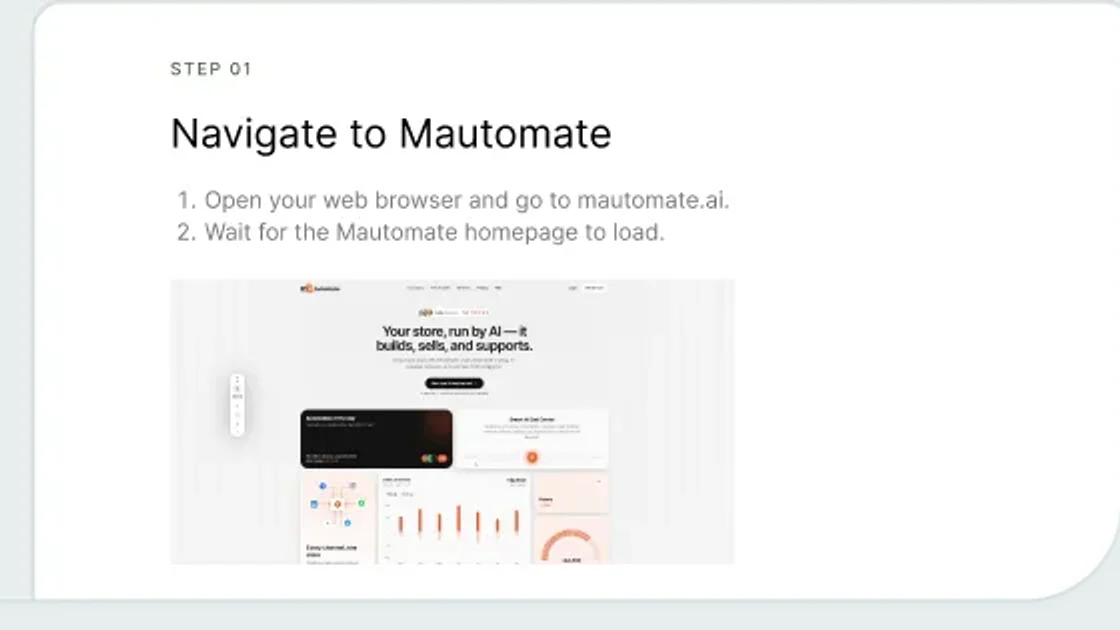
This is where stepvideo.io fits, for tasks done in a browser. You record the task once with the Chrome extension, which records a browser tab, a window or your whole screen; click-accurate editing comes from tab capture with the extension. From that one take it writes a step-by-step guide in which every step gets a numbered heading, a short instruction and a screenshot from that step with the control you clicked highlighted. You edit the guide in the browser, then share it or download it as a PDF. That guide is a ready-made job aid in the step-list format.
The same recording also becomes the show-me version: an edited how-to video with AI voiceover and captions that zooms in on each control as it is clicked. The guide is what people keep open beside the work; the video is for the first time through.
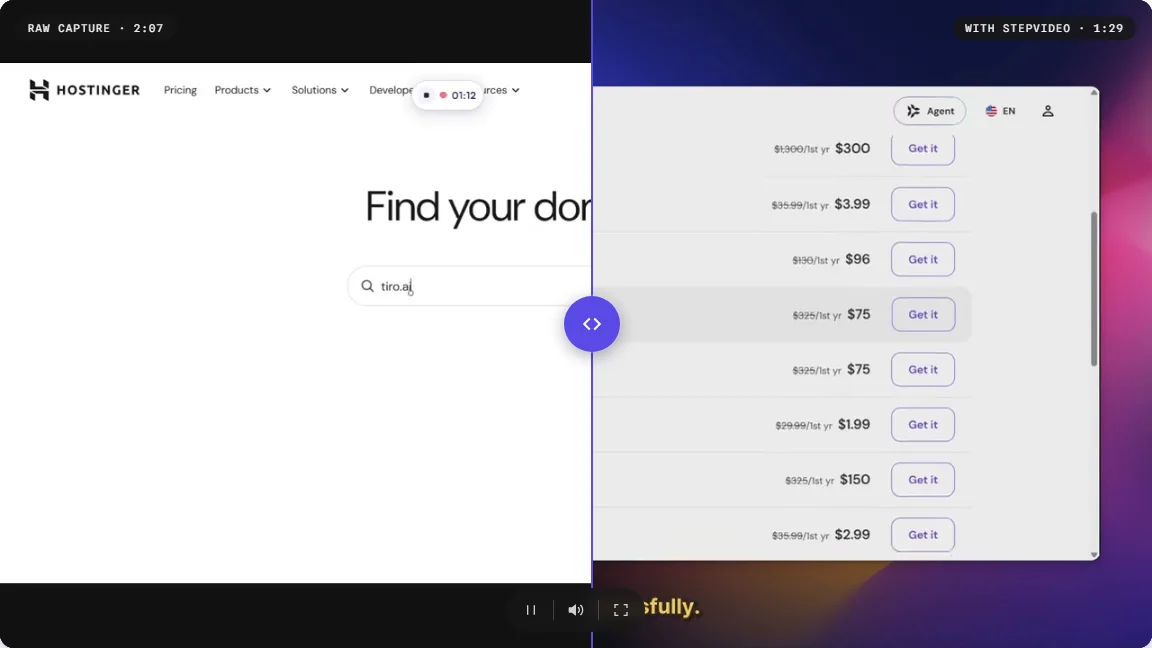
Treat what comes out as a draft job aid. A recording knows the clicks; it does not know when someone should reach for the job aid, which cases need a manager, or what to do when the screen shows something unexpected. Those are sections 1, 5 and 6 of the template, and they come from you. Paste the guide's steps or its link into section 3, add the decision rows, and the job aid is complete. If the people doing the task read different languages, stepvideo transcribes 96 languages and publishes narration in 58, and a translated project gets its own written guide. Plans are on the pricing page, and how it works shows one take becoming both the video and the guide.
Job aid vs SOP, work instruction and training manual: what is the difference?
A job aid is the short reminder someone uses while doing one task; an SOP is the full procedure that says how a piece of work is done, by whom and why. A work instruction sits between them, with every step of one task and a check for each, and a training manual teaches the job before anyone does it.
| Aspect | Job aid | SOP | Work instruction | Training manual |
|---|---|---|---|---|
| Answers | What do I do right now? | How is this work done here, by whom and why? | How do I do this one task correctly? | What do I need to learn for this job? |
| Used | During the task | When setting up, changing or auditing the work | Before and during the task | Before the job, in training |
| Length | One page or one screen | Several pages | One or two pages | Many pages, in chapters |
| Typical format | Step list, checklist, decision table, flowchart or reference sheet | Purpose, scope, roles, procedure and controls | A steps table with a check for each step, often with pictures | Lessons, exercises and reference sections |
| Example | A one-page refund job aid linked from the help desk | Handle refund requests | Issue a refund in the billing system | The support team's manual for new starters |
The lines blur, and many teams use job aid and work instruction for the same thing. Where they differ, the work instruction is the controlled record of how a task must be done, and the job aid is the shortest thing that gets it done right in the moment, often condensed from one work instruction or one part of an SOP. For those documents, see what an SOP is, the free SOP template and the work instruction template. For the teaching side, see our guide to training videos.
Where should a job aid live?
A job aid should live where the task happens, one click or one glance away: linked inside the tool, attached to the screen where people get stuck, or printed at the workstation. If people have to search an intranet for it, they will ask a colleague instead.
- In the tool: link it from the help desk macro, the form or the page where the task starts.
- At the desk or bench: print it, put it in a sleeve and post it where the work is done, with the last-checked date visible.
- In training: hand it out during training and practice with it, so people know it exists before they need it.
- In one place only: keep a single source and link to it, so an old printed copy can be spotted and replaced.
Then keep it current. Review it on a schedule and update it the day the screen or the rule changes. A job aid that is wrong once stops being trusted, and people go back to asking the person at the next desk.
Start with the task people ask about most
Pick the task your team asks about most, watch it done once, and write the job aid on one page in the format the task needs. Put it where the task happens, give it an owner and a date, and fix it the first time someone stumbles. Then copy the template for the next task; the layouts are already decided, so the second one goes faster.
Frequently asked questions
What is a job aid?
A job aid is a quick-reference tool that holds the steps, checks or decisions for a task, so a person can look them up while doing the work instead of memorizing them. Common forms are a one-page step list, a checklist, a decision table, a flowchart or a reference sheet, printed at the workstation or linked inside a tool.
What is an example of a job aid?
A refund decision table is a typical job aid. It sits beside a support agent's screen and says, row by row, which refunds the agent can make alone, which need a team lead's approval and which must stop because they look like fraud. Others include a password-reset step list, an invoice checklist and an order-status reference sheet.
Is it job aid or job aide?
Job aid is the usual spelling. An aid is a thing that helps, such as a tool or a sheet of instructions, while an aide is a person who assists someone, such as a teacher's aide. A document that helps someone do a task is therefore a job aid, and the plural is job aids.
What is another word for job aid?
Teams also call them quick reference guides, quick reference cards, cheat sheets, tip sheets or desk aids, and the wider field they belong to is called performance support. The names differ but the idea is the same: a short tool someone uses during a task, as opposed to training taken before it or a manual read once.
What is the difference between a job aid and an SOP?
An SOP sets out how a piece of work is done across a team: its purpose, scope, roles, steps and controls. A job aid is the short version someone uses while doing one task, often one page condensed from the SOP or a work instruction. The SOP is the record; the job aid is the reminder at the moment of need.
Is there a free job aid template in Word?
Yes. This page offers a free job aid template as a Word .docx file and as a PDF, with no sign-up. It has a step list, a checklist and a decision table under a header for the owner and the last-checked date, plus a filled-in example for refunding a customer's order in both formats.
How long should a job aid be?
One page or one screen is the usual target, because a job aid is read in the middle of the work. If it runs longer, the task is probably two tasks, or the job aid is carrying background that belongs in training or the SOP. Split it, or move the reasons out and keep only what the person needs to act.
Can you make a job aid from a screen recording?
For tasks done in a browser, yes, as a first draft. stepvideo turns one screen recording into a numbered step-by-step guide with a screenshot for each step, which you can download as a PDF, and a narrated video of the same task. You still add when to use it, the decisions, the warnings and who to ask for help.