
End user training teaches the people who will use a new system, such as a CRM, an ERP or an HR platform, to do their own jobs in it. It works when it is planned by role and task, delivered close to go-live, built from short materials people can find again, and backed by extra support in the first weeks after launch. This guide gives you a rollout plan by phase, the methods and materials each phase needs, an example plan, what changes for an ERP, how to keep the materials current when the software changes, and how to tell whether the training worked.
What is end user training?
End user training is the part of a software rollout that teaches the people who use the system day to day how to do their work in it. End users are the sales reps who log calls in the CRM, the clerks who post invoices in the ERP and the managers who approve requests in the HR system. They are not the project team that chose and configured it. The goal is easy to state: on the first day the system is live, each person can do their own tasks without stopping to ask.
That makes it different from a product tour. A tour shows what a system can do; end user training shows one person how to do their job in it, step by step, in the screens they will actually see. It is usually needed at three moments: when a new system goes live, when a major upgrade changes the screens, and every time someone new joins after launch.
End user training vs user acceptance testing
User acceptance testing (UAT) checks that the system works for the business before it goes live: chosen users run real scenarios and report what fails. End user training comes after it, or alongside it, and teaches everyone to use the system that passed. The two often share people, because good pilot users make good testers. Keep the sessions apart anyway. Testers who are also teaching start passing on workarounds, and trainees learn steps that change once the test findings are fixed.
What this guide does not cover
Searches for end user training also turn up security awareness courses about phishing and passwords, often called end user security training. That is a different subject. This guide is about teaching people to use a new or changed business system. It also leaves out training for the administrators who configure the system, which usually comes from the vendor.
Why does a classroom session on its own fall short?
Because knowing how to do a task and being able to do it are different things, and one session before launch mostly delivers the first. Prosci's ADKAR model of individual change has five elements: Awareness, Desire, Knowledge, Ability and Reinforcement. It separates Knowledge, knowing how to change, from Ability, putting new skills and behaviors into practice. A training session can supply knowledge. Ability comes from doing the real task, and reinforcement from help that is still there in week three.
Timing matters too. Hermann Ebbinghaus measured how fast he forgot lists of nonsense syllables, and in 2015 Jaap Murre and Joeri Dros repeated his experiment, again with a single subject, and got results similar to his: memory dropped fastest soon after learning, and the forgetting slowed as time went on. Software is not nonsense syllables, so read the curve as a direction, not a number. Training given a month before anyone touches the new system is likely to have faded by launch day, unless people practice and have something to look things up in.
The fix follows from both points. Train each role close to go-live, make hands-on practice the main part of the training, and leave behind materials people can open in the middle of a task.
What are the main end user training methods?
The main end user training methods are live sessions led by a trainer, self-paced courses, short task videos, written guides and job aids, hands-on practice in a training environment, in-app guidance, and help from super users on the floor. No single method covers a rollout. A common mix is live sessions and practice before go-live, and videos, guides and super users after it.
| Method | Best for | Weak spot | When the screens change |
|---|---|---|---|
| Live sessions, in person or online | Complex processes, questions, the week before go-live | Hard to schedule across shifts and time zones; fades without practice | Run the session again |
| Self-paced course in an LMS | Large groups that need a record of who finished | Slow to build; tends to become a feature tour | Rebuild and republish the course |
| Short task videos | Showing exactly where to click, for remote and shift workers | Hard to search inside | Re-record the one task that changed |
| Written guides and job aids | Looking up a step in the middle of the work | Text alone can leave people hunting for the button | Edit the step and its screenshot |
| Practice in a training environment | Turning knowledge into ability, with safe mistakes | Needs realistic data and setup time | Refresh the environment |
| In-app guidance (digital adoption platforms) | Prompts inside the screen at the moment of need | Another platform to buy and maintain | Fix each guided flow that broke |
| Super users and floor support | Launch week, unusual cases and confidence | Takes people away from their own work | Brief the super users first |
Choose the method task by task. A task everyone does daily gets a live demo, practice and a video. A task done once a quarter gets a written guide or a job aid that people open when the day comes. A task that is costly to get wrong gets practice in the training environment before anyone does it for real.
What should an end user training plan include?
An end user training plan says who needs training, on which tasks, by what method, when, from whom, where the materials will live, how people get help after go-live and how you will know it worked. Keep it to one page per rollout, with the roles and their tasks listed underneath.
| Part | What it answers | Example |
|---|---|---|
| Roles | Who uses the system, and how differently? | Sales reps, sales managers, sales operations admins, and finance staff who only read invoices |
| Tasks per role | What does each role do in week one, ranked by frequency and risk? | Reps: log a call, move a deal to the next stage, create a quote. Managers: review the pipeline, approve a discount |
| What changes | Which tasks work differently from the old way? | Quotes now need products from the price list instead of free text |
| Methods and materials | How is each task taught, and where is it looked up? | A live demo and practice for daily tasks; a short video and written steps for every task; a one-page job aid for discount approvals |
| Schedule | When does each group train, counted from go-live? | The pilot team four weeks before; every role in the last week; hypercare for four weeks after |
| Trainers and super users | Who teaches, and who answers questions at people's desks? | One trainer from sales operations and one super user in each sales team |
| Where materials live | What single link do people use? | One intranet page, linked from the CRM's home screen, with a section per role |
| Support after go-live | Where do questions go, and who fixes the materials? | Daily office hours for the first two weeks, a chat channel and a ticket tag for how-to questions |
| Measures | How will you know it worked? | How-to tickets per user per week, deals updated in the CRM instead of the old spreadsheet, quotes sent with errors |
How do you train employees on new software?
To train employees on new software, list the tasks each role will do, find what changed from the old way, recruit super users, build short materials for each task, test them on a pilot group, train every role close to go-live with hands-on practice, support people closely after launch, and keep measuring. The eight steps below follow that order.
- 1
List each role's tasks
Start from the work, not the menu. For every role, write down the tasks they will do in the new system in their first week, then rank them by how often they happen and how costly a mistake would be. Train the top of each list; the rest can wait for the written guides.
- 2
Find what changed
For each task, put the old way next to the new way. Tasks that changed a lot, or that people did from memory in the old system, need the most practice. Note every renamed field and moved button, because those cause most of the early questions.
- 3
Recruit super users
Pick one person per team who is respected and curious, and train them first. They test the materials, answer questions at their colleagues' desks after launch, and tell you what is not working before it shows up in tickets.
- 4
Build a small set of materials for each task
For each task, make a short video of someone doing it, written steps with a screenshot per step and, for rare or risky tasks, a one-page job aid. Record in the training environment with realistic but invented data, so nothing private appears and the screens match what people will see.
- 5
Pilot the materials with real users
Give the pilot group real tasks and the draft materials, then watch without helping. Every pause, wrong click or question marks a line to rewrite before everyone else sees it.
- 6
Train each role close to go-live
Hold short, role-based sessions in the last week or two before launch. Spend most of the time on practice: each person does their own top tasks in the training environment while the trainer and the super users help.
- 7
Support people closely after launch
Plan for hypercare: super users on the floor, daily office hours and one place to ask. Tag how-to tickets by task so you can see which tasks confuse people, and fix those materials the same week.
- 8
Measure, then keep the materials current
Watch tickets, real use of the system and error rates rather than attendance. After hypercare, give each material an owner and review it whenever the vendor changes the screens it shows.
People who join after launch need the same task materials as part of their onboarding. Our guide to employee onboarding videos covers that side.
How should you time training around go-live?
Train in phases: prepare the materials while the system is configured, pilot them a few weeks before launch, train every role in the last week or two, then support people closely for the first two to four weeks after go-live. That last phase is called hypercare, and much of the real learning happens there, because people are finally doing their own work in the system.
| Phase | Typical timing | Who | What happens | Materials |
|---|---|---|---|---|
| Prepare | While the system is configured and tested | Project team, trainers, super users | List roles and tasks; record and write materials in the training environment | A task list per role, draft videos and guides |
| Pilot | Three to four weeks before go-live | Pilot users and super users | Do real tasks with the draft materials; fix whatever confuses people | Draft materials and a short feedback form |
| Role training | The last week or two before go-live | Every role | Short sessions on each role's own tasks, mostly hands-on practice | Final videos and guides, practice exercises, job aids |
| Go-live | Launch day and the first week | Everyone | Super users on the floor; one link to every material | Job aids at hand, a what-changed sheet, the role pages |
| Hypercare | The first two to four weeks | Super users, trainers, IT support | Office hours, tagged tickets, daily fixes to the materials | An FAQ built from real questions, updated guides |
| Steady state | After hypercare | New hires, and everyone at each release | Onboarding; updates when the screens change | The same task library, kept current |
These timings are a common pattern, not a rule. A small team adopting a simple tool can fit all of it into two weeks; a company-wide ERP rollout may repeat the phases for each site or wave. What stays the same is the order, and that the training sits close to the moment people need it.
What training materials does each role need?
Each role needs a short list of its own tasks, and each task needs three things: a short video for the first time, written steps with screenshots for every time after, and a job aid if the task is rare or easy to get wrong. Put them behind one link per role, so nobody has to search.
- A role page. One page per role that lists its tasks in the order people meet them, each linked to its video and guide. It is the first thing people open and the thing super users point to.
- Short task videos. One task per video, usually one to three minutes, recorded in the real screens with narration and captions. They answer “show me where” better than any text. Our training videos guide covers how to make them, and the software training videos guide how to grow a library of them.
- Written step-by-step guides. The same task as numbered steps with a screenshot each, so people can skim, search and keep it open beside the work. For a complete reference, the user manual template gives the structure.
- Job aids. A one-page checklist, step list or decision table for tasks that are rare or risky, such as month-end steps or approval rules. See what a job aid is and how to make one.
- A what-changed sheet. The old way on the left and the new way on the right, for every task that moved. Experienced staff need this more than a full course.
- Practice exercises. A few realistic scenarios per role to do in the training environment, each with the expected result, so people can check their own work.
- An FAQ built from real questions. Start it during the pilot and add to it every day of hypercare.
How do you keep training materials current when the software changes?
Keep every material small, record which screens each one shows, give it an owner, and read the vendor's release notes before each update. When a screen changes, you then update only the tasks that show it, instead of rebuilding a course nobody has time to fix.
- One task per material. A ten-minute overview breaks every time anything moves. A one-task video breaks only when its own screens change, and it is quick to redo.
- An inventory. A plain list of materials with the screens and fields each one shows, its owner and the date it was last checked.
- A release check. Cloud software changes on the vendor's schedule. Read the release notes when they arrive, mark the materials they affect, and fix those before the update reaches users if you can.
- Stable links. Keep one link per material, so the copies in the intranet, the LMS and old emails all lead to the current version.
- A date on everything. A visible last-checked date tells people whether to trust what they are reading.
ERP end user training: what is different?
ERP end user training is process training as much as screen training. One transaction in an ERP touches several departments, so people need to know what happens before and after their own step, not only which fields to fill in. Train by end-to-end process, practice on a training system loaded with realistic data, and rely on super users from each department.
- Teach the process before the screens. Walk through the whole flow, such as order to cash or procure to pay, so a buyer understands why the receiving clerk needs the purchase order number exactly as it was entered.
- Train per role, because each role sees different screens. ERP permissions mean two people in the same transaction may see different menus and fields. Record and write materials from each role's own view.
- Practice on realistic data. Use customers, items and prices that look like the real ones. Training on empty or made-up-looking data hides the errors people will meet on day one.
- Rehearse the rare tasks. Month-end close, returns and year-end come weeks after go-live, when the training is a memory. Give them their own job aids and a short refresher just before the first one.
- Explain the new codes. New account codes, item numbers and status values cause as many errors as new screens. A one-page reference sheet prevents a lot of tickets.
The same holds for most enterprise software training, such as a new HR system or a CRM: the more departments a transaction crosses, the more the training has to explain the process and not just the clicks. IT user training follows the same plan when the change is a tool everyone uses, such as a new service portal or sign-in method. The audience is simply wider, so the role pages and the short videos carry more of the load than live sessions can.
How do you measure end user training?
Measure what people do after the training, not how many attended it. The Kirkpatrick Model gives a useful frame with four levels: reaction, learning, behavior and results. Its behavior level asks whether people perform the critical behaviors in their own work, and its results level whether the outcomes the organization wanted actually happen. For a rollout, those two matter most: are people doing their work in the new system, and is it getting done with fewer questions and errors?
- How-to tickets per user per week. Expect them to rise at launch and fall steadily through hypercare. Tag them by task to see which materials need work.
- Work done outside the system. Spreadsheets, emails and paper forms the new system was meant to replace are the clearest sign people have not adopted it.
- Errors and rework. Records with missing fields, transactions reversed, approvals sent to the wrong person.
- Time to do a task alone. For people who join after launch, the day they first complete each key task without help.
- A task check. Ask a sample of users to do a real task while someone watches. It shows more than any quiz score.
- Use of the materials. Which videos and guides people open, and a one-question “Did this help?” beside each one.
Completion rates from an LMS tell you who pressed play, not who can do the job. Use them to find materials nobody opens, and judge the training by the signals above.
Where does stepvideo fit in end user training?
stepvideo.io makes the task materials: the short video and the written guide for each task, from one screen recording. It suits systems that run in a browser, such as the many CRMs, HR systems and ERPs with a web interface. You record a task once with the Chrome extension, which records a browser tab, a window or your whole screen; click-accurate editing comes from tab capture with the extension.
From that one take, stepvideo edits a video that zooms in on each control you click, speeds through the waiting, adds an AI voiceover written for each step and burns in word-by-word captions. It also writes a step-by-step guide in which every step gets a numbered heading, a short instruction and a screenshot from that step. You edit the guide in the browser, download it as a PDF, and can publish the video and the guide together on a share page.
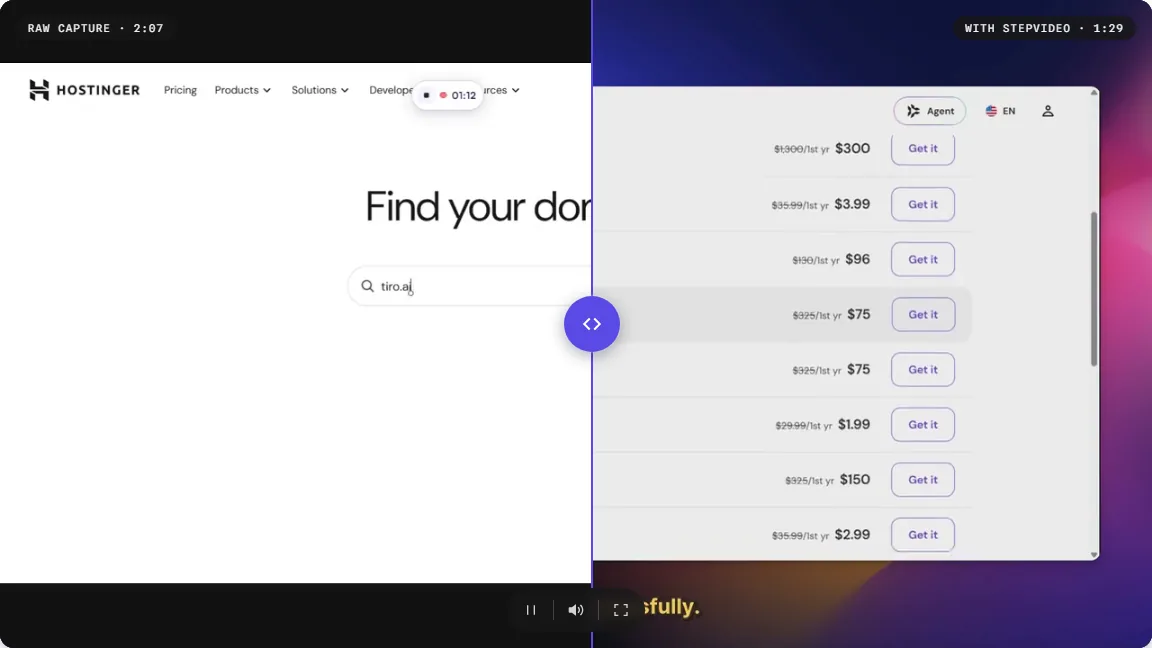
Here is real output. We recorded a domain search on Hostinger's website, a task with typing, clicks and waiting, much like a task in a business system. The raw capture ran 2:07. The finished video stepvideo edited from the same take runs 1:29, with the zooms, voiceover and captions added. Both play side by side on our homepage.
For staff who work in different languages
If your users read different languages, stepvideo transcribes 96 languages and publishes narration in 58. Translating a project makes a version in another language with its own voiceover, captions and written guide, keeping the original's cuts and zooms, so a site in another country gets the same task materials without a second recording. On a share page, viewers can switch the guide to any language you have translated it into. Have a native speaker check each translation before the rollout.
When the screens change
If only the wording of a step needs to change, rewrite that step's text in the editor; only that step's voiceover and captions are made again. If the screens or the task itself changed, open the project, choose Record again, then Replace this video, and record the task once more: the steps, script and voice are rebuilt from the new recording. Once you export the new version, the project's share link plays it, and the guide on that page always shows your latest edits, so the link on your role pages does not have to change.
Getting the materials to your staff
A share page has three settings: Anyone with the link can view, Anyone can view, and Only your organization can view, which admits only members of your stepvideo workspace. For a rollout to many staff, the link setting is the practical one: put the links on the role pages in your intranet or LMS. Share pages are kept out of search engines, they can be placed inside another page with an iframe, and the Shared Pages list shows how often each one has been opened.
Plans are on the pricing page, and how it works shows one take becoming both the video and the guide.
Training your customers' end users instead?
If you sell the software and the end users are your customers' staff, the same ideas apply with two differences. Nobody can make customers attend, so the materials have to be easy to find at the moment of need, usually in your help center and onboarding emails. And you own the release schedule, so you know before anyone else when the screens will change. Our guides to customer onboarding videos and customer training software cover that side.
What are the most common end user training mistakes?
The common mistakes are training too early, teaching features instead of tasks, giving every role the same session, scattering materials across several places, skipping support after go-live and measuring attendance instead of use. Most software training best practices are these mistakes turned around.
- Training a month before launch. Much of it fades before people ever use it. Train in the last week or two, and let them practice.
- Feature tours. A tour of every menu teaches nothing anyone can do on Monday. Teach the tasks each role does, in the order they meet them.
- One session for everyone. Managers sit through data entry and clerks sit through reporting. Split by role.
- Materials in five places. Slides in an email, videos in a shared drive, guides on a wiki. Give each role one page with one link per task.
- No hypercare. The hard questions come after go-live, when people do real work. Plan the support before launch.
- Never updating. The first vendor update makes some screenshots wrong, and people stop trusting all of them. Give materials owners and review them at each release.
- Measuring attendance. A full room proves little. Count tickets, real use and errors.
Start with one role and its top five tasks
You do not need the whole library before you begin. Pick the role with the most users, list its five most frequent tasks in the new system, and make a short video and written steps for each. Test them on two pilot users, fix what confused them, and you have the pattern for every other role.
Frequently asked questions
What is end user training?
End user training teaches the people who use a business system day to day, such as staff on a new CRM, ERP or HR platform, how to do their own tasks in it. It usually combines live sessions and hands-on practice before go-live with short videos, written guides and extra support after launch, and it repeats for new hires and major updates.
What is the difference between end user training and user acceptance testing?
User acceptance testing checks that a system works for the business before it goes live: chosen users run real scenarios and report failures. End user training teaches everyone to use the system once it has passed. The same pilot users often do both, but keep the sessions separate so testers do not teach workarounds and trainees do not learn steps that later change.
How long before go-live should end user training happen?
Train each role in the last week or two before go-live, after a pilot group has tried the materials three to four weeks out. Training given much earlier tends to be forgotten before people use the system. Keep the materials available afterwards, because much of the learning happens in the first weeks of real use.
What is hypercare in a software rollout?
Hypercare is the period right after go-live, often the first two to four weeks, when the project team gives extra support: super users on the floor, daily office hours, fast answers to tickets and same-week fixes to the training materials. It ends when how-to questions fall back to a normal level and the regular support team can take over.
Who should deliver end user training?
Usually a mix. A trainer or project team member who knows the configured system runs the sessions, and super users from each team support their colleagues after launch. Vendors often train the administrators, but end users learn best from people who know your processes and teach with your own screens, data and terms.
What is ERP end user training?
ERP end user training teaches staff to do their part of business processes, such as order to cash or procure to pay, in a new ERP system. It differs from simpler software training because one transaction crosses departments, so people learn the process as well as the screens, practice on realistic data and get help with rare tasks such as month-end close.
Is end user education the same as end user training?
The terms overlap. End user training usually means teaching people specific tasks in a specific system, often during a rollout. End user education is often used for broader, ongoing learning, and in IT it frequently means security habits such as spotting phishing. If you are launching a new system, the plan you need is end user training.
Can you make end user training videos from screen recordings?
Yes. Record a real run of each task in the training environment, then edit it into a short narrated video with captions and pair it with written steps. stepvideo.io does that editing and writes the step-by-step guide from the same recording, for tasks done in a browser.